Juggling a color picker, font inspector, SEO checker, and screenshot tool across five different extensions? DevKit Pro combines all seven into one lightweight browser extension, so every check, measurement, and capture you need is just one click away.
Introduction: Too Many Tabs, Too Many Extensions
If you build, design, or market websites for a living, your browser toolbar probably tells a story of its own. A color picker here, a font inspector there, an SEO checker squeezed in next to a screenshot tool, and somewhere in the mix, an extension you installed once and now can’t remember the purpose of. Every one of these tools is useful on its own, but together they slow down your browser, clutter your toolbar, and force you to context-switch between five different interfaces just to finish one task.
DevKit Pro was built to solve exactly that problem. Instead of installing seven separate extensions, you install one, and every tool you actually reach for during a normal workday, checking a page’s SEO, inspecting a font, measuring spacing, compressing an image, or grabbing a full-page screenshot, lives behind a single icon.
In this article, we’ll walk through every tool inside DevKit Pro, who it’s built for, and how it fits into a real workflow. If you’re a front-end developer, a web designer, an SEO consultant, or you run a digital agency juggling client sites, this is the kind of extension that quietly saves you a few minutes dozens of times a day, and those minutes add up fast.
What Is DevKit Pro?
DevKit Pro is a free browser extension that bundles seven independent tools into one lightweight package:
- Color Picker — pick any color from any webpage instantly
- Font Inspector — view font family, size, weight, and color
- SEO Analyzer — analyze titles, meta tags, headings, links, schema, and on-page SEO
- Page Ruler — measure element size, spacing, and layout
- Technology Detector — detect CMS, frameworks, libraries, hosting, and other website technologies
- Image Compressor — compress JPG, PNG, and WebP images directly in your browser
- Screenshot & Annotate — capture the visible area, full page, or a selected region, then mark it up with shapes, arrows, text, highlights, and blur
Every tool runs locally inside your browser tab. There’s no account to create and no dashboard to log into, you click the icon, pick a tool, and get an answer in seconds. For anyone who evaluates, audits, or builds websites regularly, that speed difference is the entire point.
1. Color Picker: Grab Any Color in One Click
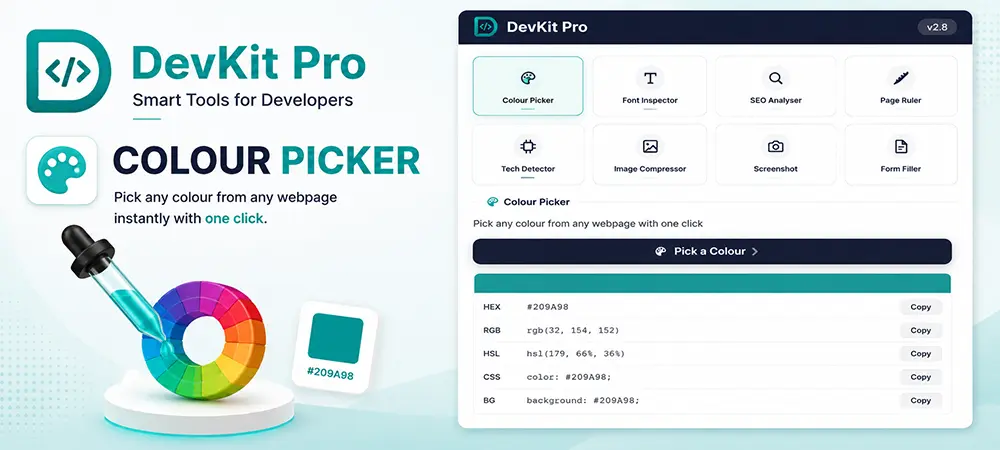
Every design handoff eventually comes down to the same question: what’s the exact hex code of that button, that background, or that border? Instead of opening browser DevTools and digging through computed styles, DevKit Pro’s color picker lets you hover over any pixel on any webpage and instantly read off its color.
The tool gives you the value in HEX, RGB, and HSL formats, keeps a short history of recently picked colors so you can build a quick palette while auditing a page, and copies any format to your clipboard with a single click. It’s a small feature, but it’s the one most designers and front-end developers end up using every single day, whether they’re reverse-engineering a competitor’s brand palette or double-checking that a developer implemented a design system correctly.
2. Font Inspector: Know Exactly What Font You’re Looking At
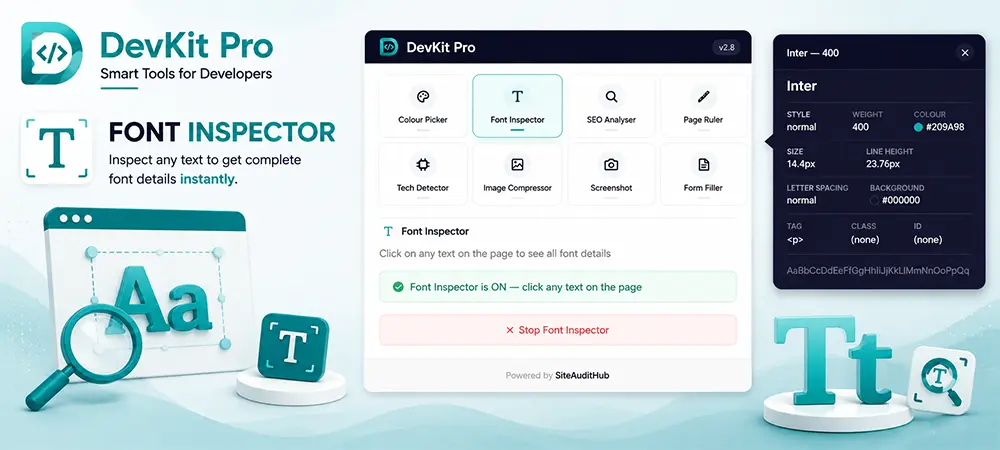
“What font is that?” is one of the most common questions in web design, and it’s usually followed by ten minutes of squinting at DevTools trying to find the right CSS rule. DevKit Pro’s Font Inspector answers it in one click: hover over any text on a page and it shows you the font family, size, weight, line height, letter spacing, and color, all in a clean readout instead of buried inside a stylesheet.
This is especially useful when auditing a client’s existing site before a redesign, or when you’re trying to match typography across a multi-page site that clearly wasn’t built with a consistent style guide (which, if you’ve worked in this industry for more than a year, describes more projects than anyone would like to admit).
3. SEO Analyzer: A Full On-Page Audit Without Leaving the Tab
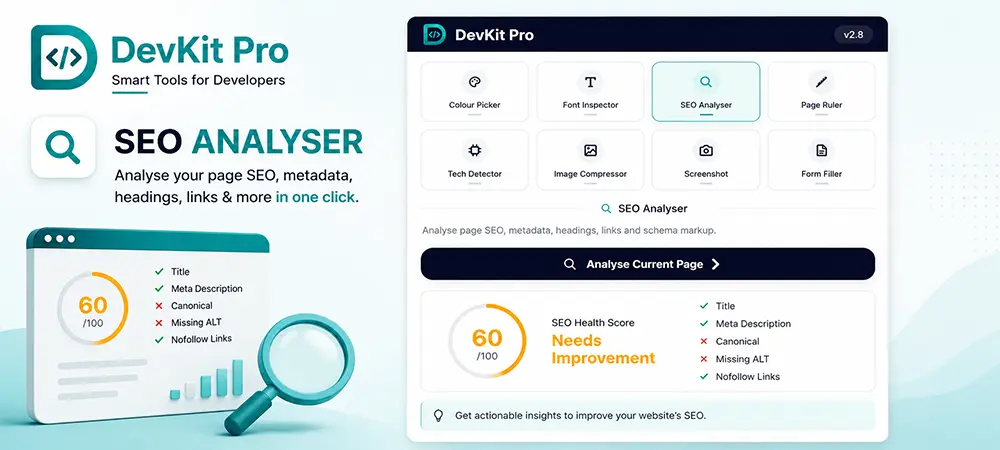
This is the tool that turns DevKit Pro from a handy utility into something SEO professionals and content teams can build part of their workflow around. With one click, the SEO Analyzer scans the current page and reports on:
- Title tag and meta description, including character counts against Google’s display limits
- Heading structure (H1 through H6) so you can spot missing or duplicated headings at a glance
- Image alt text coverage, flagging any images missing accessibility and SEO-relevant alt attributes
- Internal and external link counts, including nofollow links
- Schema.org structured data, Open Graph tags, and Twitter Card markup
- Canonical URL and indexability signals
- An overall SEO health score summarizing all of the above
On top of the core audit, DevKit Pro includes a Google Rank Tracker. When you search on Google, an overlay panel tells you exactly what position your own site is ranking at for that search, without needing to open a separate rank-tracking dashboard or manually count down the results page. For agencies managing multiple client sites, this alone can replace a handful of ad-hoc spreadsheet checks every week.
If your workflow already includes a broader technical SEO checklist, the SEO Analyzer is designed to slot in as the fast, page-level first pass, before you move on to deeper tools for crawling, backlinks, or site speed
4. Page Ruler: Pixel-Perfect Measurements, Instantly
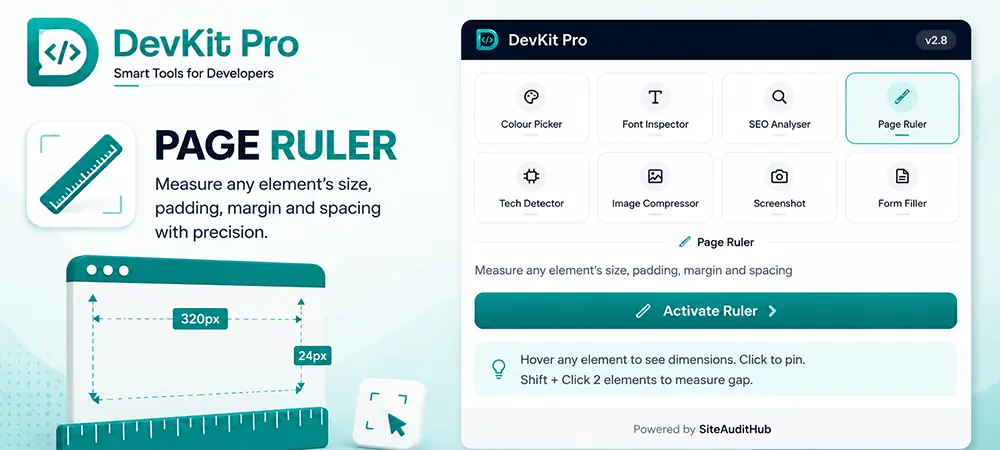
Spacing inconsistencies are one of the most common QA issues in web development, a button that’s supposed to have 24px of padding but has 20px, a section that’s meant to align with the grid but is off by a few pixels. DevKit Pro’s Page Ruler lets you drag a measuring guide across any part of a page and get an exact pixel measurement, horizontally or vertically, without opening the browser inspector.
It’s a simple tool, but it removes an entire category of back-and-forth between designers and developers during QA. Instead of describing a spacing issue in a comment thread, you can measure it precisely and reference the exact number.
5. Technology Detector: Know What Any Website Is Built With
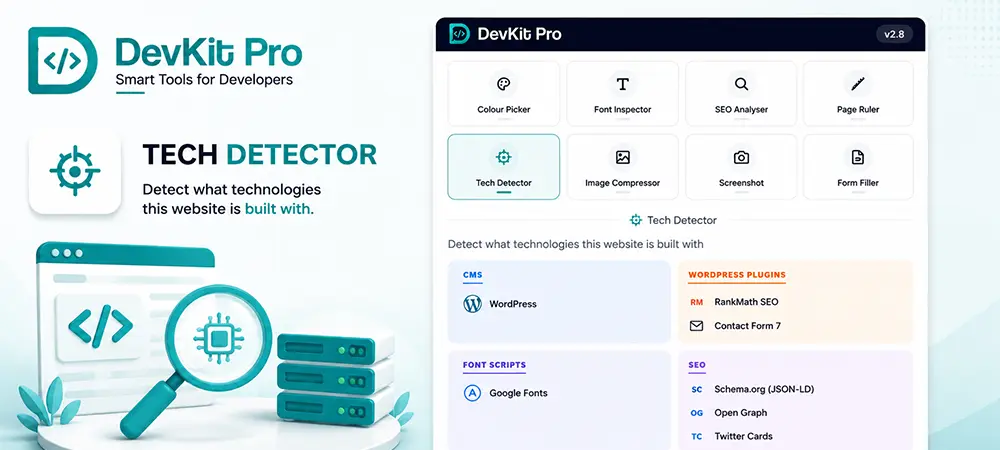
Whether you’re scoping a new client project, researching a competitor, or just curious how a site was built, the Technology Detector scans the current page and identifies the stack behind it, organized into clear categories:
- CMS and page builders (WordPress, Shopify, Elementor, Webflow, and more)
- Frontend frameworks and libraries (React, Vue, jQuery, and others)
- Analytics and tag management tools
- WordPress plugins, SEO plugins, and form builders
- Hosting provider, web server, and CDN, resolved dynamically so it works for virtually any host, not just a handful of well-known names
Each detected technology is shown with its own icon and, where available, its version number, so you get a readable snapshot of a site’s entire technology stack in a few seconds. Agencies use this constantly during discovery calls and proposal writing; being able to say “your current site runs on WordPress with Elementor and is hosted on X” within the first minute of a call builds a surprising amount of credibility.
6. Image Compressor: Smaller Files Without Leaving the Browser
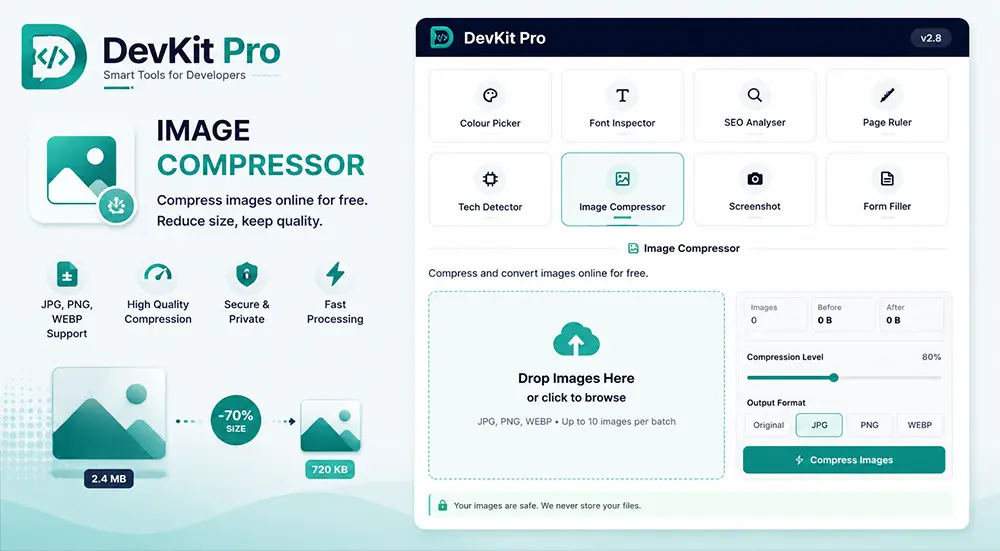
Page speed and Core Web Vitals both come down, in large part, to image weight. DevKit Pro’s Image Compressor lets you compress JPG, PNG, and WebP images right inside your browser, no uploading files to a third-party website and hoping they don’t end up in someone else’s dataset. Drop in an image, adjust the quality slider, and download an optimized version in seconds.
For anyone doing pre-launch site audits, this is a quick way to flag and fix oversized hero images before they tank a PageSpeed score.
7. Screenshot & Annotate: Capture, Mark Up, and Share
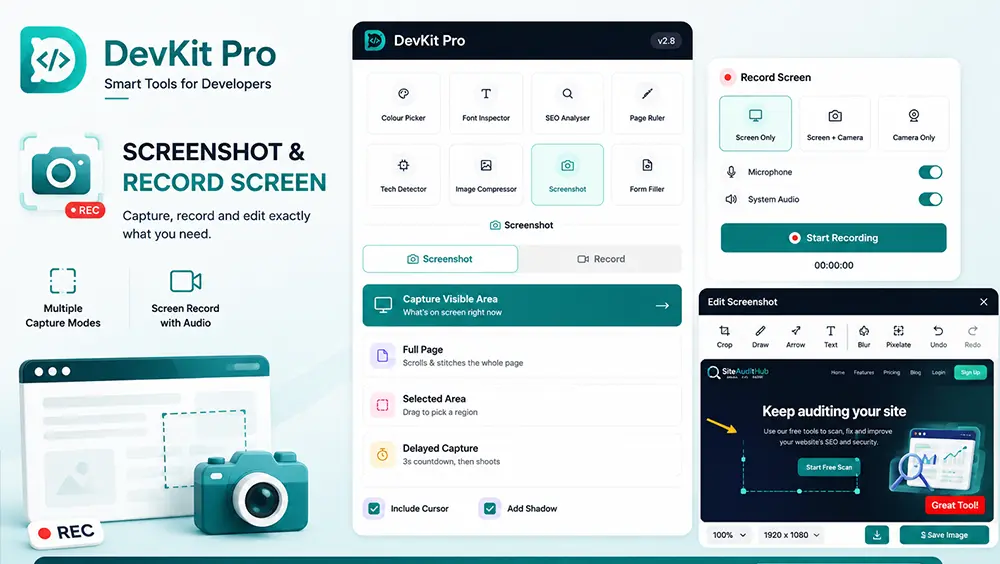
The last tool in the toolkit is also one of the most-used: a screenshot and annotation suite that captures the visible area, a full scrolling page, or a manually selected region. Once captured, the built-in editor lets you draw arrows, rectangles, circles, freehand lines, add text, highlight sections, or blur out sensitive information, all before copying the image to your clipboard or saving it as a PNG.
Full-page capture is worth calling out specifically: it automatically scrolls through the entire page, waits for lazy-loaded images and sticky headers to settle, and stitches everything into one clean, continuous image. That’s the difference between a screenshot you can actually send to a client for a design review and one that’s full of duplicated headers and gaps where images hadn’t loaded yet.
Why Choose One Browser Extension Over Seven?
It’s worth being direct about the trade-off here. Dedicated single-purpose extensions can go deeper on any one feature than a bundled tool ever will. But for the vast majority of day-to-day use, most people don’t need that extra depth, they need the answer fast, without switching tools. A few concrete reasons teams consolidate onto something like DevKit Pro:
- Fewer permissions requested across your browser, since one extension replaces several
- Less toolbar clutter and fewer icons to remember which does what
- Consistent design and shortcuts across tools, so there’s one interface to learn instead of seven
- Faster context switching during audits, QA, and client calls, since everything is one click away
If you’re also thinking about site performance more broadly, it’s worth pairing an extension like this with a proper Core Web Vitals audit for anything you plan to ship to production.
Who Is DevKit Pro For?
Front-End Developers
Quick color and font lookups, pixel measurements for QA, and a technology detector that speeds up debugging on unfamiliar codebases.
Web Designers
Color palette extraction, typography audits, and spacing verification against a live design, without needing developer tools open all day.
SEO Consultants and Content Teams
A full on-page SEO snapshot and live Google rank checking, useful for both single-page audits and ongoing client reporting.
Digital Agencies
A technology detector for discovery calls, a screenshot tool for client reports, and an SEO analyzer for proposals, three tools an agency uses constantly, in one install across the whole team.
How to Install DevKit Pro
- Open the Chrome Web Store listing for DevKit Pro
- Click “Add to Chrome” and confirm the permissions prompt
- Pin the extension icon to your toolbar for one-click access
- Click the icon on any webpage and choose the tool you need, Color, Font, SEO, Ruler, Tech, Images, or Shot
No sign-up, no account, and no data leaves your browser beyond the specific lookups each tool needs to do its job (for example, resolving a hosting provider or checking your Google ranking).
Final Thoughts
The best tools are the ones you stop noticing you’re using, they’re just there when you need them, and out of the way when you don’t. That’s the goal behind DevKit Pro: replace a scattered toolbar of single-purpose extensions with one focused toolkit that covers the checks, measurements, and captures that come up constantly in real web work.
Whether you’re picking a color, auditing a page’s SEO, checking what a site is built on, or grabbing a full-page screenshot for a client, DevKit Pro is built to get you the answer in seconds, right inside the tab you’re already working in.
Ready to try it? Install DevKit Pro from the Chrome Web Store and pin it to your toolbar, it takes less time than reading this sentence.