Writing and editing a blog in Google Docs is convenient when writers, editors and SEO teams need to collaborate before publishing. The difficult part often starts when the finished document has to be moved into WordPress.
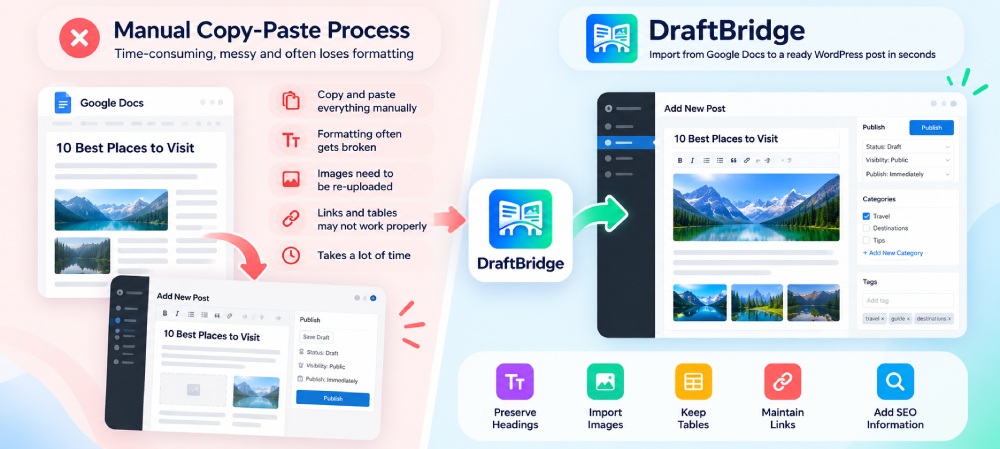
A manual copy-and-paste workflow can turn a finished article into another editing task. Headings may need to be rebuilt, images may need to be uploaded again, tables may need cleanup, and SEO details often have to be entered separately. A structured Google Docs to WordPress workflow can make this process much easier.
In this guide, you will learn how to prepare your Google Doc, import it into WordPress with DraftBridge, review the content and complete the SEO checks before publishing.
Why Write Your Blog in Google Docs First?
Google Docs gives content teams a simple place to write, edit and approve an article before it reaches WordPress. Writers can collaborate, editors can leave feedback, and the final document can be organized before anyone works in the WordPress editor.
You can also prepare headings, lists, tables, links, images and SEO information before importing the finished content.
The important point is to use real Google Docs styles. A heading should be selected from the style dropdown rather than created by simply making text larger or bold.
The Problem With Manually Copying Your Blog to WordPress
Copying content from Google Docs into WordPress may look quick, but it can create several small cleanup tasks. The more articles you publish, the more noticeable this becomes.
Common problems with manual copy and paste include:
- Heading levels may need correction.
- Images may need to be uploaded again.
- Tables may require formatting adjustments.
- Links should be checked after pasting.
- SEO fields may need to be entered manually.
- Large batches of articles can take much longer to prepare.
How to Prepare Your Blog for Google Docs to WordPress
A well-structured source document makes the import process easier. Before moving your article into WordPress, check the document structure, images, links and SEO information.
Use Real Heading Styles
In Google Docs, select Heading 1, Heading 2, Heading 3 or Heading 4 from the style dropdown. Do not rely only on font size, bold text or spacing to make something look like a heading.
For a normal article, the post title should be the document title or first Heading 1. Main sections should normally use Heading 2, while subsections can use Heading 3 or Heading 4.
Use Proper Lists
Use the built-in bulleted and numbered list controls. Nested lists should also use the normal list tools so their structure can be retained during import.
Keep Tables Structured
Create tables using Google Docs’ table tool. If the first row is the table header, make it bold so the structure is clear.
Add Images With Useful Alt Text
Images should have descriptive alt text that explains their purpose. Avoid repeating the focus keyword on every image. Use the keyword naturally where it genuinely describes the image.
Prepare SEO Information Before Importing
Prepare the SEO title, meta description, focus keyword, secondary keywords, slug, category, tags and excerpt before importing. DraftBridge can use these SEO lines to populate supported SEO fields and remove the lines from the post body.
How to Move From Google Docs to WordPress
Step 1: Prepare Your Google Doc
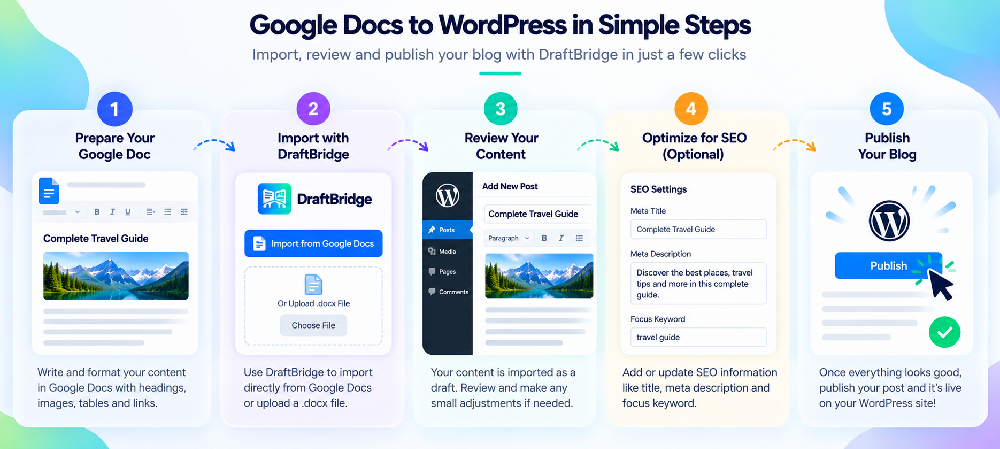
Finish the article and review the heading hierarchy, lists, tables, links, images and SEO lines. Use real heading styles rather than formatting text manually.
Step 2: Install DraftBridge
Install DraftBridge on WordPress. The plugin is designed to import Google Docs and .docx files as WordPress content that can be reviewed before publishing.
Step 3: Import Your Document
Open DraftBridge, add your Google Doc link or upload your .docx file, and start the import.
Step 4: Preview the Imported Content
Review the title, headings, paragraphs, lists, tables, links, images and SEO information before completing the workflow.
Step 5: Review the SEO Details
Check the SEO title, meta description, focus keyword, slug, category, tags and excerpt. Make sure the information accurately describes the article.
Step 6: Import as a Draft
Keep the imported post as a draft while you complete the editorial and SEO review.
Step 7: Review and Publish
Check the featured image, image alt text, internal links, external links, headings, tables, mobile layout and SEO settings before publishing.
How DraftBridge Makes Google Docs to WordPress Easier
DraftBridge is designed for a structured content workflow. Instead of rebuilding a finished document inside WordPress, you can prepare the article in Google Docs or Microsoft Word and import it into WordPress for review.
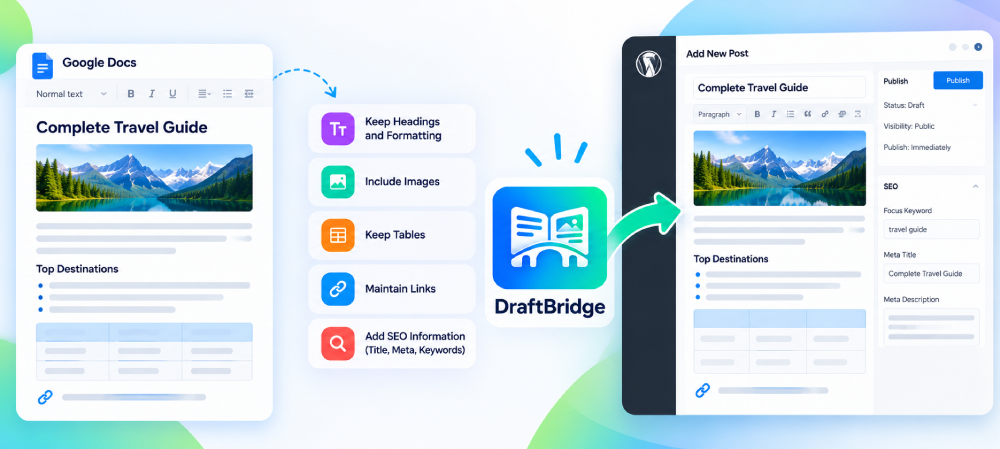
The workflow can preserve common content elements such as headings, formatting, lists, tables, images and links. SEO information can also be prepared in the document using supported SEO lines.
DraftBridge on WordPress.org: https://wordpress.org/plugins/draftbridge/
What Can Be Imported?
- Title and heading structure
- Bold, italic and strikethrough formatting
- Links
- Bulleted and numbered lists, including nested lists
- Tables
- Images and image links
- SEO information prepared with supported SEO lines
- Content that can be reviewed as a WordPress draft
Why Preview Before Importing Matters
Previewing your content before the final import helps catch issues early. You can check whether headings are structured correctly, images have useful alt text, links are present and SEO information is ready.
This is especially useful for teams that publish regularly because writers can prepare the source document, editors can review it, and the WordPress editor can complete the final publishing checks.
Manual Copy-Paste vs a Structured Import Workflow
| Task | Manual Copy-Paste | DraftBridge Workflow |
| Headings | May need manual cleanup | Uses document heading structure |
| Formatting | May need checking | Common formatting can be retained |
| Lists | May require cleanup | Structured lists can be imported |
| Tables | May need adjustments | Tables can be imported |
| Images | Often handled separately | Images can be processed |
| SEO fields | Entered separately | Can be prepared as SEO lines |
| Review | Usually after pasting | Review before publishing |
Who Should Use a Google Docs to WordPress Workflow?
This workflow can help bloggers, agencies, SEO teams, publishers, editors and businesses that create content outside WordPress before publishing it.
It is especially useful when several people are involved in the content process because the team can write and review the article in Google Docs before moving the approved version into WordPress.
Create a Repeatable Blog Publishing System
Create a reusable Google Docs template with the title, heading structure, image requirements, internal links and SEO lines. Then use the same process for each new article.
For image-heavy articles, compress large images before uploading them. SiteAuditHub’s Image Compressor can help reduce image file sizes for web use.
Image Compressor: https://www.siteaudithub.com/image-compressor/
After publishing, check your links regularly. Broken links can create a poor user experience and should be fixed when found.
Broken Link Analyzer guide: https://www.siteaudithub.com/broken-link-analyzer-fix-broken-links-boost-your-website-seo/
You can also review title tags, meta descriptions, headings and image alt text with the SiteAuditHub SEO Analyzer.
SiteAuditHub SEO Analyzer: https://www.siteaudithub.com/seo-analyzer/
Frequently Asked Questions
Can I import Google Docs to WordPress without copy-pasting?
Yes. DraftBridge can import a Google Doc into WordPress so you can review the resulting content instead of manually copying every section.
Does DraftBridge keep Google Docs headings?
Yes. Headings are based on the heading styles used in the document. Use Heading 1, Heading 2, Heading 3 or Heading 4 from the Google Docs style dropdown.
Can I import images from Google Docs?
Yes. DraftBridge supports images and image links during supported imports. Review the imported images and their alt text before publishing.
Does DraftBridge support SEO fields?
Yes. SEO lines such as Meta Title, Meta Description, Focus Keyword, Secondary Keywords, Slug, Category, Tags and Excerpt can be prepared in the document for supported SEO plugins.
Can I preview a Google Doc before importing it?
Yes. The preview workflow lets you review the document structure and identify issues before completing the import.
Can I import a Word document instead of a Google Doc?
Yes. DraftBridge also supports .docx files.
Final Checklist Before Publishing
- Use real Heading 2 and Heading 3 styles for article sections.
- Confirm the focus keyword is used naturally in the title and content.
- Check the SEO title and meta description.
- Make sure relevant images have useful alt text.
- Review internal and external links.
- Check tables, lists and formatting.
- Confirm the featured image is set correctly.
- Review the article on mobile.
- Check the Rank Math or other SEO plugin fields.
- Publish only after the final editorial and SEO review.
Final Thoughts
Moving a blog from Google Docs to WordPress does not have to mean rebuilding the article from scratch. With a structured document and a repeatable import workflow, you can reduce repetitive formatting work and spend more time improving the content.
The process is simple: prepare the document, import it, preview the result, review the SEO details, save the post as a draft and complete a final check before publishing. If you publish regularly, this approach can make Google Docs to WordPress a reliable part of your content workflow.