Compress and convert images online for free. Reduce image size and change formats like JPG, PNG, WEBP without losing quality. Fast, secure, and easy to use tool.
Private Browser Compression, nothing you upload ever leaves your device
Ready
0 / 3 formats ready
No file chosen
Your Files
0 pictures · 0 B total
No files yet. Add images to begin.
WHY THIS TOOL
Why Choose Our Image Compressor?
What makes browser-based compression worth switching to.
Fast Compression
Shrink image file sizes in seconds without any noticeable drop in quality.
Format Conversion
Convert between JPG, PNG and WebP right in the same tool.
Runs In Your Browser
Images are processed locally, nothing is uploaded to a server.
No Signup Needed
Drag, drop, and download, no account or installation required.
Custom Width
Type the exact maximum width you need in pixels, and wider images are scaled down to fit while keeping their shape.
Download All As ZIP
Compress a whole batch and save every file in one ZIP instead of downloading images one by one.
GUIDE
How to compress images online without losing quality
A simple guide to using the image compressor, picking the right settings and getting smaller files for your site.
How the image compressor works
Everything happens in your browser. When you add an image, it is resized and saved again on your own device using the browser's built in canvas, and nothing is uploaded to our server. That keeps it fast and keeps your files private.
The tool accepts JPG, PNG and WebP files. By default it exports WebP, which gives small files and works in all modern browsers. You can switch the output to JPG or PNG when you need those formats.
Steps to compress images online
Drag your images into the upload area, or click to choose files.
Pick a preset, or set the quality slider, target size and max width yourself.
Choose the output format: WebP, JPG or PNG.
Download each image, or use Download All to get them in one ZIP file.
Choosing the right settings
Fastest: resizes wide images to 1600 pixels at 75% quality. Good for blog images and most website content.
Balanced: up to 1920 pixels at 75% quality. A good fit for full width banners.
Detail: up to 2560 pixels at 88% quality, for photos where fine detail matters, like product close ups.
Max width (px): type an exact width, for example 1200 for a blog column, and wider images are scaled down to fit. This overrides the preset width. Images are never made bigger.
Quality slider: runs from 60% to 100%. For most photos the difference between 75% and 85% is hard to see, while the file size drops a lot.
Why it pays to reduce image size
Images are often the heaviest part of a web page. A photo straight from a phone or camera can be several megabytes, while the same image at the right width for a website usually needs only a small part of that. Smaller images load faster, use less mobile data and help your Core Web Vitals, especially Largest Contentful Paint when a large image sits at the top of the page.
Check the result before you upload
After compression, the tool shows the new size of each file and how much you saved. Open one or two images at full size and look at areas with fine detail, like hair, text or sharp edges. If you see blocky patches or blurred text, raise the quality a little or switch to the Detail preset. If the image still looks good, you can usually lower the quality a bit more and save even more space.
Tips for website images
Resize before you upload. There is no need for a 4000 pixel image in an 800 pixel column.
Use WebP where you can, and keep JPG for places that do not accept it, such as some email tools.
Use PNG only for images that need sharp edges or transparency, like logos and screenshots.
Give every image a clear file name and alt text before you upload it. The SEO analyzer will tell you which images on a page are missing alt text.
Run your new images through the image compressor every time you add them to your site. It takes a minute and is one of the easiest ways to reduce image size across your pages.
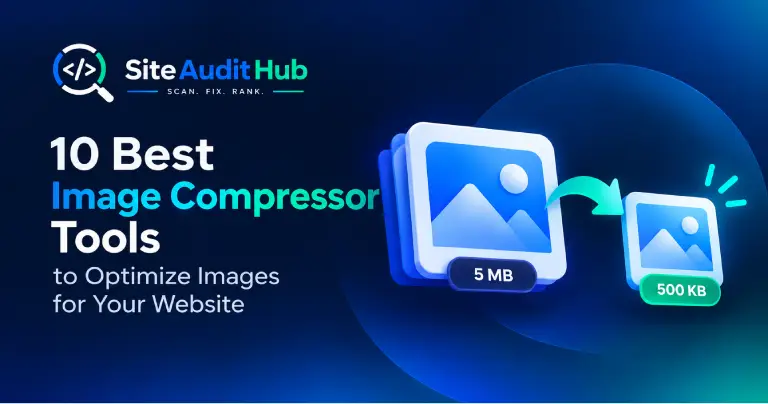
Images are one of the biggest causes of slow websites. In this guide, we compare the 10 best image compressor tools to help you reduce image file sizes, improve page speed, and maintain image quality. Whether you need a quick Image Compressor for online optimization, a WordPress solution, or a tool for specific image formats and workflows, these options can help you optimize images without sacrificing too much quality.
If your website is loading slowly or your images are too large, using an Image Compressor Online tool is one of the fastest and most effective solutions. In today’s digital world, website speed plays a crucial role in user experience and SEO rankings. Large image files can significantly slow down your site, increase bounce rates, […]
March 29, 2026· 4 min readRead →
Ready to shrink a few more images?
Every image is compressed locally in your browser, nothing gets uploaded.