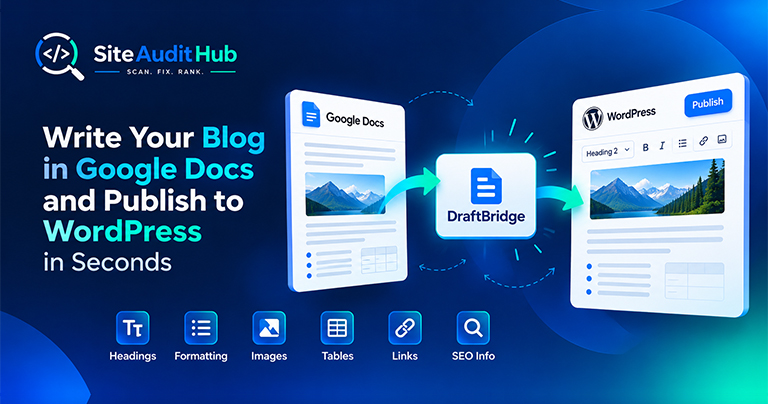
Google Docs to WordPress: 7 Easy Steps to Publish Faster
Learn how to prepare a blog in Google Docs and move it to WordPress while keeping headings, formatting, images, tables, links and SEO information organized.
Enter a URL to see its HTTP status code, every redirect hop and the full list of response headers, with notes on security headers, caching and compression.
Headers decide how browsers, crawlers and caches treat every page.
See each redirect step with its status code and how long the server took to answer.
Every header the server sends, in a clean table you can copy or print.
Shows which of the six common security headers are set and which are missing.
Flags missing Cache-Control, no-store pages and responses that are not gzip or brotli compressed.
Request the URL as desktop Chrome, an iPhone or Googlebot to spot pages that answer differently.
Catches noindex in X-Robots-Tag, version numbers in Server or X-Powered-By and missing charsets.
See exactly what a server sends back before the page itself.

Every time a browser or crawler asks for a page, the server answers with a status code and a set of headers before sending any content. Headers say whether the page exists, where it moved, how long it can be cached, what type of file it is and which security rules apply. Problems here are invisible on the page itself, which is why they are easy to miss.
The first thing to read is the status code of each hop. As an HTTP status code checker, the tool shows the code for every step, not just the last one.
Once the status codes look right, use the response header checker table to review the headers of the final page.
Some setups answer differently depending on who is asking. A security plugin might block Googlebot, a mobile plugin might redirect iPhones to another address, or a cache might serve crawlers an old copy. Requesting the same URL as a desktop browser and as Googlebot, and comparing the two, is a quick way to catch these problems.
For a wider look at redirects across your site, use the redirect chain scan, which follows every internal link on a page.
Official reference: MDN's HTTP headers reference describes every standard header in detail if you want to look up one from your results.
Answers on status codes, caching headers, security headers and redirect hops.
They are short lines of information a server sends before the page itself, such as the status code, content type, caching rules and security settings.
200 means OK. 301 and 308 are permanent redirects, 302 and 307 are temporary. 404 means not found, 410 means gone on purpose, and 5xx codes mean the server had a problem.
Some sites, firewalls or plugins answer search engine crawlers differently from visitors. Comparing the two helps you spot blocks or accidental redirects.
At least Strict-Transport-Security, X-Content-Type-Options, X-Frame-Options (or a CSP frame-ancestors rule) and Referrer-Policy. Content-Security-Policy is stronger but needs careful testing.
A header that works like the robots meta tag. If it contains noindex, search engines will not index the URL, even when the page itself looks fine.
Yes. Paste the file URL and you will see its status code and headers, including Content-Type and caching rules.
Same free, no-signup approach, pick whichever check you need next.
Run SEO, link, redirect, security and robots checks on one URL and get a single score.
Try it →Check titles, meta tags, headings, schema, social share tags and noindex settings across your key pages.
Try it →Find dead links and broken images before your visitors, or Google, find them first. Export the list as CSV.
Try it →Guides and breakdowns to help you rank better.
Learn how to prepare a blog in Google Docs and move it to WordPress while keeping headings, formatting, images, tables, links and SEO information organized.

If you run a website, chances are you don’t want people to inspect your code, copy-paste your content, or steal your images. The browser’s Inspect Element (F12) and Right-Click menu make it very easy for users to copy content or view the source code.

Uncover hidden elements silently hurting your SEO. Our Hidden Element Checker finds and fixes these invisible issues before they damage your traffic, rankings, and conversions.
Run every check on your site in one go with the free full site audit.
Run a full site audit →