Most WordPress sites do not break in one big moment. They slip a little at a time. A plugin stops getting updates, a page loses its meta description after a theme change, an image goes live without alt text, and somewhere in the uploads folder a file appears that nobody remembers adding. None of these problems make noise. They just sit there and quietly cost you traffic, trust and sometimes the whole site.
Fixing them is rarely the hard part. Most fixes take a few minutes once you know what is wrong. Finding them is where people get stuck, because the usual setup splits the job across an SEO plugin, a security plugin, a link checker and an accessibility tool, each with its own screen and its own idea of what “healthy” means.
That gap is the reason we built SiteAuditHub, a WordPress site audit plugin that looks at all of it from one dashboard, and here is how each part of that check works.
What Is a WordPress Site Audit and What Should It Check?
When we talk to site owners about audits, most of them picture an SEO report with a score at the top. That is only one slice. A real site audit is a full health check of your WordPress site: how search engines read it, how people with different abilities use it, how well the server and plugins are holding up, and whether anything harmful has crept into the files or the database.
A useful audit answers four plain questions. Can Google crawl and understand every page you care about? Can every visitor, including someone using a screen reader or a keyboard, actually use the site? Is the setup underneath (WordPress version, PHP version, plugins, HTTPS, cron) stable and up to date? And is the site clean, with no web shells, injected scripts or surprise admin accounts?
Each question needs its own set of checks. Search visibility depends on titles, meta descriptions, canonical tags, heading order, sitemaps, redirects and broken links, which lines up with what Google explains in its SEO starter guide. Usability depends on alt text, link names, colour contrast and page language. Stability depends on updates, server settings and plugin compatibility. Safety depends on file scanning and watching for changes nobody approved.
The mistake we see most often is treating these as separate jobs done at separate times. A broken redirect, a missing alt attribute and an outdated plugin can all show up after the same theme update. If you only check one area, the other two wait until something visibly breaks. A good WordPress site audit plugin runs all four checks together, keeps the results side by side, and shows you what changed since the last time you looked.
Why One Audit Plugin Works Better Than Five Separate Tools
Before SiteAuditHub, our own routine on client sites looked messy. One plugin for SEO checks, another for security scans, an online tool for broken links, a browser extension for accessibility, and the Site Health screen in WordPress for everything else. Each one had a different score, a different list and a different way of saying “warning”.
Running five tools brings three problems. The first is weight: every extra plugin adds code, database tables and scheduled tasks, and some of them load scripts on the front end where visitors pay the price in speed. The second is overlap: two plugins may both try to add security headers or meta descriptions, and you end up with duplicates or conflicts. The third is blind spots: when results live in five places, nobody connects them, so a hacked page with a hidden iframe and a sudden drop in indexed pages look like two unrelated issues.
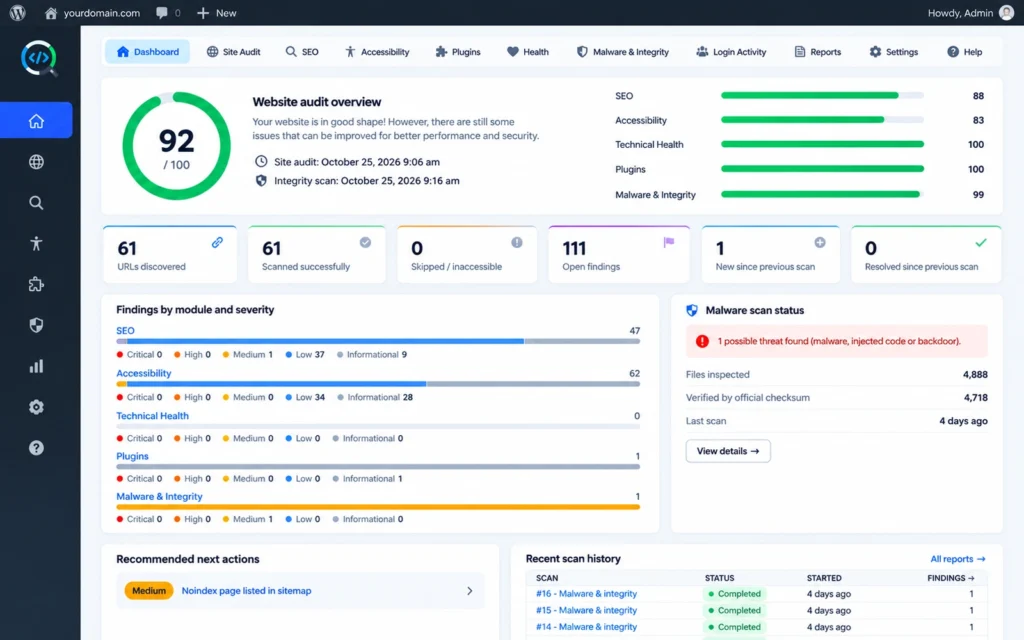
A single WordPress site audit plugin fixes that by giving every check the same rules. SiteAuditHub stores each scan, labels every finding the same way, and puts SEO, accessibility, health and malware results on one dashboard with one history. You can see that a plugin update on Tuesday caused both a new broken link and a new redirect chain, because both appear in the same “new since last scan” list.
It also stays out of your way. SiteAuditHub works alongside Yoast SEO, Rank Math and All in One SEO, and its optional tools are switched off until you turn them on, so it never fights with what you already run. If you want a quick outside view before installing anything, our free full site audit tool checks a public URL in your browser, and the plugin then goes much deeper from inside WordPress.
How SiteAuditHub Runs a Complete WordPress SEO Audit
On most sites we audit, the SEO problems are not exotic. They are missing meta descriptions, two pages fighting over the same title, a noindex tag left on after launch, or an old URL that redirects three times before it lands. Small things, but search engines notice every one of them.
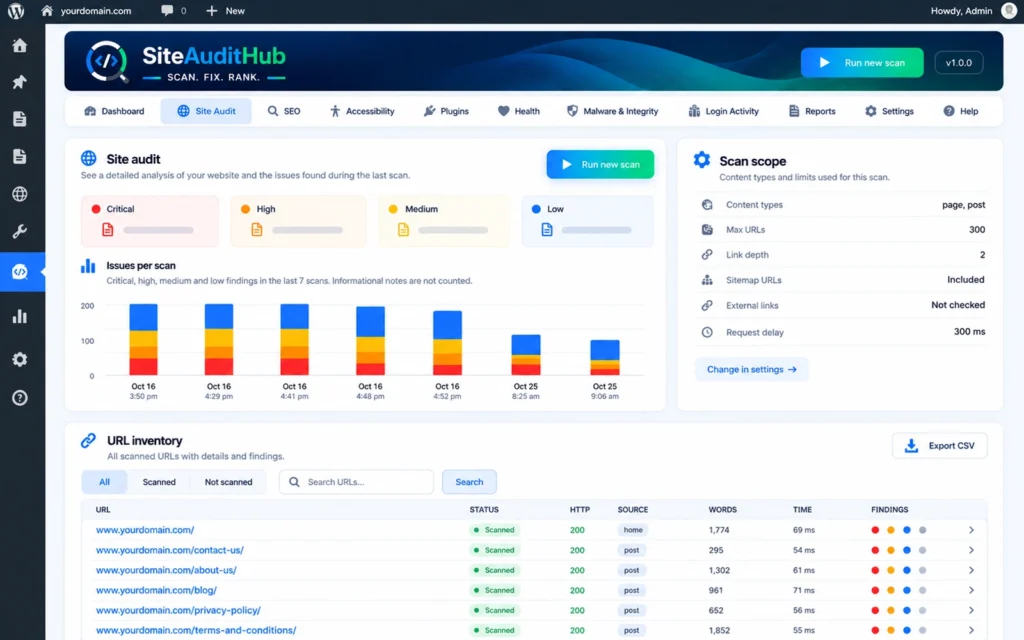
The SEO audit starts by finding your content the same way a search engine would. SiteAuditHub collects your published pages, posts, WooCommerce products and other public content, reads your XML sitemap and robots.txt, and then follows internal links from page to page. You decide how deep the crawl goes and how many URLs it checks, which matters on large stores or sites with thousands of posts.
Each page is then loaded as a logged out visitor and checked for:
- Page titles and meta descriptions, including missing, too long and duplicate ones
- Canonical tags, noindex tags and conflicts between robots.txt and what you want indexed
- One clear H1 and a heading order that does not skip levels
- Image alt text
- Broken links, HTTP errors, redirect chains and redirect loops
- Sitemap coverage, so you know which pages are in the sitemap and which are missing
- Thin content, duplicate content and orphan pages that no other page links to
- Mixed content (HTTP files on an HTTPS page) and invalid JSON-LD structured data
Orphan pages deserve a special mention. These are pages that exist and may even be in your sitemap, but no menu or post links to them. Search engines treat them as unimportant, and visitors never find them. A plugin that only checks one page at a time cannot spot them, because it needs to see how the whole site links together.
Broken links are another quiet ranking killer. SiteAuditHub checks internal links by default and can also check external links if you turn that option on in Settings. For a one off check on a single page, our broken link checker works without any install.
Accessibility Checks That Help Every Visitor Use Your Site
We added accessibility to SiteAuditHub because it kept coming up on client sites that looked perfect on the surface. A button with only an icon and no label, a link that says “click here” with nothing a screen reader can announce, a page that blocks pinch to zoom on phones. Sighted mouse users never notice. Everyone else hits a wall.
The accessibility audit looks for the problems that are most common and easiest to fix:
- Images without alt text
- Buttons and links that have no accessible name
- Missing page language and page title
- Headings that skip levels, such as an H2 followed straight by an H4
- Invalid ARIA attributes
- Focusable elements that are hidden from screen readers
- Iframes without a title
- Viewport settings that block zoom
- Low colour contrast in inline styles
Some checks cannot be judged by code alone. Whether a video has accurate captions, or whether the tab order through a form makes sense, needs a person to try it. SiteAuditHub lists these as “check by hand” items in their own group instead of marking them as passed, so you know exactly what still needs a human look.
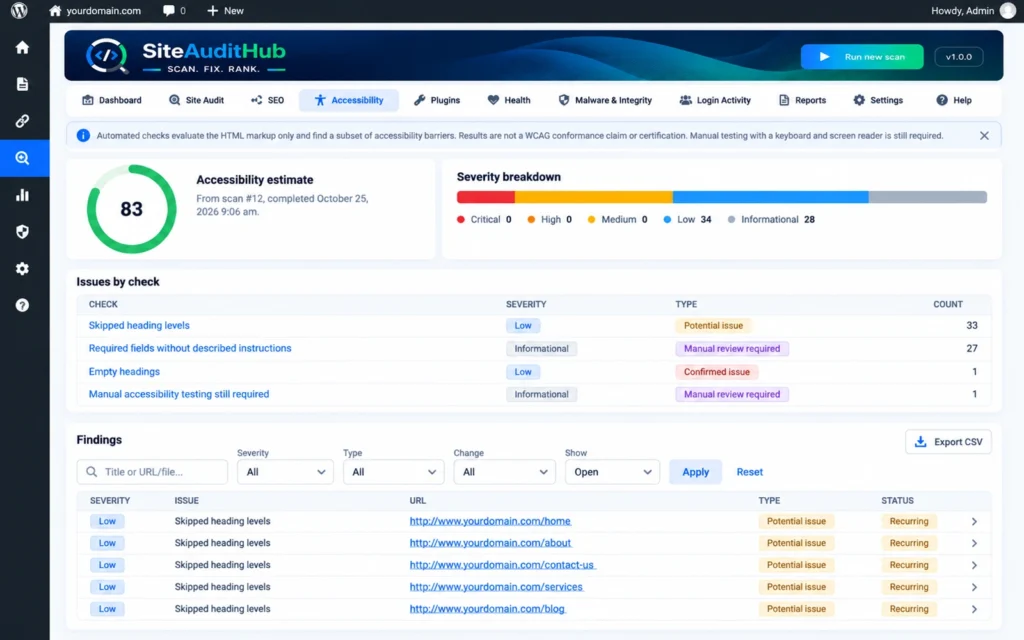
One thing to be clear about: the accessibility score is an estimate to help you track progress. It is not a WCAG conformance certificate. The checks are built around the most common failures described in the Web Content Accessibility Guidelines, and fixing them makes a real difference for visitors, but full conformance still needs manual testing.
There is also an SEO side to this work. Alt text, clear link names and a proper heading order help search engines understand your pages too, so many accessibility fixes also make your pages easier for search engines to read.
WordPress Site Health Check and Plugin Monitor
A lot of the emergencies we get called in for start with something boring. A PHP version that went out of support two years ago, a plugin nobody has updated since it was removed from the directory, or a debug.log file sitting in public view with file paths and error details for anyone to read.
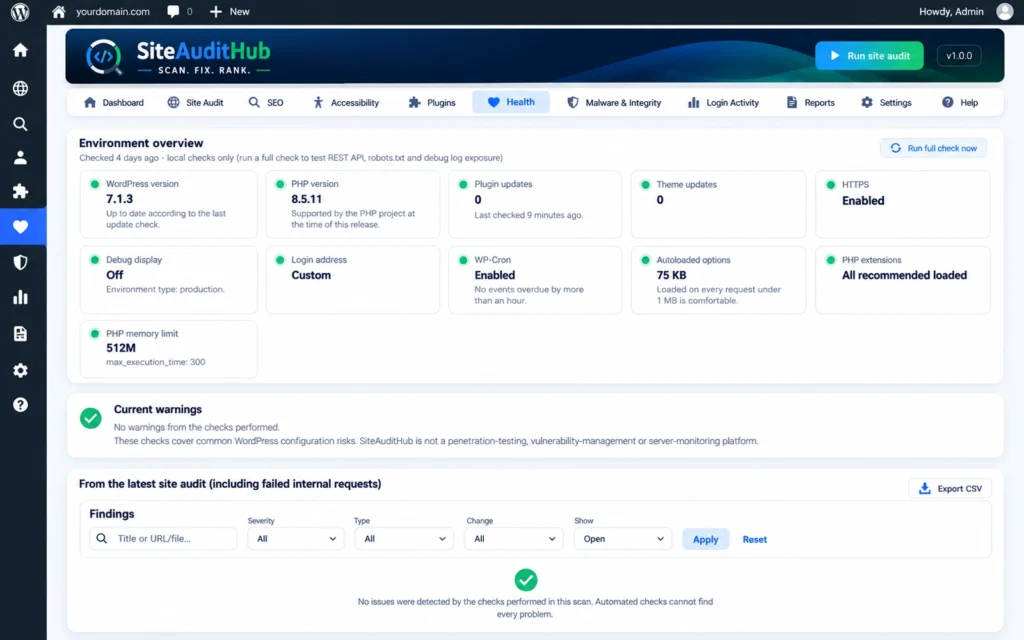
The site health check in SiteAuditHub goes through the setup underneath your content:
- WordPress and PHP versions, and any pending updates
- HTTPS status across the site
- Debug settings, and whether debug.log can be opened from a browser
- REST API and WP-Cron, which many plugins depend on to work
- Autoloaded options, which slow down every page when they grow too large
- Required PHP extensions and available memory
- Internal requests that fail
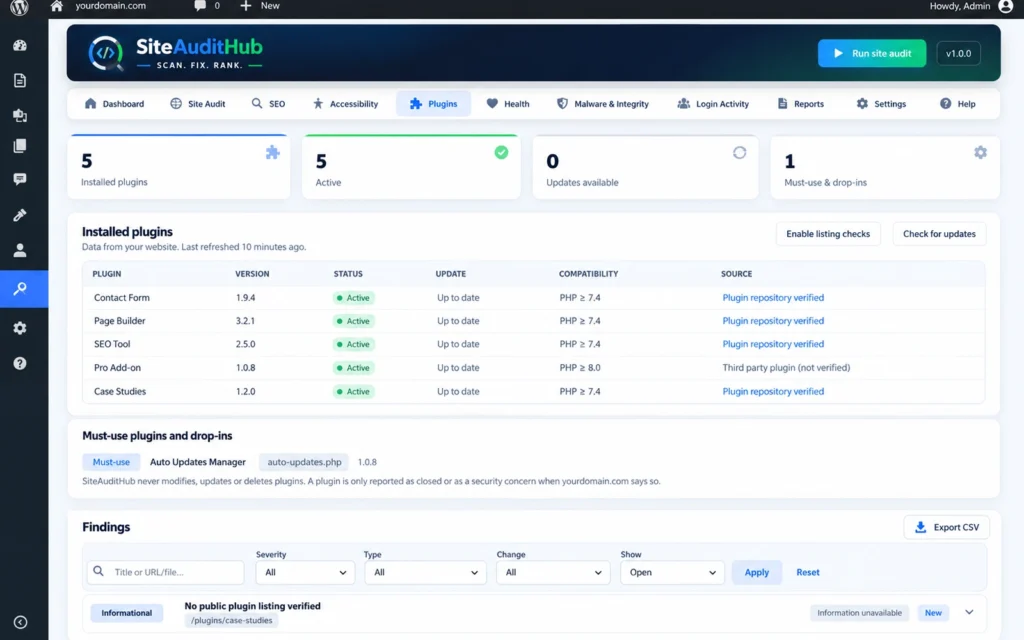
The plugin monitor sits next to it. It lists every installed and active plugin, shows which ones have updates waiting, and checks whether each plugin supports your PHP version and has been tested with your WordPress version. If you turn on the WordPress.org lookup in Settings, it also checks whether each plugin is still listed in the official directory. A plugin that disappears from WordPress.org has often been closed for a security issue or simply abandoned, and either way it is worth replacing.
None of these checks change anything on their own. They give you a clear list, in plain words, of what is out of date or set up in a risky way. For HTTPS in particular, you can also run our SSL checker to confirm the certificate details and expiry date from outside your server.
Malware Scanning and File Change Detection
Cleaning hacked WordPress sites taught us one hard lesson: by the time a site owner notices, the infection has usually been there for weeks. Google shows a warning, the host suspends the account, or customers report strange redirects. Catching it early is far cheaper than cleaning it late.
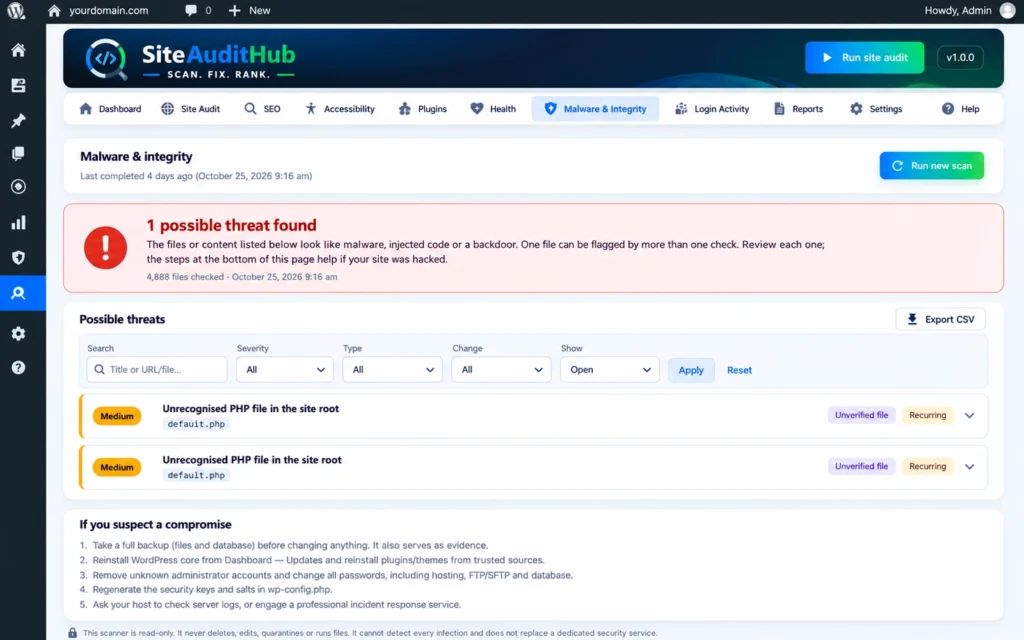
The malware scanner in SiteAuditHub reads your files and database looking for the patterns attackers actually leave behind:
- Known web shell and backdoor code, plus other suspicious code
- Unknown files and folders in the site root
- New code files added since the last scan
- Files that changed without a plugin, theme or WordPress update
- PHP files inside the uploads folder, where only images and documents should live
- Hidden or disguised PHP files, such as photo.jpg.php
- Harmful .htaccess rules
- Injected scripts and hidden iframes inside posts
- Code stored in settings, and new administrator accounts
With one click, SiteAuditHub also compares WordPress core files and plugins from WordPress.org against the official released versions. If a core file has even one extra line, it shows up. This uses the official checksum lists from WordPress.org, and your own files are never uploaded anywhere.
The result is kept simple on purpose. You either see “All safe” or a short list of possible threats, each one explained in plain words. We chose that format because a long technical log helps nobody at the moment a site owner is worried.
Two honest limits are worth knowing. First, the scanner only reads files. It never edits, moves, deletes or runs them, so it will not break your site, but the clean up is still yours to do or hand to someone. Second, it does not replace a dedicated security service or a firewall. It is a reliable early warning system that runs on your own server. If you want to understand the wider risks behind these checks, the OWASP Top Ten is a good place to read about the most common web security problems.
Login Activity and Optional Security Tools
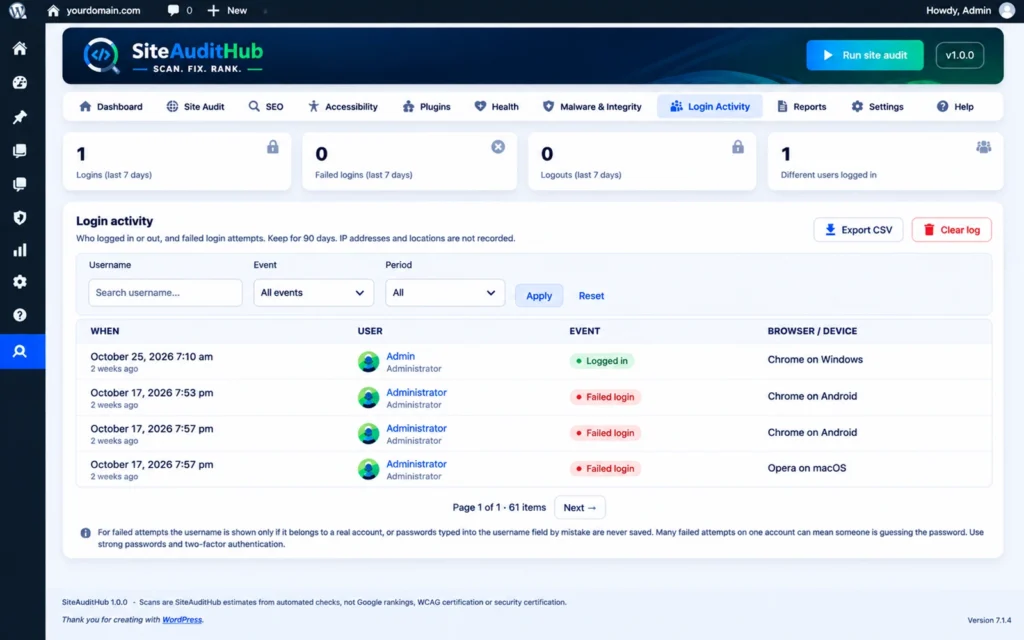
The login page is the front door of every WordPress site, and bots knock on it all day. On almost every site we have looked at, the login log shows a steady stream of failed attempts from usernames like “admin” that do not even exist.
SiteAuditHub keeps a login activity log with every login, logout and failed attempt, along with the username, time and browser or device. You can filter it, export it as CSV and let it clean itself up after a set time. It also supports the WordPress privacy export and erase tools. One choice we made deliberately: IP addresses and locations are not recorded. You still see who tried to log in and when, without building a store of personal data you would then need to protect.
On top of the log, there is a set of optional security tools. All of them are off until you switch them on:
- Custom login address: move the login page away from wp-login.php, so wp-login.php and /wp-admin/ show a 404 page or send logged out visitors to the home page. The new address is emailed to you, and a single line in wp-config.php brings the default login back if you ever forget it.
- Limit failed login attempts: lock out repeated guessing for a set time. The IP is turned into a one way salted code that is kept only for the lockout period and never shown.
- Hardening switches: turn off XML-RPC, turn off the theme and plugin file editors, stop visitors from finding usernames and hide the WordPress version.
- Security headers: add X-Content-Type-Options, X-Frame-Options and Referrer-Policy.
- Login page design: show your own logo and background instead of the WordPress logo.
Nothing here writes to wp-config.php or .htaccess, so switching a tool off restores the normal behaviour straight away. After adding headers, you can confirm they are being sent with our HTTP header checker.
Speed Switches, Spam Filter and Comment Control
Some fixes are so common that we got tired of doing them by hand on every new site. Removing the emoji script nobody uses, stopping Dashicons from loading for visitors, adding alt text to images that were uploaded in a hurry. So we turned them into simple switches inside the plugin.
The Speed and SEO options can:
- Remove the WordPress emoji and embed scripts
- Remove jQuery Migrate
- Load Dashicons only for logged in users
- Defer JavaScript so it does not block the page from showing
- Add missing image alt text
- Add a meta description when no SEO plugin is already doing it
These remove common causes of slower pages and lower scores, but we will not pretend they guarantee a perfect PageSpeed result. Speed also depends on your hosting, theme, image sizes and other plugins. Heavy images are usually the biggest single cause we see, so it is worth running large files through an image compressor before you upload them.
The spam filter is a single switch. It blocks form messages and comments that contain links, email addresses, phone numbers, junk text, repeated characters or fewer than three words. It checks comments and the message field of Elementor Pro, Contact Form 7, WPForms, Gravity Forms, Fluent Forms, Ninja Forms, Formidable Forms and WooCommerce order notes on the server. For any other form, the message box is checked in the browser before it is sent. Name, email, phone and other single line fields are never touched, and you can leave a form out by adding the class siteaudithub-skip to it.
If your site does not need comments at all, the comment switch closes and hides them across the whole site. Nothing is deleted, so you can bring them back later with one click.
How to Run Your First Audit in a Few Minutes
We wanted the first scan to feel easy for someone who has never opened an SEO tool. Most people can go from install to a full report in one sitting, and the steps below are exactly what we do on a fresh client site.
- Install the plugin. In your dashboard, go to Plugins, Add New Plugin and search for SiteAuditHub, or download it from the SiteAuditHub page on WordPress.org and upload the ZIP file. Then click Activate.
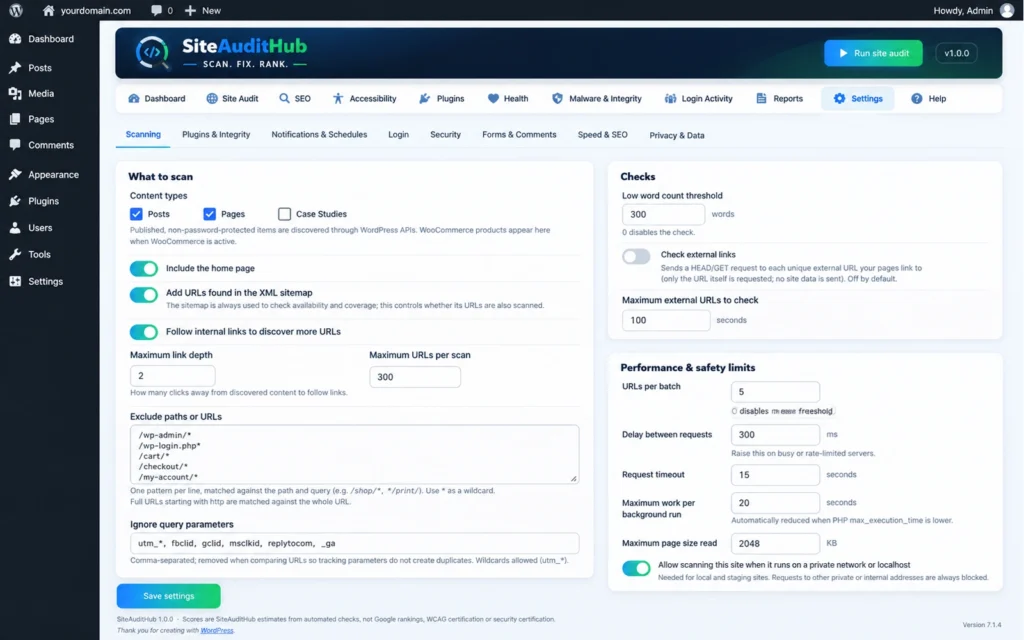
- Check the settings. Open SiteAuditHub, Settings. Here you choose how deep the crawl goes, how many URLs it checks, and whether to turn on the external link check and the WordPress.org plugin lookup. On slow hosting, you can raise the delay and timeout here too.
- Start the audit. Go back to the dashboard and click “Run site audit”. A live progress screen shows each step, and you can pause, resume or cancel at any point.
- Read the dashboard. When the scan finishes, you see an overall estimate, a score for each module (SEO, accessibility, health, plugins, malware) and a short list of suggested next steps, starting with the most important.
- Open each finding. Click any check to expand it and see which URLs are affected and what the problem is. Fix the confirmed issues first, then work through the possible issues and the items marked for a manual check.
- Run the file check. From the integrity screen, run the one click comparison of WordPress core and plugin files against the official versions.
- Set a schedule. Choose daily, weekly or monthly scans and turn on email alerts, so you hear about new problems without having to remember to look.
If some URLs show as “inaccessible”, your server or a firewall blocked the request. Raise the delay or timeout in Settings and click “Retry failed”.
Honest Results, Scan History and Reports
The part of SiteAuditHub we care about most is not a feature you can see in a screenshot. It is the rule that every number on the dashboard comes from a real, stored scan. Many tools show a green tick when a check simply did not run, or count a timed out page as healthy. That makes the score look nice and hides the problem.
SiteAuditHub does the opposite. A check that did not run is never shown as passed, and a failed request is never shown as healthy. Every finding carries one of four labels, so you always know how much to trust it:
| Label | What it means | What to do |
|---|---|---|
| Confirmed issue | The problem was found and verified | Fix it first |
| Possible issue | Something looks wrong but needs a second look | Review it |
| Check by hand | Code cannot judge this, a person must test it | Test it manually |
| Could not run | The check failed, for example a blocked URL | Retry or adjust settings |
Scores are SiteAuditHub estimates to help you track progress over time. They are not Google rankings, PageSpeed scores, WCAG conformance or a security certificate.
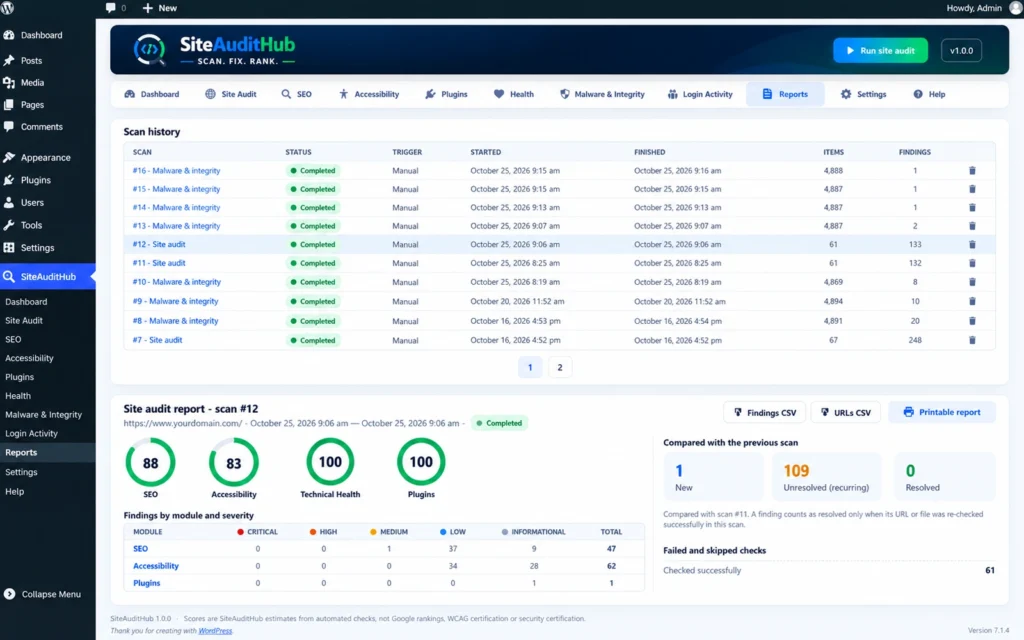
The reports screen keeps your full scan history. For each new scan it shows what is new, what keeps coming back and what has been fixed since the previous one, along with failed and skipped checks and details for every URL. You can export the results to CSV or open a printable report, which is handy when you need to show a client or your team what was done.
Scheduled scans run daily, weekly or monthly and send an email when something important turns up. For a quick look at one page between full scans, our free SEO analyzer gives an instant check in the browser.
Built for Shared Hosting and Your Privacy
Plenty of the sites we work on run on cheap shared hosting, and many audit tools simply time out there. Others ask you to send your site data to their servers before they show a single result. We did not want either problem.
SiteAuditHub runs scans in small, time limited batches. Each batch does a little work and stops before the server limit, so the scan keeps moving even on slow or restricted hosting. It moves forward while any SiteAuditHub screen is open and carries on in the background through WP-Cron when you close the tab. No shell commands are used, so it works on hosts that block them. Scheduled scans that run while nobody is logged in need WP-Cron to be working, or a server cron that calls wp-cron.php.
Every check runs on your own server. SiteAuditHub sends no usage data and never contacts siteaudithub.com. Only three features talk to outside servers, and all three are off until you turn them on:
- Official file check: downloads the official checksum lists from WordPress.org. It sends your WordPress version and language, or a plugin slug and version. Your files are never sent.
- WordPress.org plugin lookup: sends your installed plugin slugs to WordPress.org to see whether each one is still listed.
- External link check: sends a simple request to each external URL your pages link to, to see if it still works.
Site audits load your public pages as a logged out visitor. Requests to private, local and cloud metadata addresses are blocked, and every redirect, timeout and response size is checked, so the crawler cannot be tricked into reaching places it should not.
If you ever decide to remove the plugin, deactivating keeps all your data. Tables and settings are deleted only if you turn on the option to remove everything when the plugin is deleted.
SiteAuditHub Compared With the Usual Plugin Stack
When site owners ask us how this differs from what they already run, we usually draw the table below. It compares the jobs a full audit needs with the typical mix of separate tools.
| Job | Usual setup | SiteAuditHub |
|---|---|---|
| SEO audit across the whole site | SEO plugin checks one post at a time, or an outside crawler | Crawls pages, posts, products, sitemap and internal links |
| Broken links and redirects | Separate link checker plugin or online tool | Included, with redirect chains and loops |
| Accessibility | Browser extension, one page at a time | Site wide checks, with manual items listed apart |
| Site health and plugins | WordPress Site Health screen | Deeper health checks plus a plugin monitor |
| Malware and file changes | Security plugin, often with cloud scanning | Read only scan on your server, plus official file comparison |
| Login activity | Separate activity log plugin | Included, with no IP addresses stored |
| History and reports | Different report in each tool | One history, CSV export and printable report |
| Data sent outside | Often required | None by default |
The point is not that separate tools are bad. Many of them are excellent at their one job. The point is that one WordPress site audit plugin, with one set of rules and one history, makes it far easier to see the whole picture and act on it.
For checking a single URL’s redirect path from the outside, for example after a domain move, our redirect checker shows every hop and status code.
Final Thoughts
A healthy WordPress site is less about one big fix and more about catching small problems while they are still small. The missing meta description, the plugin that quietly fell out of support, the PHP file that should never have been in uploads: each one is easy to deal with on the day it appears and painful to deal with three months later.
That is the habit SiteAuditHub is built to support. Install it once, run a full scan, fix what is confirmed, then let the weekly schedule keep watch and email you when something new turns up. You keep your existing SEO and security setup, you keep your data on your own server, and you finally get one honest list instead of five different scores.
It is free, it runs on shared hosting, and it does not change your content or settings unless you switch on a tool yourself.
Give Your Site a Free Checkup With SiteAuditHub
FAQs
Is SiteAuditHub a free WordPress site audit plugin?
Yes. SiteAuditHub is free to download from WordPress.org. The SEO, accessibility, site health, plugin, malware and login checks, along with reports and schedules, are all included.
Does it work with Yoast SEO, Rank Math or All in One SEO?
Yes. It runs alongside all three. The option to add a meta description only works when no SEO plugin is already handling it, so nothing gets duplicated.
Will it change my posts, pages or settings?
No. Your posts, media and settings are never changed by a scan. Only the optional tools change how your site behaves, each one is off until you turn it on, and switching it off restores the default.
Does the malware scanner remove malware?
No. The scanner only reads files and never edits, moves, deletes or runs them. It tells you what looks suspicious and where, and the clean up is done by you or a security professional.
How do I check if Google has flagged my site as unsafe?
Google shares this through its Safe Browsing site status page. Enter your domain to see if it is listed, then run a SiteAuditHub malware scan to look for the cause.
Will it slow down my website?
Scans run from the admin area in small batches, so they put very little load on the server at any one time. The only front end additions come from tools you switch on yourself, such as the spam filter script or the meta description and alt text options.
Does it work on WordPress multisite?
Yes. Each site in the network gets its own scans and settings. The custom login address is not available on multisite in the current version.
I forgot my custom login address. How do I get back in?
Look for the email sent when you saved the address. You can also add define( ‘SITEAUDITHUB_DISABLE_LOGIN_GUARD’, true ); to wp-config.php or rename the plugin folder by FTP, and the normal wp-login.php works again straight away.
How often should I run a site audit?
For most sites, a weekly scheduled scan with email alerts is a good balance. Busy stores or sites that publish every day may prefer daily scans, and a manual scan after every big update is always a good idea.ll