WordPress updates are supposed to make your site safer and faster. Most of the time they do. Every now and then, though, one click on "Update" leaves a contact form that no longer sends, a menu that has vanished, or a page that shows nothing but a critical error message.
The hard part is not the fix. The hard part is noticing the problem before a customer does. Below, we walk through why WordPress updates break things, which signs to watch for, and seven easy habits that help you catch problems within minutes instead of days.
Why WordPress Updates Break Sites in the First Place
Across the sites our team looks after, we see the same few causes behind almost every broken update. None of them mean WordPress is badly made. They come from the fact that a normal site runs code from many different authors at the same time.
A plugin update can change a function that another plugin depends on. A theme update can replace a template file that you or a developer edited by hand. A page builder can change how it loads its styles, and your caching plugin can keep serving the old files for hours. Sometimes the plugin needs a newer PHP version than your hosting runs, and the page stops loading completely.
Timing adds to the risk. Automatic WordPress updates often run at night, while nobody is watching. By the time you open the site in the morning, a few hundred visitors may already have seen the broken page.
Signs That WordPress Updates Have Broken Something
When we review a site after a rough update, the damage usually falls into a handful of patterns. Some are loud and obvious. Others stay quiet for days.
- A white screen or the message "There has been a critical error on this website".
- A server error such as 500, or a page that suddenly returns "Page not found".
- A menu, contact form, slider or heading that is simply missing.
- A page that loads but looks broken because a CSS or JavaScript file failed to load.
- Buttons that do nothing, often caused by a JavaScript error.
- A checkout or cart page that stops working on a WooCommerce store.
- Pages that become much slower than before.
The quiet problems hurt the most. A broken form still looks fine to anyone who only glances at the page, yet every message sent through it is lost. A free HTTP Header Checker can confirm what status code a page really returns, which helps when a page looks normal but search engines get an error.
Which WordPress Updates Cause the Most Trouble
Not every update carries the same risk. When we plan a round of maintenance, we sort the waiting WordPress updates by how much they can break, and we give the risky ones more attention.
Small security and bug fix releases of WordPress itself rarely cause trouble. Major core releases are different, because they can change the block editor, default styles or the way older code is handled. Plugins and themes that were not updated for a while are the ones most likely to clash with a new major release.
Page builders, WooCommerce and its extensions, membership plugins and form plugins sit at the top of our list. They touch many pages at once, they load a lot of their own code, and they often work closely with other plugins. One change in them can affect every product page or every form on the site.
Theme updates deserve care too, especially when someone edited the theme files directly instead of using a child theme. The update replaces those edited files and the custom changes disappear. A PHP version change at your host belongs on the same list, even though it is not one of the WordPress updates in your dashboard, because older plugins can stop working on a newer PHP version overnight.
| Type of update | Risk | What to check afterwards |
|---|---|---|
| Small WordPress security release | Low | Home page and one inner page |
| Major WordPress core release | Medium | Editor, key pages, forms and menus |
| Page builder or theme | High | Layout of every key page on desktop and mobile |
| WooCommerce or its extensions | High | Product, cart and checkout pages |
| Forms, SEO or redirect plugins | Medium | Forms, links, redirects and page titles |
7 Easy Ways to Catch Problems After WordPress Updates
Over the years we have tried many routines for handling WordPress updates. The seven habits below are the ones that stuck, because they are simple enough to follow every single time.
1. Take a Backup Before Every Update
A backup does not stop an update from breaking anything, but it turns a bad day into a ten minute repair. With a fresh copy of your files and database, you can always go back to the version that worked.
The official WordPress guide on updating WordPress also recommends a backup before you start. Many hosts offer one click backups, and most backup plugins can run one on a schedule.
2. Update One Thing at a Time
Clicking "Update all" is quick, but when something breaks you will not know which of the ten WordPress updates caused it. Updating plugins one by one takes a few extra minutes and gives you a clear answer the moment a problem shows up.
Start with the plugins that matter most to your visitors, such as forms, booking tools and your shop. Check the site after each one before you move on.
3. Test on a Staging Site First
A staging site is a private copy of your live site. You run WordPress updates there first, look around, and only update the live site once everything works.
Many hosting companies include staging with one click. For a busy shop or a site that brings in leads every day, this habit alone prevents most bad surprises.
4. Check Your Most Important Pages by Hand
After an update, open the pages that earn money or bring in leads: your home page, contact page, service pages, cart and checkout. Fill in a form, click the main buttons and look at the page on your phone as well as on a computer.
It helps to write these pages down once, in a short checklist with what to test on each one. A list like "home page loads, contact form sends, cart adds a product, checkout opens" takes two minutes to run through and stops you from forgetting the one page that matters most.
This works well for a small site. On a site with dozens of key pages, checking by hand after all your WordPress updates quickly becomes a chore that people skip, and that is usually the week something breaks.
5. Look for Broken Links and Redirects
Updates to SEO, redirect and multilingual plugins can change page addresses or redirect rules. Visitors then land on error pages or get stuck in a loop.
Running your site through a free broken link checker after big WordPress updates shows dead links in a few minutes, and you can fix them before search engines find them.
6. Turn On the WordPress Debug Log
When a page fails, WordPress can write the exact error to a file called debug.log. That file names the plugin or theme file that failed, which saves a lot of guessing.
You switch it on by adding WP_DEBUG and WP_DEBUG_LOG to your wp-config.php file, as shown in the official guide to debugging in WordPress. On a live site, keep WP_DEBUG_DISPLAY set to false. The errors then go to the log file and never appear on the page for visitors.
7. Use a Plugin That Checks Your Pages After Every Update
The six habits above all need you to remember them. The last one does not. A checking plugin records how your pages look and work when everything is fine, then checks them again on its own after every update and tells you what changed.
We built Rehearsr for exactly this job, after one too many mornings spent finding out about broken pages from customers. It runs inside your own WordPress site, needs no account and is free on WordPress.org.
How Rehearsr Checks Your Site After WordPress Updates
Our goal with Rehearsr was a tool that a site owner can install and then forget about until it has something useful to say. It works in four simple steps.
- It finds your public pages and picks the important ones. You can change the list at any time.
- It records a baseline, which is a saved copy of how each page looks and works today.
- After every plugin, theme or core update, it checks the same pages again and compares them with the baseline.
- It shows you which pages passed and which need you, with the evidence for each problem.
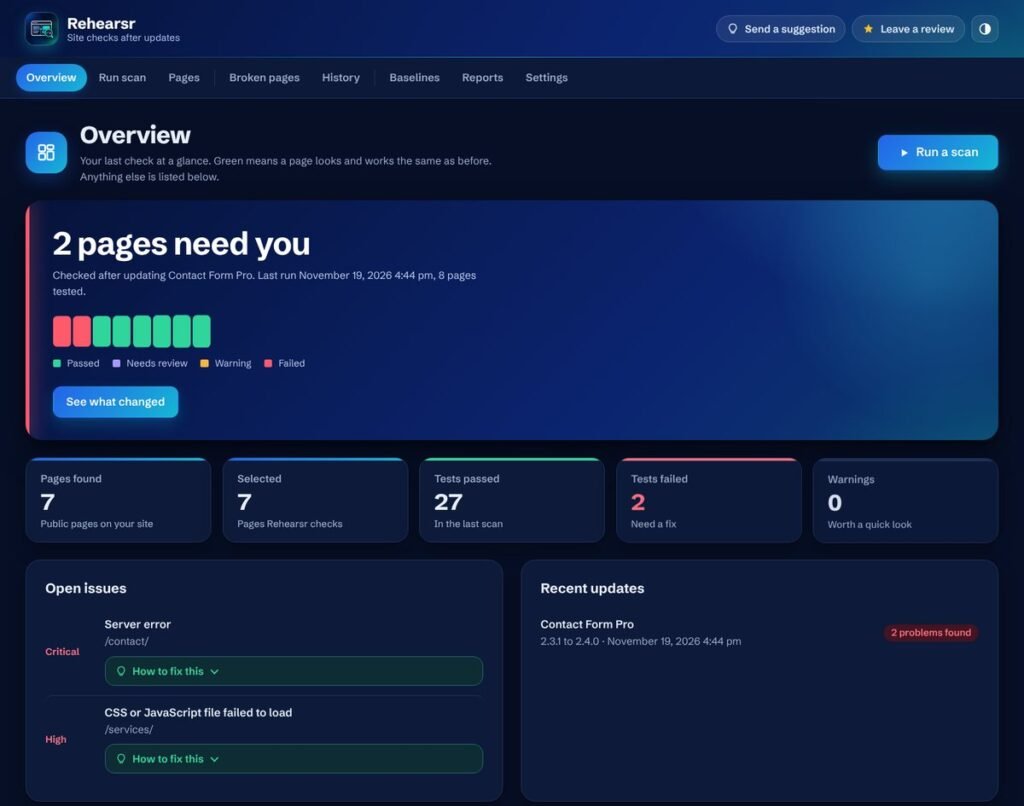
Out of the box, Rehearsr checks status codes, redirects, response time, broken CSS, JavaScript and image files, missing headings, forms and menus, big drops in page text and new PHP errors. It also runs read only checks on WooCommerce product, cart and checkout pages, and it never places an order.
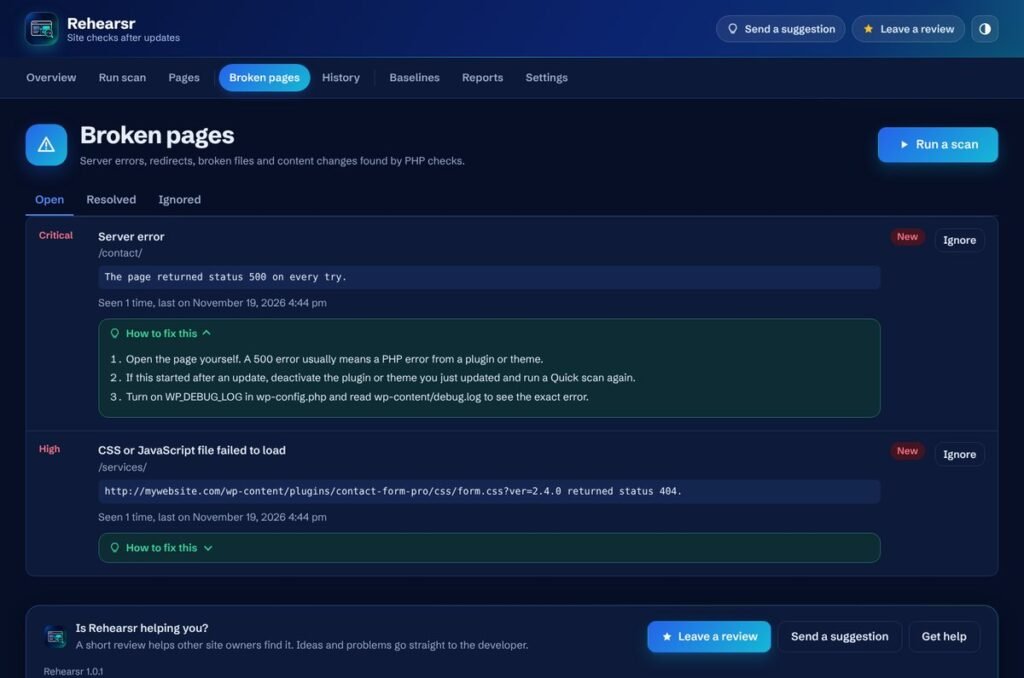
Every problem comes with a short "How to fix this" box written in plain language. When something breaks right after an update, the scan also lists the safest first steps, starting with the plugin that was just updated.
For teams that also want screenshots, Rehearsr offers an optional browser runner that you host yourself. It adds full page screenshots on desktop, tablet and mobile, a visual comparison with the baseline, and JavaScript error checks. The plain page checks work without it on any host.
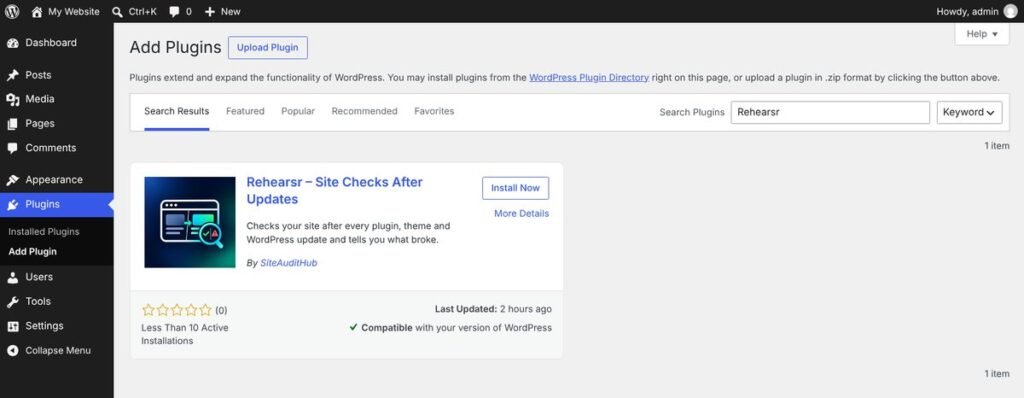
You can install it from the Rehearsr page on WordPress.org, or straight from your dashboard under Plugins, then Add Plugin, by searching for "Rehearsr".
Manual Checks or Automatic Checks After WordPress Updates
We often get asked whether checking by hand is enough. For a five page brochure site that you update once a month, it can be. You open each page, click the main buttons, and you are done in a few minutes.
The picture changes as the site grows. More pages, more plugins and automatic WordPress updates that run at night all make manual checks harder to keep up. People get busy, the check gets skipped, and that is the week a form stops working.
Automatic checks do not replace your own judgement. They take over the boring, repetitive part: opening every key page after every update and comparing it with how it looked before. You still decide what to fix and what to approve. In our experience, the best setup combines both. A tool watches every page after every update, and you spend your time only on the pages it flags.
What to Do When an Update Breaks Your Site
Even with every precaution, a bad update will reach your live site sooner or later. When it happens to a site we manage, we follow the same calm order of steps.
First, check your admin email. When a plugin or theme causes a fatal error, WordPress sends the site admin an email with a special recovery mode link. That link lets you log in and see which plugin failed, even when the rest of the dashboard is down.
Second, deactivate or roll back the plugin or theme you updated last. If you cannot reach the dashboard, renaming that plugin's folder over FTP or in your hosting file manager switches it off.
Third, clear every cache: your caching plugin, your host's cache and any CDN. Old cached files cause a surprising number of "broken" pages after WordPress updates.
Fourth, if the site now sends visitors round in circles, read our guide on how to fix the too many redirects error. Redirect loops often appear after WordPress updates to SSL, caching or redirect plugins.
Finally, report the problem to the plugin or theme author. Include the error from your debug log and the steps that cause it. A clear report usually gets a fix in the next release.
How to Make WordPress Updates Safer Every Month
The sites that rarely break are not the ones that skip WordPress updates. Skipping them leaves known security holes open. The safe sites are the ones with a steady, boring routine.
Here is the monthly rhythm we suggest to site owners. Take a backup. Run WordPress updates on staging, or one at a time on the live site. Let a checking tool scan your key pages after each update. Look at the results, fix anything that changed, and approve the new state as your baseline. The whole routine fits into a cup of tea for most small sites.
Keep a simple note of what you updated and when. If a problem shows up a few days later, that note tells you straight away which change to look at first. Many checking tools, Rehearsr included, keep this history for you and link each update to the scan that checked it.
If you would rather hand the routine to someone else, our team offers WordPress maintenance that covers backups, updates, checks and fixes every month.
FAQs
Should I turn on automatic WordPress updates?
Automatic updates are a good idea for security fixes, because they close known holes quickly. For larger plugins such as page builders, shops and forms, many site owners prefer to update by hand or to use a checking tool that tests the site right after each automatic update.
How do I know which plugin broke my site?
Look at what was updated last. If you updated several things at once, deactivate them one by one until the problem goes away. The WordPress debug log and the recovery mode email both name the plugin or theme file that caused a fatal error.
Can WordPress updates break my site's SEO?
Yes. An update can change titles, remove a canonical tag, break internal links or create redirect loops. Checking key pages and links after WordPress updates helps you catch these changes before search engines do.
How often should I run WordPress updates?
Most sites do well with a weekly or every two weeks routine, plus right away for urgent security releases. Waiting months between WordPress updates makes each round bigger and harder to test, which raises the chance of a clash.
Do I still need backups if I use a checking tool?
Yes. A checking tool tells you that something broke and where. A backup lets you undo it. The two work best together, and neither replaces the other.
Is Rehearsr free?
Yes. Rehearsr is free on WordPress.org, runs on your own server and needs no account. The optional browser runner for screenshots is also free and hosted by you.
Does Rehearsr slow down my website?
No. Rehearsr adds no CSS, JavaScript or database queries to the pages your visitors see. Its checks run in small batches in the background.
Final Thoughts
You do not need to fear the update button. You need a way to know, within minutes, whether anything changed for your visitors. Backups, one at a time WordPress updates, staging and a debug log give you control. A tool that checks your pages after every update gives you peace of mind on top of that.
Try one habit from this list this week, and let your next round of WordPress updates feel like a routine instead of a gamble.