You spent weeks on your website. The pages look good, the content is ready and you have shared the link with everyone you know. Then you search for your business name on Google and nothing shows up. Not on page one, not on page five.
It is one of the most frustrating moments for any site owner, and it is more common than most people think. In nearly every case there is a clear reason behind it, and many of those reasons can be found and fixed without a developer.
Behind every search result, Google has to find a page, read it and decide it deserves a place in its index. When your site is missing, one of those steps has broken somewhere, and finding which one is most of the work.
How Google Finds and Shows Your Pages
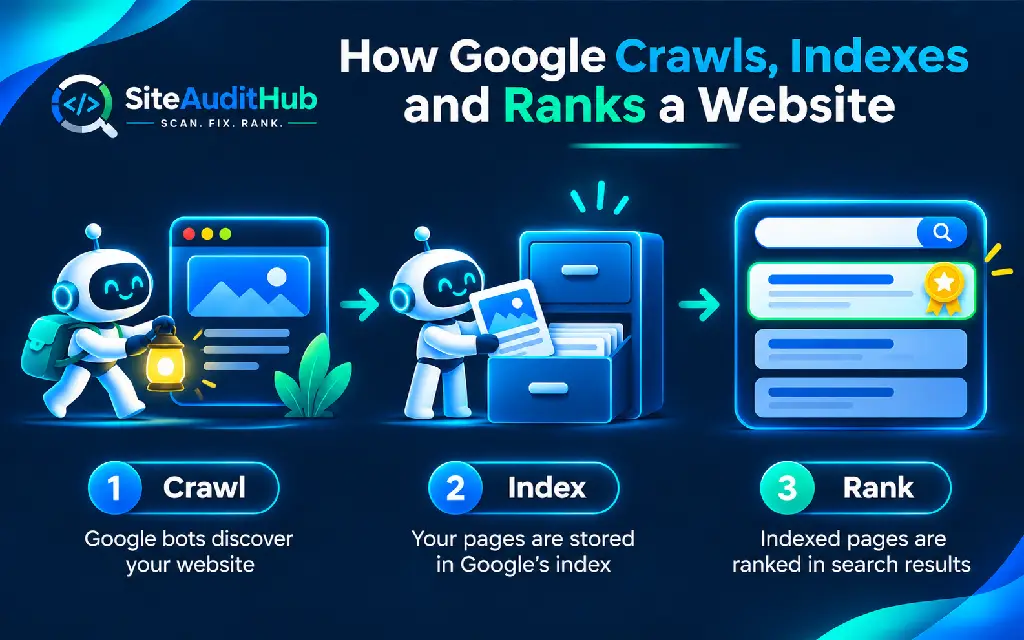
Before fixing anything, it helps to know what Google actually does with a website, because a website not indexed by Google and a website that ranks too low are two different problems. According to Google’s own guide on how Google Search works, the process has three stages: crawling, indexing and serving results.
Crawling is when Google’s automated program, called Googlebot, visits your page and downloads its text, images and code. Indexing is when Google reads that page, understands what it is about and stores it in its huge database, called the index. Serving is when someone types a search and Google picks the most useful pages from that index to show.
A page can fail at any of these three stages, and each failure needs a different fix. A page that Google cannot crawl will never be indexed. A page that is crawled but judged low value may be left out of the index. A page that is indexed can still rank too low for anyone to find it. Knowing which stage is broken saves you hours of guessing.
12 Fixes When Your Website Is Not Showing on Google
We have ordered these fixes the way we would check a client site ourselves. The first few take a minute each and catch the most common blocks. The later ones go deeper into content, links and site health. Work through them in order, because an early problem like a blocked robots.txt file can hide every other issue.
1. Confirm Whether Google Has Indexed Your Site at All
The first thing we do with any site that seems invisible is find out what Google actually knows about it. Many owners assume the whole site is missing when only a few pages are, or the other way round.
Open Google and type site:yourdomain.com with your own domain. The results show pages Google has in its index for that domain. If you see nothing, Google has not indexed the site at all. If you see some pages but not the one you care about, the problem is limited to specific pages.
For an exact answer, use the URL Inspection tool in Google Search Console. Paste the full address of a page and Search Console tells you whether it is on Google, when Googlebot last crawled it and, if it is not indexed, the reason. That reason usually points straight to one of the fixes in this guide.
2. Add Your Site to Google Search Console and Submit a Sitemap
New sites often stay invisible simply because Google has not found them yet. Google discovers pages mostly through links from other sites and through sitemaps, and a brand new domain usually has neither.
Add your website as a property in Google Search Console and verify that you own it. Then submit an XML sitemap, which is a file that lists every page you want Google to know about. Most WordPress SEO plugins create one automatically, often at an address like yourdomain.com/sitemap_index.xml.
If your site does not have a sitemap, our free XML sitemap generator starts from your homepage, follows your internal links and builds a standard XML file that you can upload to your site and submit in Search Console and Bing Webmaster Tools.
After submitting, give it time. Indexing a new site can take anywhere from a few days to a few weeks. Check the Sitemaps report in Search Console after a few days to confirm Google could read the file without errors.
3. Remove Noindex Tags Blocking Your Pages
We find this problem on new WordPress sites again and again, and luckily it is also one of the easiest to fix. A noindex instruction tells Google, in clear words, not to show a page in search results. Google respects it every time.
In WordPress, go to Settings and then Reading, and look for the option called “Discourage search engines from indexing this site”. Developers often tick this box while building a site and forget to untick it at launch. If it is ticked, every page carries a noindex tag.
Next, check individual pages. SEO plugins like Rank Math and Yoast SEO let you set noindex on a single post, page or category, and it is easy to switch this on by mistake. Noindex can also be sent in the page headers rather than the HTML, through something called the X-Robots-Tag. Our HTTP header checker looks for noindex in the X-Robots-Tag header and can request a page as Googlebot, which helps you spot a block that never shows up in the page source.
4. Check That robots.txt Is Not Blocking Google
Every site has a small text file at yourdomain.com/robots.txt that tells search engine crawlers which parts of the site they may visit. One wrong line in it can hide an entire website from Google.
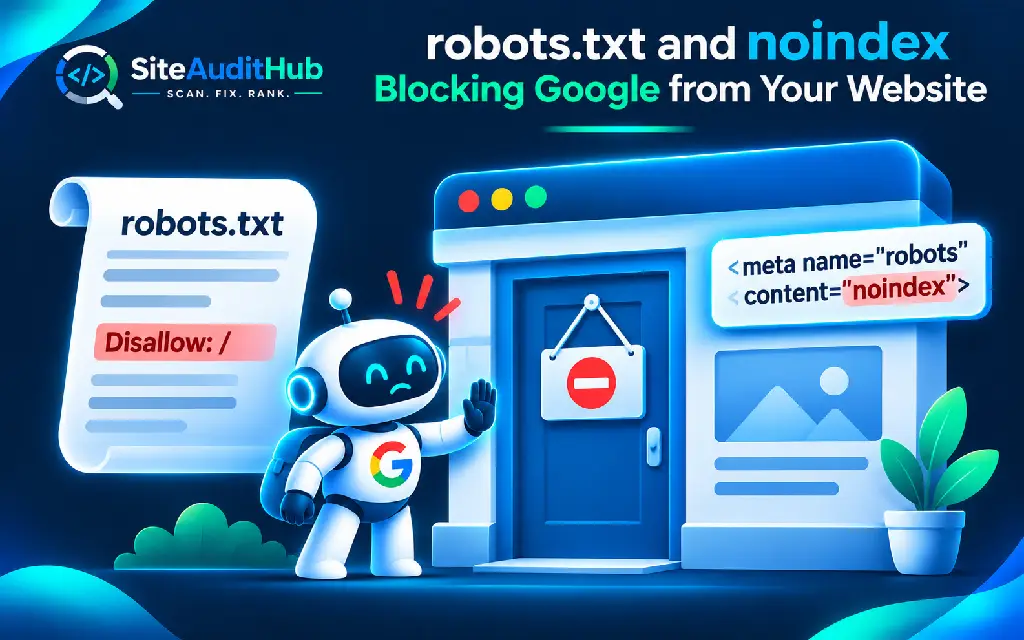
The most damaging line is “Disallow: /” under “User-agent: *”, which blocks every crawler from every page. It often comes from a staging site and gets copied to the live site by accident. Other mistakes block important folders, such as the folder that holds your blog posts or your product pages.
Our robots.txt tester shows whether a specific URL is allowed or blocked for Googlebot and other crawlers, highlights the exact rule that made the decision and flags common mistakes, including a blanket block for all crawlers and a missing Sitemap line.
One detail many people miss: robots.txt and noindex do not work well together. If robots.txt blocks a page, Googlebot cannot visit it, which means it never sees the noindex tag on it. If you want a page removed from search, allow crawling and use noindex. If you want a page found, make sure neither one blocks it.
5. Fix Pages Marked “Crawled, Currently Not Indexed”
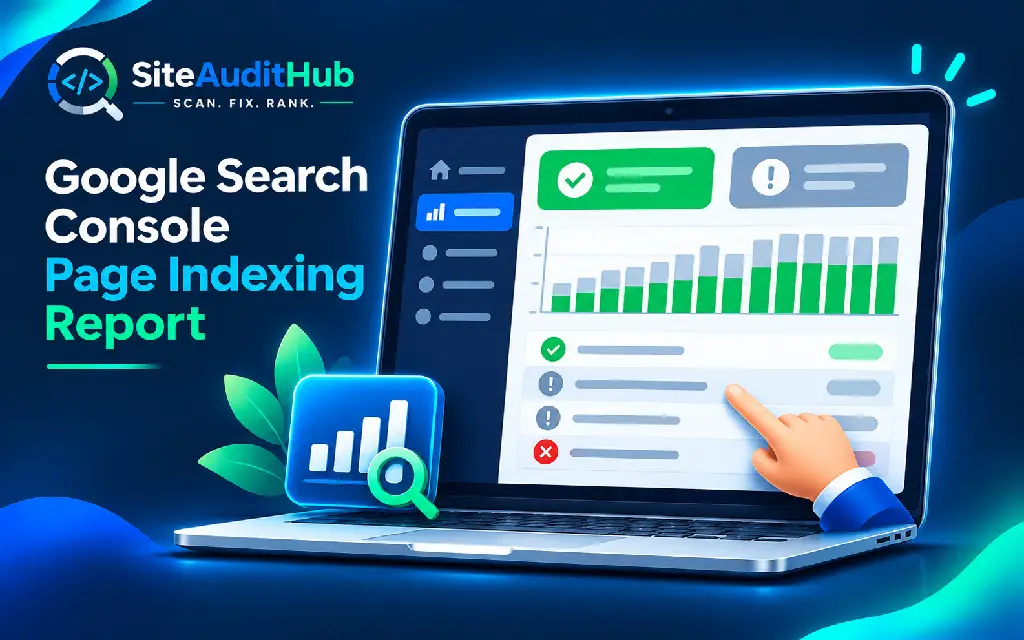
Open the Page indexing report in Search Console and you may see a long list of pages under the status “Crawled, currently not indexed”. Site owners ask us about this status a lot, mostly because it feels like Google is ignoring them for no reason.
Google’s Page indexing report help page describes this status as a page that Google crawled but did not index. In plain words, Googlebot visited and read the page, then decided not to add it to the index for now. Google notes that this is common and not always a problem, and pages can move into the index later.
When the page matters to you, the usual reason is quality or value. Thin pages with only a few lines of text, pages that repeat what other pages on your site already say, auto generated tag pages and pages that copy a manufacturer’s description word for word are all common examples. Google has a limited appetite for pages that add nothing new.
To fix it, make the page clearly worth indexing. Add useful detail that answers the searcher’s question better than other results, merge thin pages that cover the same topic into one stronger page, link to the page from relevant places on your own site, and then request indexing again through URL Inspection. For tag archives and other low value pages, it is often better to set them to noindex and let Google focus on your best content.
6. Fix Pages Marked “Discovered, Currently Not Indexed”
This status looks similar but means something different, and the fix is different too. Here Google knows the page exists but has not crawled it yet.
Google’s help page explains that this often happens because crawling the page was expected to overload the site, and Google decided to postpone the visit. On small sites, it can also mean Google does not yet see the page as important enough to visit soon.
Speed up your server first. A slow host, frequent timeouts or a server that struggles under load all make Google crawl more carefully. Then show Google that the page matters by linking to it from your homepage, menus or popular posts, and make sure it appears in your sitemap. Avoid publishing hundreds of near identical pages at once, since that spreads Google’s attention across pages that may not deserve it.
7. Sort Out Duplicate Content and Canonical Tags
When several pages on your site show the same or very similar content, Google picks one version to index and treats the others as duplicates. Sometimes it picks a different version from the one you wanted.
A canonical tag tells Google which version of a page is the main one. Problems start when canonical tags point to the wrong address, for example to the homepage, to an old http version or to a page that no longer exists. In Search Console, look for statuses like “Duplicate, Google chose different canonical than user” or “Alternate page with proper canonical tag”.
Common causes on WordPress and store sites include product pages that appear under several category paths, URLs with tracking parameters, separate print versions of pages and the same post available at both www and non www addresses. Check that each important page has a canonical tag pointing to itself, and that your SEO plugin is set up to handle categories and parameters correctly.
8. Fix Redirect Chains and Mixed Domain Versions
Redirects tell browsers and Google that a page has moved. Used well, they protect your rankings when you change an address. Used badly, they confuse Google about which address to index.
Your domain can be reached in four ways: with or without www, and with http or https. All four should lead to one single address in one step. If some versions land in different places, or a page passes through three or four redirects before it loads, Google may index the wrong version or give up on the chain altogether.
Our redirect checker follows each redirect hop from your homepage and internal links, checks the http, https and www versions of your domain, and flags loops, long chains and redirects that end in an error. It also suggests pointing links straight to the final address, which is usually the cleanest fix.
9. Link to Orphan Pages and Fix Broken Internal Links
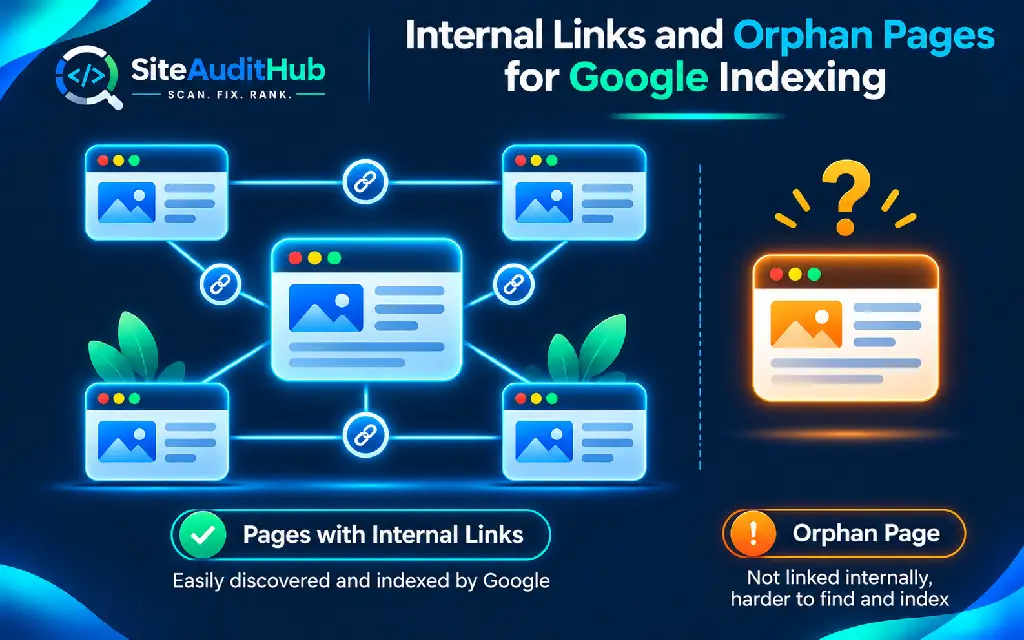
A page with no internal links pointing to it is called an orphan page. Google can sometimes find it through a sitemap, but it sees little reason to treat it as important. Visitors cannot reach it either, unless they already know the address.
We often find orphan pages on sites after a redesign, when old menus disappear, or on blogs where new posts never get linked from older ones. Go through your most important pages and make sure each one is linked from at least two or three relevant pages, using clear anchor text that describes what the page is about.
Broken internal links waste Google’s time on your site and stop it from reaching pages further down. Run your site through our broken link checker, fix or remove every internal link that returns an error, and update links that still point to old addresses.
10. Fix Server Errors, Soft 404s and Slow Loading
Google cannot index a page it cannot load. When we check sites that suddenly drop out of search, server problems are a frequent cause, especially on cheap shared hosting.
In the Page indexing report, look for “Server error (5xx)”, “Not found (404)” and “Soft 404”. A server error means your site failed to respond when Googlebot visited. A 404 means the page does not exist at that address. A soft 404 is trickier: the page loads but looks empty or like an error page to Google, often because it has almost no content, an empty category or a “no products found” message.
Talk to your host if server errors keep appearing, and consider better hosting if your site is regularly slow. Return a proper 404 status for pages that are truly gone, redirect old pages to their closest replacement, and add real content to thin pages that Google flags as soft 404s.
11. Check for a Manual Action or Security Problem
Sometimes a site does not show up because Google has taken action against it. This is rare for honest sites, but it does happen, and it is worth ruling out early if your traffic disappeared overnight.
In Search Console, open Security and Manual Actions. The Manual actions report shows whether a Google reviewer has penalised your site for problems like spammy links or thin content. The Security issues report shows whether Google found malware, hacked content or deceptive pages on your site.
Hacked sites are a common hidden cause. Attackers often add spam pages or hidden links that make Google trust the whole site less, while the owner sees nothing unusual. If you suspect anything, our website security audit checklist walks through how to find and clean that kind of damage. After fixing a manual action or security issue, request a review from inside Search Console.
12. Improve Pages That Are Indexed but Not Ranking
Sometimes everything is technically fine. URL Inspection says the page is on Google, yet you still cannot find it. In that case the page is indexed but ranking too low for the searches you are trying.
Start by searching for your exact brand name or a full sentence from your page in quotes. If the page shows up, it is indexed and the problem is ranking, not visibility. New sites rarely rank for broad, competitive terms, and a page targeting “best shoes” will struggle against brands that have spent years building authority.
Aim for more specific searches first, the kind your ideal customer actually types, like a product name with a location or a detailed question. Make sure each page has a clear, unique title and meta description that match that search. Our SEO analyzer helps you spot missing titles, weak descriptions and other on page problems across your pages, which makes it easier to see where each one needs work.
Website Not Showing on Google on WordPress, Shopify or Wix?
Each website platform has its own settings that can quietly keep a site out of search. We see these platform specific switches catch people out often, because they sit in menus most owners never open after launch.
On WordPress, the “Discourage search engines” option in Settings and then Reading is the usual suspect, followed by noindex settings inside SEO plugins. Maintenance mode and coming soon plugins can also block Google while they are active, since they show visitors and crawlers a placeholder page in place of your real content. Turn them off once the site is live and check the page again with URL Inspection.
On Shopify, a new store stays behind a password page until you remove it in the Online Store preferences, and Google cannot index pages hidden behind that password. Many store owners launch, start running ads and only later notice that the password page is still on. Shopify creates a sitemap automatically at yourstore.com/sitemap.xml, which you can submit in Search Console once the password is removed.
On Wix, Squarespace and similar builders, look for a setting that lets search engines index your site, usually inside the SEO or site visibility settings. Some builders also keep sites on a free subdomain, which tends to take longer to get noticed than a custom domain. Connecting your own domain and verifying it in Search Console gives Google a clearer signal that the site is real and active.
Whatever the platform, password protection of any kind blocks indexing. Membership areas, client portals and pages behind a login are meant to stay private, but make sure your public pages are not accidentally placed behind the same wall.
How Long Does It Take Google to Index a Website?
There is no fixed timeline, and Google does not promise to index every page. For a brand new website, indexing commonly takes from a few days to a few weeks. Established sites that publish regularly often see new posts indexed much faster, sometimes within hours.
You can help by submitting a sitemap, linking new pages from existing ones and using the Request Indexing button in URL Inspection for important pages. Requesting indexing again and again does not speed things up. Once is enough, and after that the best thing you can do is keep improving the page and wait.
Quick Checklist: Website Not Showing on Google
Use this table to find the likely cause fast and jump to the right fix.
| What you see | Likely cause | Where to check |
|---|---|---|
| site: search shows nothing | Site never indexed or fully blocked | Search Console, robots.txt, Reading settings |
| Page shows noindex in URL Inspection | Noindex tag or X-Robots-Tag header | SEO plugin settings, HTTP Header Checker |
| “Blocked by robots.txt” | A Disallow rule covers the page | Robots.txt Tester |
| “Crawled, currently not indexed” | Thin, duplicate or low value page | Page content and internal links |
| “Discovered, currently not indexed” | Slow server or low page priority | Hosting speed, internal links, sitemap |
| “Duplicate, Google chose different canonical” | Wrong or missing canonical tag | SEO plugin canonical settings |
| “Page with redirect” | Redirect chain or mixed domain versions | Redirect Checker |
| “Server error (5xx)” or “Soft 404” | Hosting problems or empty pages | Hosting panel, page content |
| Traffic dropped overnight | Manual action or hacked site | Security and Manual Actions in Search Console |
| Indexed but cannot find it | Ranking, not indexing | Titles, meta descriptions, search intent |
What to Do After You Fix the Problem
Once you have found and fixed the issue, tell Google about it. Open URL Inspection for the affected page and click Request Indexing. For problems that affected many pages, such as a robots.txt block or a site wide noindex, resubmit your sitemap and use the Validate Fix button on the matching status in the Page indexing report.
Then be patient. Validation can take days or a couple of weeks while Google recrawls the affected pages. Check the report once or twice a week rather than every hour, and note the date you made each change. If a fix does not move a page after a few weeks, go back through the list, since a page sometimes has more than one problem at the same time.
Mistakes That Keep Websites Out of Google
Some problems come back again and again on the sites we review, usually because of small habits rather than big technical errors.
- Launching with “Discourage search engines” still ticked. Make unticking it part of every launch checklist.
- Copying robots.txt from the staging site. Staging sites block crawlers on purpose, and that rule should never reach the live site.
- Publishing many thin pages at once. Ten useful pages do more for indexing than a hundred near empty ones.
- Changing URLs without redirects. Every old address that now returns a 404 throws away the trust Google built for that page.
- Clicking Request Indexing every day. It does not speed anything up and can distract from the real fix.
- Ignoring Search Console emails. Google often warns you about indexing problems long before you notice a traffic drop.
Frequently Asked Questions
Why is my website not showing on Google when I search for it?
The most common reasons are that Google has not found the site yet, a noindex tag or robots.txt rule is blocking it, or the page is indexed but ranks too low for the words you searched. Use the URL Inspection tool in Google Search Console to see the exact reason for any page.
How do I check if my website is indexed by Google?
Search for site:yourdomain.com on Google to see which pages are in the index. For a definite answer on a single page, paste its address into the URL Inspection tool in Google Search Console, which shows whether it is indexed and why if it is not.
What does “crawled, currently not indexed” mean?
It means Googlebot visited and read the page but decided not to add it to the index for now. It is often linked to thin, duplicate or low value content. Improving the page, linking to it from other pages and requesting indexing again usually helps.
What does “discovered, currently not indexed” mean?
It means Google knows the page exists but has not crawled it yet. Google sometimes delays crawling to avoid overloading a site. A faster server, stronger internal links and a clean sitemap help Google get to these pages sooner.
Can I pay Google to index my website faster?
No. Google does not sell faster indexing or better organic rankings. Paid ads appear in their own labelled section and do not affect whether your pages are indexed. The free tools in Search Console are the official way to ask Google to crawl your pages.
Does a new website need backlinks to get indexed?
Backlinks are not required, but they help Google discover a new site faster and see it as trustworthy. A verified Search Console property with a submitted sitemap is usually enough to get a new site crawled. Backlinks matter much more for ranking well once the pages are indexed.
Start With the Check That Takes One Minute
A website not showing on Google is almost never a mystery. It is usually one setting, one line in a file or one weak page standing between you and your visitors. Once you know which of the three stages is failing, crawling, indexing or ranking, the fix becomes a clear task rather than a guessing game.
Today, run a site: search for your domain and inspect your most important page in Search Console. Those two minutes will tell you which fix in this list to start with.
To catch several of these problems in one pass, our free Full Site Audit checks your page for noindex tags, canonical tags, robots.txt access, XML sitemap discovery, redirects between your domain versions and broken links, then scores each area and links you to the tool that fixes it.