You click a post from your own menu and WordPress shows “Page not found”. Nothing looks broken in the dashboard, the post is still published, and yet visitors keep hitting a dead end. I see this often on WordPress sites, and most of these errors come from a short list of causes. Once you know where to look, you can fix 404 errors WordPress sites throw in minutes rather than hours.
Some of these fixes take one click, and none of them need a paid tool. I work through them in the same order every time, starting with the quickest.
What a 404 Error Means on a WordPress Site
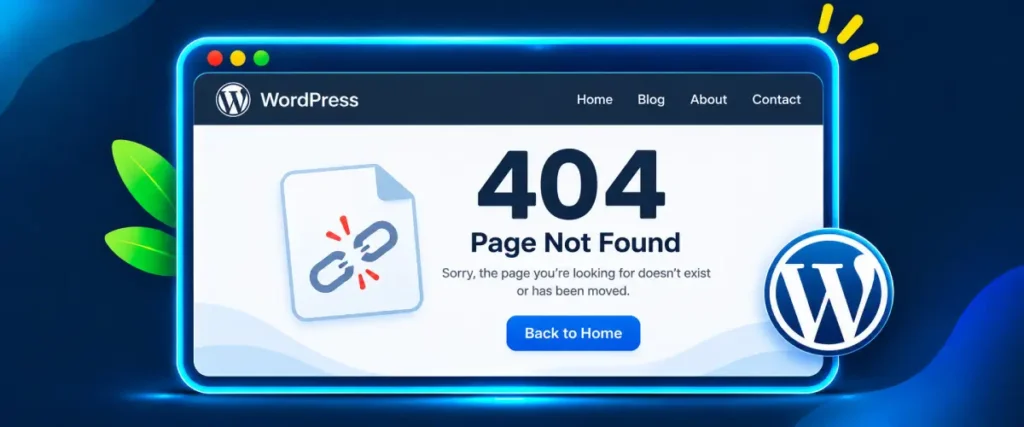
A 404 error is the response a server sends when it cannot find anything at the requested address. The page might have been deleted, moved to a new URL or never existed in the first place. The visitor sees an error page, and search engines record that the URL returned “Not Found”.
WordPress handles this a little differently from a plain HTML website. Almost every request on a WordPress site goes through one file, index.php, and WordPress then works out which post, page or archive matches the URL. When no match exists, WordPress loads your theme’s 404 template and sends the 404 status code. This is why a single wrong setting, like a broken permalink rule, can turn every post on the site into a 404 error at once while the homepage still loads fine.
There are two kinds of 404 problems worth separating early. The first is a site wide problem, where most posts or pages fail at the same time. The second is a page level problem, where only a few URLs are missing. Site wide problems usually point to permalinks, the .htaccess file or a plugin. Page level problems usually point to deleted content, changed slugs and old links.
Why 404 Errors Matter for Your Site
Visitors rarely give a site a second chance after a dead end. Someone who came from Google for a specific answer and lands on an error page usually goes straight back to the search results. On a WordPress blog that means a lost reader. On a WooCommerce site or a service page, it can mean a lost order or enquiry.
Search engines care for a slightly different reason. A deleted page that returns a 404 is normal and does not, on its own, hurt your rankings. The trouble starts when your own posts, menus and sitemaps keep linking to URLs that no longer exist. Every one of those links wastes a crawl request and sends link value to a page that cannot use it. Backlinks from other websites pointing to a missing page also lose their value until you redirect that URL.
There is a simple way to look at it. A few old 404 errors with no links pointing to them are harmless. A 404 error on a page that still gets traffic, links or sales is worth fixing today.
Common Causes of 404 Errors in WordPress
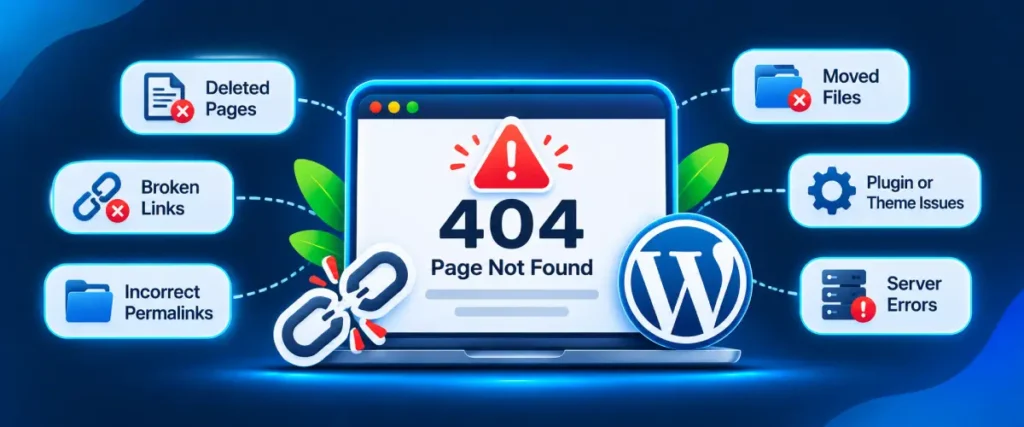
Most of the 404 problems I run into on WordPress sites trace back to one of the causes below. Knowing them makes it much faster to fix 404 errors WordPress users report, because the cause usually tells you the fix.
- Changed permalink settings. Switching from one permalink structure to another changes every post URL on the site. Old links break unless WordPress or a plugin redirects them.
- Edited post or page slugs. Changing a slug for a cleaner URL is common, and the old URL stops working right away if no redirect is in place.
- Deleted or trashed content. Removing old posts, discontinued products or expired landing pages leaves behind every link that pointed to them.
- A missing or damaged .htaccess file. On Apache servers, WordPress relies on rewrite rules in this file. If a plugin or a manual edit breaks it, pretty permalinks stop working.
- Plugin and theme conflicts. Security plugins, multilingual plugins, membership plugins and custom post type plugins can all change how WordPress reads URLs.
- Site migrations. Moving to a new host, a new domain or from HTTP to HTTPS often leaves old URLs, image paths and internal links pointing to the wrong place.
- Typos and case differences. A missing letter, an extra slash or a capital letter in a manually typed link is enough to send visitors to a page that does not exist.
- Moved media files. Clearing the media library, changing the uploads folder or switching to a CDN can break images across many posts.
How to Find 404 Errors on Your WordPress Site
Before you fix 404 errors WordPress logs or reports show, you need a list of the URLs that fail and the pages that link to them. I use a mix of the tools below, because each one sees a different set of errors.
Run an Online 404 Checker
An online 404 checker is the quickest starting point because there is nothing to install on WordPress. Paste your homepage URL into the SiteAuditHub broken link checker, and it scans the page plus internal pages it finds linked from it. The report lists each 404 error with the page where the link sits, the status code and the link text, and you can download it as a CSV.
For a larger WordPress site, run the checker on your main sections one at a time, like the blog page, top category pages and key service pages. That gives you a clear picture of the broken links WordPress visitors are most likely to click.
Turn On the Rank Math 404 Monitor
If you use Rank Math, it has a built in 404 Monitor module that logs every missing URL visitors and bots request. Go to Rank Math SEO, then Dashboard, and turn on the 404 Monitor module. The log then appears under Rank Math SEO, then 404 Monitor. Rank Math explains the setup in its 404 Monitor guide.
The Simple mode groups repeated errors and shows how many hits each one received. The Advanced mode, which you switch on under General Settings, also records the referrer and user agent for each hit. Advanced mode stores much more data, and I only keep it on while I am tracking down the source of specific errors.
Check Google Search Console
Search Console shows the 404 errors Googlebot has found. Open your property, go to Indexing, then Pages, and look for the reason “Not found (404)” in the list of pages that are not indexed. Click it to see the affected URLs, and use URL Inspection on any of them to see where Google found the link.
Not every URL in this report needs attention. If you deleted a post on purpose and nothing links to it, a 404 error is the right response. Focus on URLs that still receive links, traffic or impressions.
Look at Your Hosting Error Logs
Your server keeps a record of every request, including those that end in a 404 error. Most hosting panels, including cPanel, let you open the error log or the raw access log without any plugin. Logs catch things other tools miss, like missing favicon files, broken CSS or JavaScript paths and old feed URLs that bots keep requesting. If you want more free ways to collect this data, my guide on how to find broken links covers crawlers and analytics as well.
7 Steps to Fix 404 Errors WordPress Sites Show
Once you have your list, work through these steps in order. The first two fix site wide problems, and the rest handle individual URLs. In my experience, these seven steps are enough to fix 404 errors WordPress sites show in the vast majority of cases, without hiring a developer.
1. Reset Your Permalinks
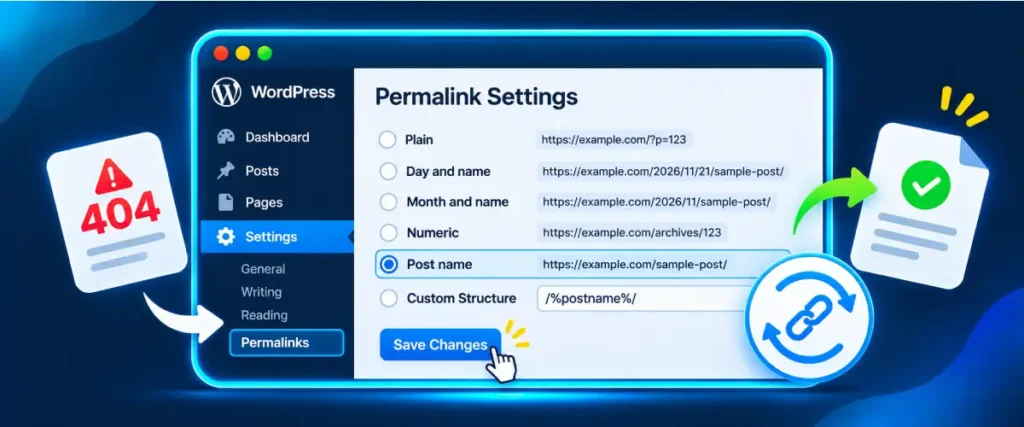
When every post shows a 404 error but the homepage and dashboard work fine, the rewrite rules are almost always the problem. Go to Settings, then Permalinks, and click Save Changes without changing anything. Saving this screen makes WordPress rebuild its rewrite rules.
This one click solves a surprising number of cases, especially right after a migration, a plugin update or registering a new custom post type. I always try it first because it takes five seconds and carries no risk. If you need to fix 404 errors WordPress shows across a whole blog at once, this is the step that usually does it.
2. Check or Restore the .htaccess File
If saving permalinks did not help and your site runs on an Apache server, check the .htaccess file in the root folder of your WordPress install. You can open it through your hosting file manager or an FTP client. Download a backup copy before you edit anything.
WordPress keeps its own rules between the lines “BEGIN WordPress” and “END WordPress”. If that block is missing, damaged or has extra rules inside it added by a plugin, replace it with the default rules from the official WordPress .htaccess documentation. Keep any custom rules you need above or below the WordPress block, never inside it. After saving the file, reload a few posts to confirm the change worked.
If your host runs Nginx rather than Apache, there is no .htaccess file to fix. In that case, ask your host to confirm that the server is configured to pass requests to index.php, which is how WordPress permalinks work on Nginx.
3. Update Links That Point to Old URLs
A redirect fixes the visitor’s path, but a direct link is always better. If a post moved to a new slug, update the links in your menus, widgets, footer and other posts to point to the new URL. Visitors and crawlers then reach the page in one step.
The CSV from your checker or crawler tells you exactly which pages contain each broken link. I sort that list by source page and fix everything on one page before moving to the next. For links inside reusable blocks, templates or menus, fix the source once and every page that uses it updates together. Cleaning up broken links WordPress menus and footers carry is often the fastest win, since those links appear on every page.
4. Add 301 Redirects for Moved or Deleted Content
When a page has a new address, or when other websites still link to an old URL, add a 301 redirect from the old URL to the closest matching page. A 301 tells search engines the move is permanent and passes most of the old page’s value to the new one.
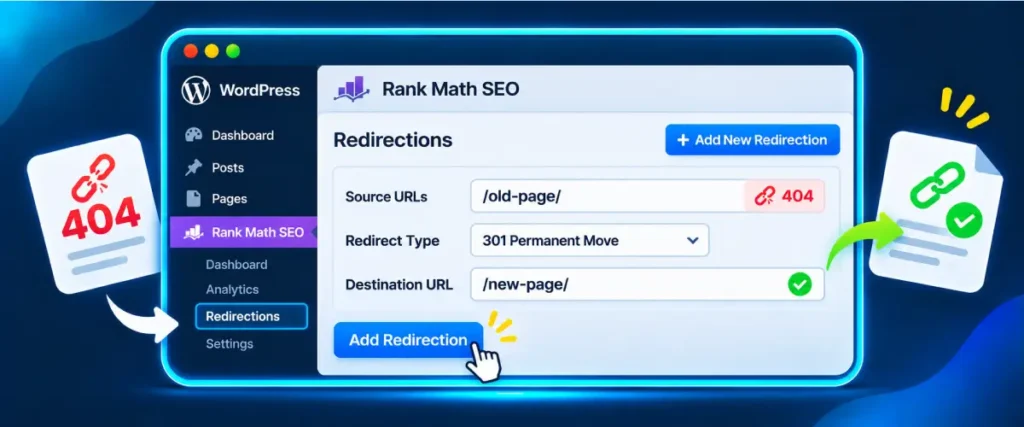
On WordPress, you can do this without touching server files. Rank Math has a Redirections module, and in its 404 Monitor you can hover over a logged URL and choose Redirect. The free Redirection plugin is another common option. After saving a redirect, test the old URL with a redirect checker to make sure it lands on the right page in a single hop.
Avoid two common mistakes here. Do not send every missing URL to your homepage, since Google may treat those redirects as soft 404 errors and visitors end up confused. Also avoid chains, where page A redirects to B and B redirects to C. Point A straight to C instead. If content is gone for good and nothing similar exists, a 410 (Gone) response or a plain 404 page is the honest answer.
5. Restore Content From the Trash or a Backup
Sometimes a page was deleted by mistake. WordPress keeps trashed posts and pages for 30 days by default. Go to Posts or Pages, open the Trash view, and click Restore on the item you need. Restored content returns as a draft in many cases. Check its status and publish it again.
If the trash was already emptied, your hosting backup or a backup plugin is the next stop. Restoring a single post from a backup is safer than restoring the full site, since a full restore can overwrite newer content.
6. Rule Out Plugin and Theme Conflicts
If 404 errors appeared right after installing or updating something, a plugin or theme is the likely cause. Deactivate plugins one at a time, starting with the most recent ones, and test the broken URL after each one. Security, caching, multilingual, membership and WooCommerce extension plugins are the usual suspects.
To check the theme, switch to a default WordPress theme for a few minutes and test again. I strongly suggest doing this on a staging copy of the site if your host offers one, since switching themes on a live site changes the design for every visitor. Once you find the culprit, update it, check its settings or contact its support team. Reactivate the other plugins afterwards and test once more.
7. Fix Missing Images and Media Files
Images that return a 404 error show up as empty boxes or broken icons. Open the affected page, press F12 to open the browser’s developer tools, go to the Network tab and reload the page. Any file with a 404 status is listed with its exact path.
Most missing media comes from three things: files deleted from the media library, image paths that still point to an old domain after a migration, and a changed uploads folder. Upload missing files again where possible. For old domain paths, a search and replace on the database, done by your developer or a trusted plugin after a full backup, updates the links in one pass.
404 Errors in WooCommerce and Custom Post Types
WooCommerce stores and sites with custom post types have their own set of 404 problems. I give them a separate check because the usual steps do not always cover them, and they often affect the pages that bring in money.
Product, shop and cart pages can all return a 404 error after changes in WooCommerce settings. The most common trigger is editing the product base or category base under Settings, then Permalinks, in the optional product permalinks section. Every product URL changes when you do this, and old links from ads, emails and Google results break at once. If you change these bases on a live store, set up redirects from the old pattern to the new one the same day. Pages like Cart, Checkout and My Account also need to stay assigned under WooCommerce, then Settings, then Advanced. If one of those pages was deleted or unassigned, WooCommerce links to a URL that no longer exists.
Custom post types, like portfolios, events, courses or listings, depend on rewrite rules that WordPress builds when the plugin or theme registers them. When a new custom post type shows a 404 error on every single item, saving permalinks once usually fixes it. If the problem keeps coming back after updates, the plugin that registers the post type may be loading late or conflicting with another plugin that uses the same slug, like two plugins both trying to use “events”.
Out of stock and discontinued products need a clear decision. If a product will return, keep the page live with a back in stock note. If it is gone for good, redirect it to the closest replacement or its category page. Leaving thousands of empty product pages live is one of the main reasons store owners struggle to fix 404 errors WordPress and Search Console keep reporting as soft 404s.
When a 404 Error Is the Right Answer
Not every 404 error needs a fix, and trying to redirect every single one creates new problems. A 404 is the correct response for a URL that never existed, like a typo someone made or a random address a bot tried. Redirecting those URLs adds clutter to your redirect list and can slow down how quickly your server responds.
I use a simple test for each URL in the report. If the page had real traffic, backlinks or a close replacement, it gets a 301 redirect. If it was removed on purpose and has no value left, it can return a 410 (Gone), which tells search engines the removal is deliberate. Rank Math lets you choose 410 as a redirection type for this. Everything else can stay a plain 404 page, as long as nothing on your own site links to it.
This approach keeps your redirect list short and easy to manage. It also means you spend your time where it matters, on the missing URLs that real visitors and search engines still try to reach.
Create a Helpful Custom 404 Page
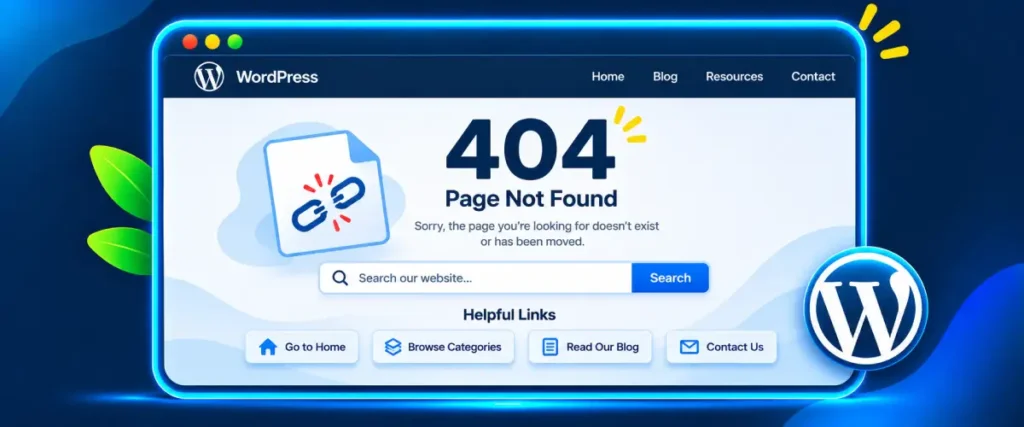
Even on a clean site, some visitors will mistype a URL or follow an old link from another website. A good 404 page turns that moment into a second chance rather than an exit, and it catches any URL you could not cover with a redirect or an updated link. It should say clearly that the page is missing, offer a search box, link to your most useful pages and give a way to contact you.
How you build it depends on your theme. On a block theme, go to Appearance, then Editor, open Templates and select the 404 template (some themes call it Page Not Found). Edit it with blocks like any other page. On a classic theme, the 404 page comes from a file called 404.php, and the safe way to change it is through a child theme, which keeps theme updates from overwriting your work. Page builders like Elementor Pro also have their own 404 template option.
After you publish the new design, confirm that a missing URL still returns a real 404 status code and not a 200. Some custom 404 setups accidentally return 200, which creates soft 404 errors. Test any made up URL on your site with an HTTP header checker and look at the status line.
Watch Out for Soft 404 Errors in WordPress
A soft 404 is a page that loads with a normal 200 status but has little or no useful content. Google treats these pages as errors and may report them as “Soft 404” in Search Console. WordPress creates them more often than people expect.
Empty tag and category archives are a common source. Others include author archives on single author blogs, attachment pages that show only an image, internal search result pages and WooCommerce product pages that are permanently out of stock with nothing else on them. Each of these looks like a real page to WordPress, but it gives visitors almost nothing.
The way to fix 404 errors WordPress marks as soft depends on the page. Add real content where the page deserves to exist, set it to noindex in Rank Math where it adds no search value, or remove it and let it return a proper 404 error. For attachment pages, Rank Math has a setting that redirects them to the parent post, which clears up many of these at once.
How to Confirm Your Fixes Worked
Fixing an error and confirming it are two separate steps, and skipping the second one is how many people think they managed to fix 404 errors WordPress still serves. After each round of fixes, clear your caching plugin, server cache and CDN cache. Without this step, you might keep seeing the old 404 page even though the problem is solved.
Next, run your 404 checker again on the same pages and compare the new report with the old one. In Search Console, open the “Not found (404)” report and click Validate Fix. Google then rechecks the listed URLs over the following days and moves fixed ones out of the error list.
Finally, keep an eye on the Rank Math 404 Monitor for a week or two. If the same URL keeps appearing, the link is still live somewhere, often in an email, an old social post or a page you missed. Clear the log after each round to make new entries easy to spot.
Habits That Keep 404 Errors Away
Prevention is far less work than repair. Most of these habits take seconds while you are already editing a post, and they mean you will rarely need to fix 404 errors WordPress builds up over months.
Set a redirect every time you change a slug. Rank Math can do this for you automatically when you edit the URL of a published post, as long as the Redirections module is active. Plan slugs before publishing too. Short, descriptive slugs without dates or years rarely need to change later.
Before deleting a post or product, search your site for links to it and update them in the same session. When you do delete it, decide right away whether it needs a 301 redirect to a related page or should simply return a 404 page.
Treat migrations as a project, not a quick task. Crawl the old site first and save the full list of URLs. After the move, check every URL on that list against the new site before you announce the launch. Keep your XML sitemap limited to live pages, and regenerate it after big changes with a sitemap generator if your SEO plugin does not handle it.
Last, put a monthly reminder on your calendar to run a 404 checker on your main pages and look at the Rank Math 404 log. Small sites rarely need more than ten minutes for this.
Final Thoughts
404 errors are part of running any WordPress site. Content changes, plugins update and other websites link to URLs that no longer exist. What matters is how quickly you notice them and whether the fix sends visitors somewhere useful.
If the whole site is throwing errors, start with permalinks and the .htaccess file. If only a few URLs fail, redirects and updated links will handle most of them. A clear custom 404 page catches whatever slips through, and a monthly check keeps the list short. Follow this routine and you will fix 404 errors WordPress visitors run into before they cost you traffic.
FAQs
How do I fix 404 errors WordPress shows on every post?
When every post shows a 404 error but the homepage works, go to Settings, then Permalinks, and click Save Changes. This rebuilds the rewrite rules. If that does not work on an Apache server, check that the .htaccess file contains the default WordPress rules.
What is the best free 404 checker for WordPress?
A free online 404 checker is the easiest place to start, since it needs no installation. For ongoing tracking, the Rank Math 404 Monitor logs missing URLs on your site, and Google Search Console shows the 404 errors Googlebot has found.
Do 404 errors hurt SEO in WordPress?
A deleted page that returns a 404 error does not hurt rankings on its own. The harm comes from internal links and backlinks pointing to missing pages, which waste crawl requests and link value. Fix those links or redirect the old URLs to relevant pages.
How do I find broken links WordPress posts contain?
Run an online broken link checker on your main pages, turn on the Rank Math 404 Monitor, and check the “Not found (404)” report in Search Console. A crawler like Screaming Frog can also scan up to 500 URLs for free.
Should I redirect all 404 pages to the homepage?
No. Redirect each missing URL to the most relevant live page. Sending everything to the homepage confuses visitors and Google may treat those redirects as soft 404 errors. If no related page exists, let the URL return a proper 404 page.
How do I edit the 404 page in WordPress?
On a block theme, go to Appearance, then Editor, then Templates, and open the 404 template. On a classic theme, edit the 404.php file through a child theme, or use a page builder that supports custom 404 templates.
Why does my WordPress site show a 404 error after migration?
After a migration, rewrite rules often need rebuilding and old URLs or image paths may still point to the previous domain. Save your permalinks again, check the .htaccess file, and update old domain links in the database after taking a backup.