Traffic drops rarely come with a clear reason attached. One month a page ranks on the first page, and the next month it slips, even though nobody touched it. In most cases the cause is sitting somewhere on the site itself: a page blocked from indexing, a redirect pointing the wrong way, a slow template or a title tag that was overwritten during an update. A website SEO audit is how you find those problems before they pile up.
You do not need an agency or an expensive tool to run one. I use the same checklist on every site I review, and it works just as well for a five page business site as it does for a large blog.
What a Website SEO Audit Covers
An SEO audit is a structured review of everything on your site that affects how search engines crawl, understand and rank your pages. It looks at technical health, on page elements and the user experience signals that search engines can measure. The goal is a clear list of issues, ranked by how much they matter, with a fix for each one.
A full website SEO audit usually covers five areas. Crawling and indexing decide whether Google can reach and store your pages. Site structure covers internal links, redirects and broken pages. On page SEO looks at titles, meta descriptions, headings, content and images. Performance covers speed, Core Web Vitals and mobile experience. Security and trust cover HTTPS, mixed content and malware.
It helps to be clear about what an audit does not cover. A standard site audit will not tell you how many backlinks you need, how competitive a keyword is or exactly why a competitor outranks you. Those questions need keyword research and backlink analysis, which are separate jobs. An audit makes sure your own site is not holding you back, and Google’s SEO Starter Guide is a good reference for the basics it should check.
How Often Should You Audit Your Website?
The right schedule depends on how much your site changes. A small business site that adds a page now and then can run a full audit every six months, with a quick monthly check of Search Console. A blog publishing several posts a week, or a site with hundreds of product pages, benefits from a lighter check every month and a deeper audit every quarter.
Some events call for an audit straight away, no matter what the calendar says:
- After a redesign, a theme change or a move to a new CMS
- After a domain change, a host migration or a switch to HTTPS
- After a sudden drop in traffic or impressions in Search Console
- After installing major plugins that change URLs, caching or SEO settings
- Before a big campaign that will send paid traffic to the site
I also like to run a website SEO audit before starting any new SEO work. Fixing technical problems first means every new piece of content starts on a solid base.
Free Tools You Need for a Site Audit
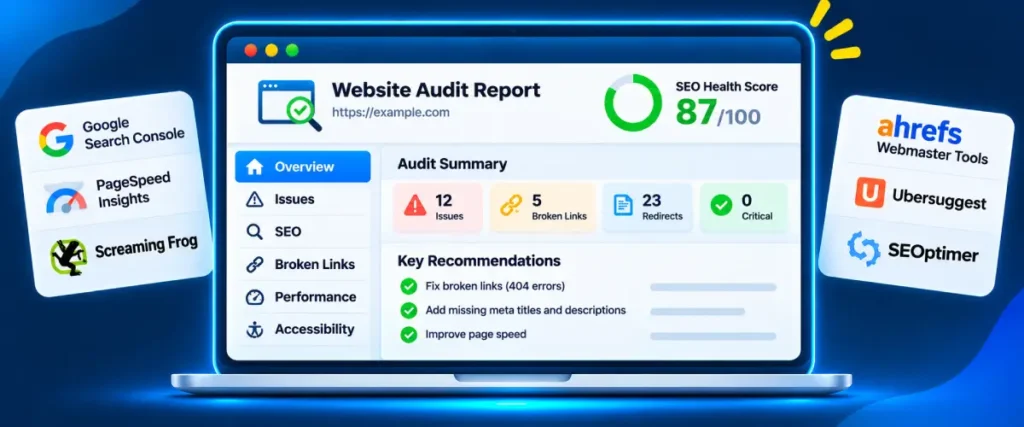
You can run a complete website SEO audit with free tools. Each one covers a different part of the SEO audit checklist, and together they give you a full picture. Paid suites add more data, but they are not required to audit website health properly.
| Tool | What it checks | Cost |
|---|---|---|
| Google Search Console | Indexing, crawl errors, search performance, Core Web Vitals | Free |
| PageSpeed Insights | Page speed, Core Web Vitals, Lighthouse checks | Free |
| SiteAuditHub Full Site Audit | On page SEO, links, HTTPS, security, crawling for one URL | Free, no signup |
| SiteAuditHub SEO Analyzer | Ten on page checks across a page and up to 12 linked pages | Free, no signup |
| Screaming Frog SEO Spider | Full crawl of titles, status codes, redirects and more | Free up to 500 URLs |
For a quick first pass, I start with a site audit tool that needs no setup. The SiteAuditHub Full Site Audit checks the page you enter across five areas: on page SEO, links and images, HTTPS and redirects, security, and crawling and indexing. It gives each area a score out of 100, combines them into a weighted overall score with a letter grade from A to F, and you can save the report as a PDF. It examines one page in depth plus site wide settings like robots.txt, the sitemap and HTTPS, which makes it a good starting point before a deeper crawl.
When I want to see more than one page at a time, I follow it with the SiteAuditHub SEO Analyzer. It checks your homepage plus up to 12 internal pages linked from it, running ten checks on each one, including title length, meta description length, a single H1, image alt text, canonical tags, noindex tags, social share tags, structured data and server response time. It also flags pages with fewer than about 150 words of readable text as thin. Using both tools together gives a quick website SEO audit of your most important pages in a few minutes.
Website SEO Audit Checklist: 12 Steps
The steps below follow the order I use on real sites. Indexing and crawling come first, because nothing else matters if Google cannot reach your pages. Content and design checks come later. Keep a simple spreadsheet open while you work and note every issue with its URL, the problem and the planned fix. Treat this list as your working SEO audit checklist, and tick each step off as you finish it.
1. Check How Many Pages Google Has Indexed
Open Google Search Console, go to Indexing, then Pages. The report shows how many of your URLs are indexed and lists the reasons other URLs are not. Compare the indexed number with the number of pages you actually want in Google. A big gap in either direction is the first thing to investigate.
Look closely at reasons like “Excluded by noindex tag”, “Blocked by robots.txt”, “Crawled, currently not indexed” and “Alternate page with proper canonical tag”. An important page in any of those groups needs attention. If key pages are missing from Google entirely, my guide on a website not showing on Google walks through the common causes one by one.
You can also run a quick search for site:yourdomain.com in Google. The count is only a rough estimate, but it quickly shows odd pages that should not be indexed, like test pages, tag archives or internal search results.
2. Review Your robots.txt File and XML Sitemap
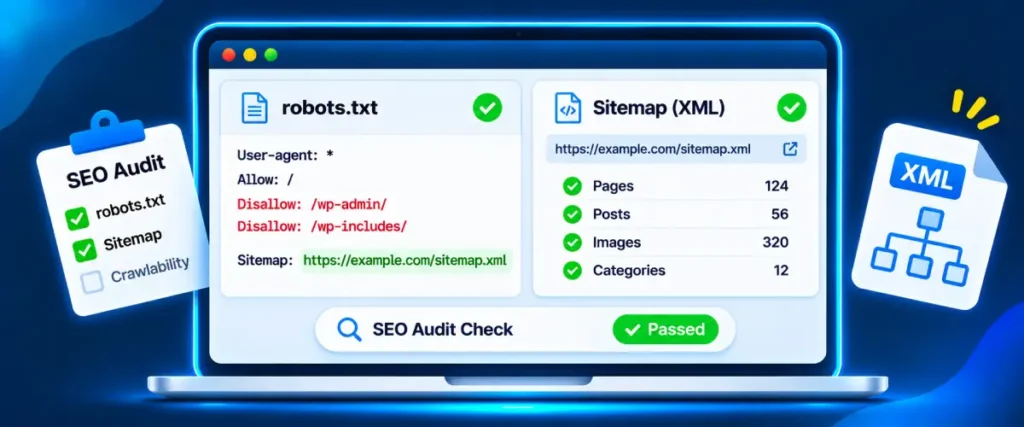
Your robots.txt file tells crawlers which parts of the site they may visit. One wrong line can block an entire folder, or even the whole site, from Google. Open yoursite.com/robots.txt and read every rule. Make sure your important folders, CSS and JavaScript files are not blocked, and that any “Disallow: /” line from a staging setup has been removed.
Next, check that your XML sitemap exists, loads without errors and is listed in robots.txt and submitted in Search Console. The sitemap should only contain live pages that return a 200 status and are meant to be indexed. Redirected URLs, 404 pages and noindex pages do not belong there. You can test specific rules against specific URLs with a robots.txt tester before you change anything.
3. Confirm HTTPS and One Preferred Version of Your Domain
Every site can be reached in four basic ways: http and https, each with and without www. All four should land on one single secure address through a 301 redirect. If two versions load separately, search engines see duplicate copies of your site and may split signals between them.
Type each version into your browser and watch where it lands. Then check that your SSL certificate is valid, not close to expiry and covers both the www and non www versions. An expired certificate shows a security warning that sends most visitors away within seconds. Run your domain through an SSL checker to see the issuer, the expiry date and any chain problems.
While you are here, look for mixed content. That happens when a secure page loads images, scripts or fonts over plain http. Browsers may block those files or show a “not secure” warning, and both hurt trust.
4. Find Broken Links and 404 Errors
Broken links waste crawl requests and frustrate visitors. In Search Console, the “Not found (404)” reason in the Pages report lists URLs Google tried to reach that no longer exist. A crawler or online checker then shows you which pages on your site still link to them.
Focus first on broken links in menus, footers and high traffic pages, since those affect the most visitors. Then work through older posts. For each broken link, either update it to the correct URL, redirect the old URL to the closest matching page or remove the link. My guide on how to find broken links covers seven free ways to build the full list.
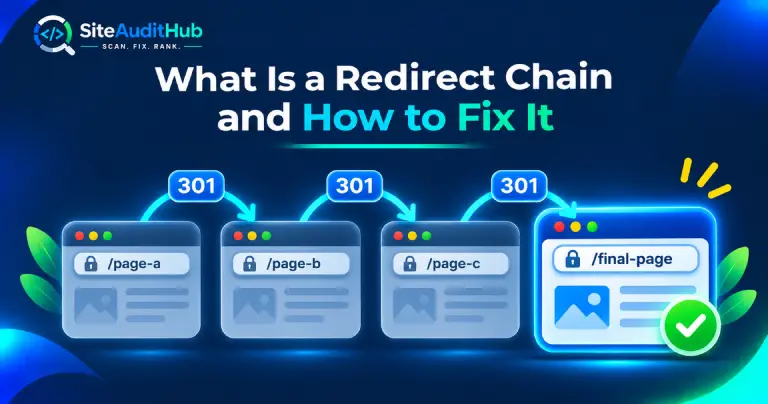
5. Clean Up Redirects and Redirect Chains
Redirects are normal on any site that has been around for a while. The problems start when they stack up. A redirect chain happens when page A sends visitors to page B, which then sends them to page C. Each extra hop adds loading time and wastes crawl requests, and very long chains may not be followed at all.
During the audit, list every redirect your crawler finds and look for three things: chains with more than one hop, loops where pages redirect back to each other, and temporary 302 redirects that should be permanent 301s. Update each chain to point straight at the final URL, and update internal links to skip the redirect entirely. You can trace any URL hop by hop with a redirect checker.
6. Audit Title Tags and Meta Descriptions
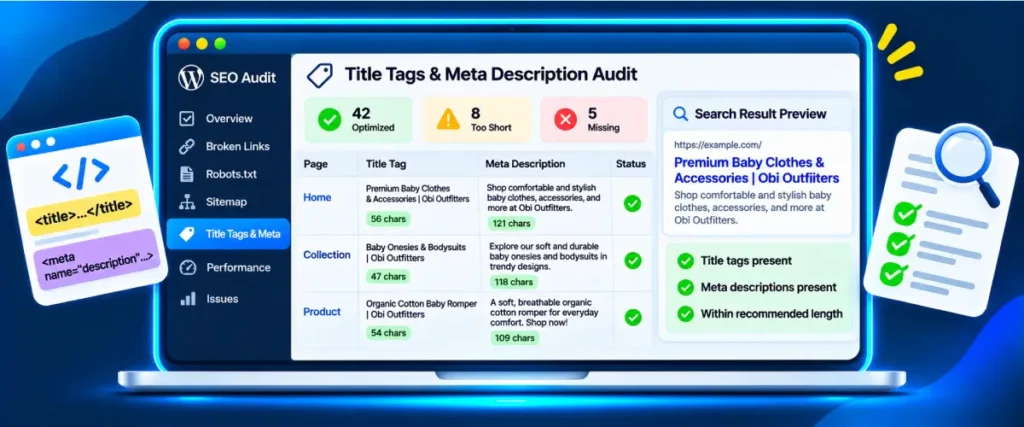
Title tags and meta descriptions are often the first thing a searcher reads. Every indexable page needs a unique title that describes the page and includes its main keyword near the start. Titles that run much longer than about 60 characters may be cut off in results, and duplicate titles across pages make it hard for Google to tell them apart.
Meta descriptions do not directly affect rankings, but they shape how many people click. Aim for a clear summary of the page in under 160 characters, with a reason to click. In your crawler export, sort by title and description to spot missing, duplicate, very short or very long entries. When you need to rewrite a batch of them, a meta tag generator helps you preview the length and format before you paste them in.
7. Check Headings and Content Quality
Each page should have exactly one H1 that matches what the page is about, followed by H2 and H3 headings in a logical order. Skipped levels or headings used only for styling make the page harder to scan for readers and search engines alike.
Content quality is the harder part of this step. Look for thin pages with very little useful text, pages that cover almost the same topic as another page, and old posts with outdated facts. Two pages targeting the same keyword often compete with each other, and neither ranks as well as one strong page would. In many cases the right move is to merge them and redirect the weaker URL.
Keyword use is worth a quick look too. Each page should use its main keyword naturally in the title, the H1, the first paragraph and a few subheadings. Pages that repeat the same phrase over and over read badly and gain nothing. A keyword density checker shows how often a phrase appears relative to the total word count.
8. Review Images and Alt Text
Images are one of the most common causes of slow pages. Check for oversized files, like a 4 MB photo displayed as a small thumbnail, and for old formats where WebP or AVIF would be much lighter. Every image should also have width and height set, which stops the layout from jumping while the page loads.
Alt text matters for accessibility and image search. Each meaningful image needs a short, accurate description of what it shows. Decorative images can have empty alt text. Missing alt text is one of the easiest issues to fix in bulk, and most site audit tools flag it automatically. Before uploading new images, run them through an image compressor to cut the file size without a visible drop in quality.
9. Test Page Speed and Core Web Vitals
Speed affects both rankings and conversions. Run your key templates through PageSpeed Insights: the homepage, a blog post, a product or service page and a category page. Testing templates rather than every single page is the fastest way to audit website speed, since pages built on the same template usually share the same problems.
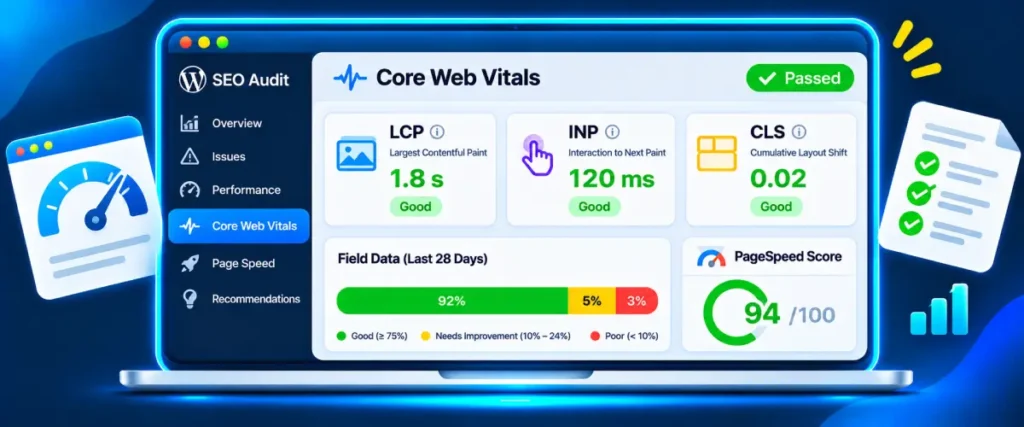
Pay attention to the three Core Web Vitals. Largest Contentful Paint (LCP) measures how fast the main content appears, and the good threshold is 2.5 seconds or less. Interaction to Next Paint (INP) measures how quickly the page responds to clicks and taps, with 200 milliseconds or less counted as good. Cumulative Layout Shift (CLS) measures how much the layout jumps around, and a score of 0.1 or less is good. Search Console also groups your URLs by these metrics under the Core Web Vitals report.
Common fixes include compressing images, lazy loading images below the fold, removing unused plugins and scripts, enabling caching and using a CDN. Slow server response time is another frequent cause, and sometimes the honest fix is a better hosting plan.
10. Check the Mobile Experience
Google uses the mobile version of your pages for indexing and ranking. A page that looks fine on a laptop but breaks on a phone is a real problem. Open your main pages on an actual phone and check that text is readable without zooming, buttons are easy to tap, menus open properly and nothing runs off the side of the screen.
On a desktop, Chrome’s developer tools have a device toolbar that lets you preview the page at different screen sizes. Lighthouse, which runs inside Chrome and powers PageSpeed Insights, also reports common mobile issues. Make sure every page has a viewport meta tag, since without it phones show the desktop layout shrunk down to fit.
Pop ups deserve a look too. A full screen pop up that covers the content as soon as a mobile visitor arrives is annoying, and it can push people away before they read anything.
11. Review Canonical Tags and Structured Data
A canonical tag tells search engines which version of a page is the main one. Every indexable page should have a self referencing canonical, and duplicate or filtered versions should point to the main URL. Common mistakes include canonicals pointing to the homepage, to a redirected URL or to a page marked noindex.
Structured data, usually added as a small block of code in the page, helps search engines understand what a page contains, like an article, a product, an FAQ or a local business. Check that the markup matches what is actually visible on the page, since markup that describes content the visitor cannot see goes against Google’s guidelines. Google’s Rich Results Test shows whether your markup is valid. If a key page has none, a schema generator can build the code for common types without writing it by hand.
12. Check Security Basics
Security problems can wipe out rankings faster than any other issue. A hacked site may show spam pages to Google, redirect visitors to scam sites or get flagged with a warning in search results. Search Console reports these under Security issues, and it is worth opening that report during every audit.
Beyond malware, look at security headers, outdated plugins and themes, and exposed details like the WordPress version number or open directory listings. These are not direct ranking factors, but they make a site easier to attack. For a full list of what to review, my website security audit checklist covers 15 checks in detail.
Extra Checks for WordPress Sites
Many of the sites I audit run on WordPress, and it has a few settings that cause SEO problems again and again. I add these checks to every website SEO audit on a WordPress site, because they take only a few minutes and catch issues that general tools often miss.
Start with Settings, then Reading. If the box labelled “Discourage search engines from indexing this site” is ticked, WordPress asks search engines not to index anything. This box is often ticked on a staging site and forgotten when the site goes live. It is one of the most damaging and most common mistakes I come across.
Next, open Settings, then Permalinks. Plain URLs with question marks and post IDs are harder for people to read and share. A structure based on the post name is the usual choice. If the site already has traffic, do not change the permalink structure without setting up redirects from every old URL, since a change here affects every post at once.
Then look at your SEO plugin settings. Check that categories, tags, author archives and attachment pages are handled on purpose, either indexed with useful content or set to noindex. On a single author blog, author archives usually duplicate the main blog page. Attachment pages that show only an image are thin pages and are best redirected to the parent post.
Finally, review your plugin list. Deactivate and delete plugins you no longer use, and update the rest. Old plugins slow the site down and are one of the most common ways WordPress sites get hacked. Two plugins that do the same job, like two SEO plugins or two caching plugins, can also conflict and create duplicate tags or broken pages.
How to Prioritize What You Find
A thorough website SEO audit can turn up dozens or even hundreds of issues. Trying to fix them all at once usually means nothing gets finished. I sort every issue into three groups before any work begins.
| Priority | Type of issue | Examples |
|---|---|---|
| Fix now | Stops pages from being found or used | Important pages noindexed or blocked, site wide redirect loops, expired SSL, malware |
| Fix this month | Hurts rankings or user experience on key pages | Broken links on top pages, redirect chains, missing titles, poor Core Web Vitals |
| Fix over time | Small gains or low traffic pages | Missing alt text on old posts, long meta descriptions, minor heading issues |
Within each group, start with the pages that bring the most traffic, leads or sales. A missing title on your main service page matters far more than one on a three year old news post. Search Console’s Performance report shows which pages get the most impressions and clicks, and that list makes a good order of work for every site audit.
Turn the Audit Into an Action Plan
A website SEO audit only helps if the fixes actually happen. I turn every audit into a simple task list with five columns: the URL, the issue, the fix, who owns it and the date it was done. A spreadsheet works fine for this. The CSV exports from most audit tools drop straight into it.
Group similar fixes together. Rewriting twenty meta descriptions in one sitting is much faster than doing one a day. The same goes for redirects, image compression and broken link updates. Technical fixes like server settings or theme code may need a developer, and it helps to send them a clear list with URLs and the expected result rather than a raw tool report.
After each batch of fixes, run the same tools again and compare the results. In Search Console, use the Validate Fix button on resolved issues. Keep a copy of each audit report with its date, since comparing reports over time shows whether the site is getting healthier.
Common Website SEO Audit Mistakes
The most common mistake I see is treating the tool score as the goal. An audit score is a guide to what needs attention, not a ranking promise. A site can score 95 and still struggle if its content does not answer what searchers want, while a site with a few warnings can rank well because its pages are genuinely useful.
Auditing only the homepage is another problem, and it is one of the reasons a website SEO audit misses real issues. Most traffic usually lands on inner pages like blog posts, product pages and service pages, and those often have different templates and different issues. Always include at least one page from each template in your audit.
Some people also fix everything a tool flags without checking it first. A tool might flag a 403 response that works fine in a browser, or report a noindex tag that was added on purpose to a thank you page. Open each flagged URL yourself before changing anything.
Finally, many site owners run one audit and never repeat it. Sites change constantly as content, plugins and themes get updated. A short monthly check and a full audit every few months catch new problems while they are still small.
Final Thoughts
An SEO audit is less about finding everything wrong and more about finding what matters most. Start with indexing and crawling, fix the issues that affect your most important pages, and leave the small details for later. Most sites see the biggest gains from the first few steps of this checklist.
Run through the twelve steps of this website SEO audit once, save the results, and come back to them on a fixed schedule. Each round takes less time than the last, because the big problems are already gone and you know exactly where to look.
FAQs
What is a website SEO audit?
A website SEO audit is a review of everything on your site that affects search visibility, including indexing, crawling, redirects, broken links, titles, content, speed, mobile experience and security. The result is a list of issues ranked by importance, with a fix for each one.
What is the difference between a site audit and an SEO audit?
The two terms are often used for the same thing. A site audit sometimes means a purely technical review of crawling, speed and errors, while an SEO audit also covers content, titles and keywords. A complete website SEO audit includes both.
How long does a website SEO audit take?
A small site with a few dozen pages can be audited in two to four hours using free tools. A large site with thousands of pages can take several days, mostly because there is more data to review and more templates to test.
Can I audit my website for free?
Yes. Google Search Console, PageSpeed Insights and a free site audit tool cover most of the checklist. Screaming Frog’s free version crawls up to 500 URLs, which is enough for many small and medium sites.
What should an SEO audit checklist include?
A good SEO audit checklist covers indexing, robots.txt and sitemaps, HTTPS, broken links, redirects, title tags, meta descriptions, headings, content quality, images, page speed, mobile experience, canonical tags, structured data and security.
How often should I run a site audit?
Run a full site audit every three to six months, and a quick monthly check of Search Console and your key pages. Always audit right after a redesign, migration or sudden drop in traffic.
What is the best site audit tool for beginners?
For beginners, a tool that needs no installation or signup is the easiest start. An online site audit tool gives a scored report in under a minute, and Google Search Console adds data straight from Google about indexing and performance.
Does a website SEO audit improve rankings?
An audit does not improve rankings by itself. The fixes you make afterwards do. Removing technical barriers, fixing broken links and improving titles and speed help search engines crawl and understand your pages, which gives your content a fair chance to rank.