WordPress makes it easy to add a plugin, switch a theme or publish a new page in minutes. That same freedom is why many WordPress sites slowly drift into trouble. Plugins pile up, settings get changed during a redesign, and nobody notices until rankings slip or the site gets hacked. A WordPress site audit catches these problems while they are still small and cheap to fix.
The checks below are the ones I run in every WordPress site audit I do for clients. They cover the three areas that matter most to site owners: search visibility, security and speed.
What a WordPress Site Audit Covers
A WordPress site audit is a planned review of your site’s settings, content, plugins, server and code, with the goal of finding anything that hurts rankings, puts the site at risk or slows it down. It is different from a general SEO review because WordPress has its own settings, file structure and plugin ecosystem, and many of the most common problems live there.
I split every audit into three parts. The SEO part checks whether search engines can find, crawl and understand your pages. The security part checks whether the site is up to date, protected and free of malware. The speed part checks how fast pages load for real visitors and what is slowing them down.
Each part feeds into the others. A hacked site loses rankings, a slow site loses visitors, and a site Google cannot index gets no traffic at all, however fast or secure it is. Looking at all three together in one WordPress site audit gives you the full picture rather than three separate reports.
Signs Your WordPress Site Needs an Audit Now
Some sites can wait for the next scheduled check. Others need attention straight away. Over the years I have noticed the same warning signs come up again and again before a serious problem, and any one of them is a good reason to start a WordPress site audit this week.
The clearest sign is a drop in organic traffic or impressions in Search Console that you cannot explain with seasonal changes. A sudden fall often points to an indexing problem, a noindex setting that changed during an update or a technical error on key templates. A slow, steady decline over months usually points to content and speed issues that built up over time.
Security warnings are the next sign. A browser warning that the site is not secure, a “This site may be hacked” label in Google results, emails from your host about suspicious files or new admin users you did not create all need action the same day.
Performance problems are easier to miss because they creep in slowly. If pages feel slower than they used to, the dashboard takes a long time to load, or your host warns you about high resource use, a heavy plugin or a bloated database is often behind it.
Finally, any big change to the site deserves an audit afterwards. A redesign, a new theme, a host migration, a domain change or a batch of new plugins can all break settings that were working fine before. Running a WordPress site audit right after the change catches those problems before Google or your visitors find them.
Before You Start: Back Up and Use a Staging Copy
A common question I get is “how do I audit my site without breaking it?” The answer starts with a backup. Some audit steps involve changing settings, deactivating plugins or editing files. Before you touch anything, take a full backup of your files and database. Most hosts offer one click backups in the control panel, and many backup plugins can store copies in cloud storage. Check that the backup actually finished and that you know how to restore it.
If your host offers a staging site, use it for any test that could break the design or functionality, like switching themes or deactivating plugins. A staging copy lets you test freely while visitors keep seeing the live site. For read only checks, like reviewing settings or running external scans, the live site is fine.
I also note the current state before changing anything: the WordPress version, the active theme, the list of active plugins and the PHP version. If something goes wrong later, this list makes it much easier to work out what changed.
Free Tools for a WordPress Site Audit
You do not need paid software to run a solid WordPress site audit. These free tools cover almost everything on the checklist, and none of them need a developer to set up.
| Tool | What it helps you check |
|---|---|
| WordPress Site Health | PHP version, updates, HTTPS, debug mode, background updates, server details |
| SiteAuditHub Full Site Audit | On page SEO, links, HTTPS and redirects, security and crawling for a page |
| Google Search Console | Indexing, 404 errors, Core Web Vitals, security issues reported by Google |
| PageSpeed Insights | Speed scores and Core Web Vitals for each template |
| Your SEO plugin | Title templates, sitemaps, noindex settings, redirects, 404 logs |
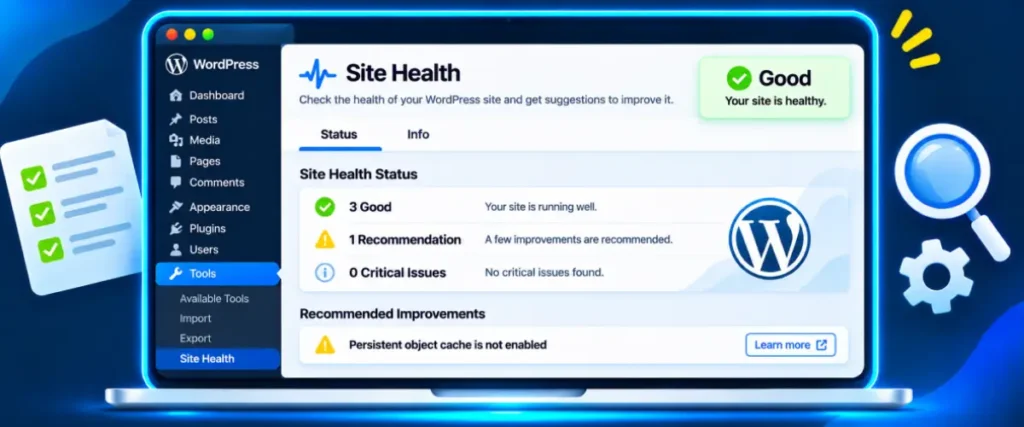
WordPress has its own built in checkup under Tools, then Site Health, and it is the natural first stop in any WordPress site audit. The Status tab lists critical issues and recommended improvements, and the Info tab shows detailed technical data about your server, database and configuration.
For an outside view of the site, a free site auditor adds checks that Site Health does not cover. The SiteAuditHub full site audit looks at a page across five areas, including security checks for injected code, known backdoor file names, security headers, mixed content and exposed WordPress details. It needs no signup, and you can save the report as a PDF to compare with later audits.
Part 1: WordPress SEO Audit Checks
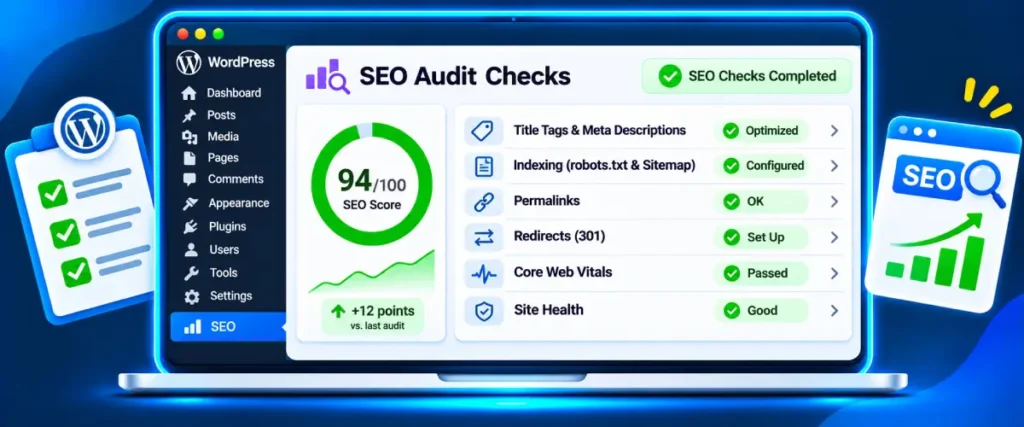
The WordPress SEO audit part of the process makes sure search engines can reach, read and rank your content. Most of these checks happen inside the WordPress dashboard and your SEO plugin, and they take less time than people expect.
1. Check the Search Engine Visibility Setting
Go to Settings, then Reading, and look at the option called “Discourage search engines from indexing this site”. If it is ticked, WordPress tells search engines not to index the site. Developers often tick it while building on a staging server, and it sometimes travels to the live site during launch.
This single checkbox can keep a whole site out of Google for months. It is the first thing I check in every WordPress SEO audit, because the fix takes one click and the damage of missing it is huge.
2. Review the Permalink Structure
Open Settings, then Permalinks. A structure based on the post name gives short, readable URLs that people are happy to click and share. Plain URLs with question marks and ID numbers work, but they tell visitors and search engines nothing about the page.
If your site already has traffic and uses a different structure, think carefully before changing it. A new structure changes every post URL at once. If you do change it, set up redirects from the old pattern to the new one the same day, and resave the permalinks screen to rebuild the rewrite rules.
3. Audit Your SEO Plugin Settings
Your SEO plugin controls titles, meta descriptions, sitemaps and which pages get indexed, and its settings are often where a WordPress SEO audit finds the biggest problems. Open its settings and check the title and description templates for posts, pages, categories and tags. Templates that repeat the site name twice, or leave descriptions empty, affect hundreds of pages at once.
Next, decide what should be indexed. Categories with real content can stay indexed. Empty tags, date archives and author archives on a single author blog usually add nothing and are better set to noindex. Attachment pages that show only an image are thin, and most SEO plugins can redirect them to the parent post.
Then open a few key posts and pages and check the title and meta description of each one. When you rewrite a batch, a meta tag generator helps you preview length and wording before you paste them into the plugin.
4. Check Indexing in Google Search Console
Open Search Console, go to Indexing, then Pages, and compare the number of indexed pages with the number you expect. Look at the reasons pages are not indexed, especially “Excluded by noindex tag”, “Blocked by robots.txt” and “Crawled, currently not indexed”. Important pages in any of those groups need a closer look.
Also check that your sitemap is submitted under Sitemaps and reports no errors. Most SEO plugins create a sitemap automatically, but it still needs to be submitted once. For a deeper review of crawling, titles, content and Core Web Vitals across any site, my website SEO audit checklist walks through twelve steps.
5. Find Broken Links and 404 Errors
Over time, WordPress sites collect broken links from deleted posts, changed slugs and old plugins. Each one wastes a crawl request and sends visitors to a dead end. Search Console lists missing URLs under “Not found (404)”, and an online link checker or your SEO plugin’s 404 log shows where the broken links sit.
Fix the most visible ones first: menus, footers, sidebars and your top pages. For each broken URL, update the link, add a 301 redirect to the closest matching page or restore the content. My guide on 404 errors in WordPress covers each fix step by step, including permalink and .htaccess problems.
6. Look for Thin and Duplicate Content
WordPress creates many URLs automatically, and some of them have almost no useful content. Tag pages with one post, paginated archive pages and old drafts published by mistake all fall into this group. Search engines may see these as low quality, which can drag down how they view the whole site.
Search your content for posts that cover the same topic as another post. Two thin posts on the same subject usually perform worse than one complete post. Merge them where it makes sense, redirect the weaker URL to the stronger one, and update old posts with outdated facts or prices.
Part 2: WordPress Security Check
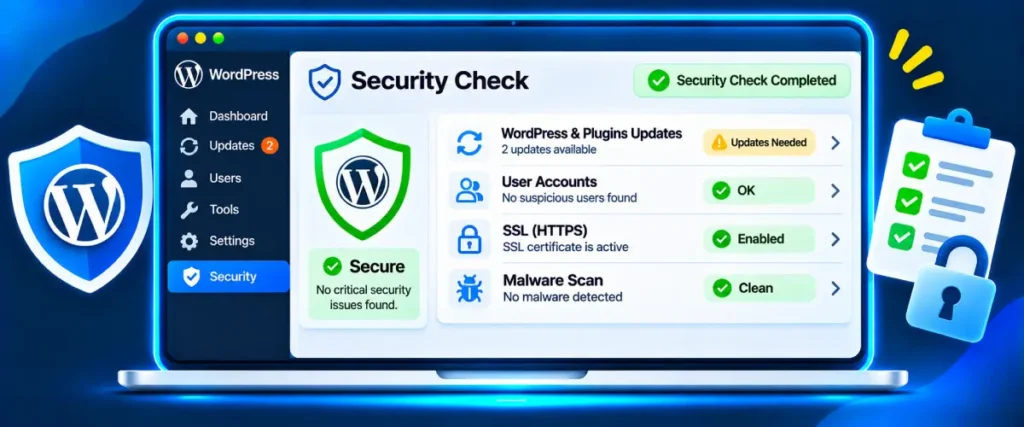
The security part of the audit is about reducing risk. Most hacked WordPress sites are not targeted by name. They are found by automated scripts looking for outdated plugins, weak passwords and known weak spots. A regular WordPress security check closes those doors before a script finds them, and it should be part of every WordPress site audit, not an afterthought.
7. Update Core, Plugins and Themes
Go to Dashboard, then Updates, and check what is waiting. Outdated plugins are one of the most common ways WordPress sites get hacked, since attackers know exactly which old versions have known weaknesses. Update WordPress core, every plugin and every theme, ideally after testing on staging for larger sites.
While you are here, look for plugins and themes that have not been updated by their developer in a long time. An abandoned plugin will not receive security fixes. Replace it with a maintained alternative where possible.
Delete anything you do not use. A deactivated plugin still sits on the server, and its files can still be a target. The same goes for old themes. Keep the active theme, its parent theme if you use a child theme, and one default theme as a fallback.
8. Review User Accounts and Passwords
Open Users and look at every account, especially those with the Administrator role. Remove old accounts for past developers, writers or agencies. Downgrade users who only need to write or edit content to Author or Editor rather than Administrator.
Make sure every admin uses a strong, unique password, and turn on two factor authentication through a security plugin or your host. Avoid the username “admin”, since it is the first one automated login attacks try. Limiting login attempts adds one more layer against password guessing.
9. Confirm HTTPS and a Valid SSL Certificate
Your site should load only over HTTPS, and every http address should redirect to the secure version. Check that the WordPress Address and Site Address under Settings, then General, both start with https. If they do not, links and images across the site may still load over plain http.
Next, check the certificate itself. It should be valid, issued by a trusted authority and not close to expiry. An SSL checker shows the issuer, the expiry date and any problems with the certificate chain. Then open a few pages and look for mixed content warnings in the browser, which appear when a secure page loads files over http.
10. Scan for Malware and Injected Code
A hacked WordPress site does not always look hacked. Attackers often hide spam links, fake pages or redirects that only appear for search engines or mobile visitors. Open Search Console and check Security and Manual Actions, then search Google for site:yourdomain.com and look for pages in languages or topics you never published.
Every WordPress security check should include a malware scan. Run one with a security plugin that includes a scanner, and add an external scan for a second opinion. A free virus checker can scan a URL from the outside and flag known threats without installing anything. If you find malware, restore a clean backup or clean the infected files, then change every password and secret key.
11. Hide Exposed Details and Check Security Headers
WordPress and its plugins can reveal more than they should. Look for the WordPress version number in the page source, open directory listings in folders like /wp-content/uploads/ and a public debug.log file in /wp-content/. Each one gives attackers useful information. Turn off debug mode on the live site, and ask your host to disable directory listing if it is on.
Security headers tell the browser how to handle your site safely. Headers like Strict-Transport-Security, X-Content-Type-Options and X-Frame-Options are common starting points. You can see which ones your site sends with an HTTP header checker, and most security plugins or your host can add the missing ones.
Part 3: WordPress Speed Checks
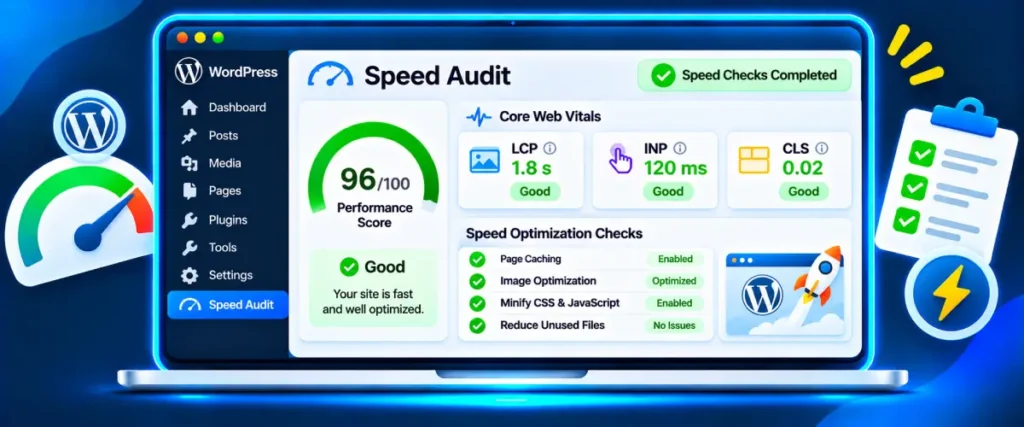
Speed affects how long visitors stay, how many convert and how Google sees your pages. WordPress sites slow down for predictable reasons, and the speed part of a WordPress site audit is about finding which of those reasons apply to your site.
12. Check Hosting and PHP Version
Your hosting sets the floor for speed. Open Tools, then Site Health, then Info, and look at the Server section for the PHP version. The official Site Health screen guide explains what each field on this screen means. Older PHP versions are slower and no longer receive security fixes. Most hosts let you switch to a newer version from the control panel, but test on staging first, since very old plugins may not work with newer PHP.
Server response time is the other key number. If pages take more than a second before anything starts to load, even with caching on, the hosting plan may be too small for your traffic. Shared plans on crowded servers are a common cause.
13. Review Caching and CDN Setup
Caching saves a ready made copy of each page, which means WordPress does not have to build it from scratch for every visitor. Check that page caching is active, either through your host or a caching plugin, and that you are not running two caching plugins at once, since they can conflict.
A content delivery network (CDN) serves images, CSS and JavaScript from servers close to each visitor. Many hosts include one, and it makes a noticeable difference for visitors far from your main server. After any caching change, clear all caches and test the site while logged out, since logged in users often bypass the cache.
14. Optimise Images
Images are usually the heaviest part of a WordPress page. Look for photos uploaded straight from a phone or camera at several megabytes each, and for images displayed far smaller than their real size. Modern formats like WebP are much lighter than JPEG and PNG at the same quality.
WordPress adds lazy loading to images by default, which delays loading images further down the page. Check that your theme or a plugin has not turned this off. For new uploads, compress files before adding them to the media library with an image compressor, and set a maximum upload size in your workflow.
15. Cut Plugin Bloat and Clean the Database
Every active plugin can add scripts, styles and database queries. Go through your plugin list and ask what each one does and if you still need it. Sliders, social feeds, popup builders and page builder add ons are common sources of extra weight.
Then test your main templates with PageSpeed Insights: the homepage, a post, a page and, if you run WooCommerce, a product page. Watch the three Core Web Vitals. Largest Contentful Paint should be 2.5 seconds or less, Interaction to Next Paint 200 milliseconds or less, and Cumulative Layout Shift 0.1 or less.
Over time, the WordPress database fills with post revisions, spam comments, expired temporary data and leftover tables from deleted plugins. Cleaning these out, with a backup in place first, keeps the database lean and queries quick.
Extra Checks for WooCommerce Sites
Online shops built on WooCommerce need a few extra checks on top of the fifteen above. They handle payments and customer data, they have more pages and more plugins, and every slow page or broken checkout step costs real sales.
Start with the checkout. Place a test order from start to finish, using a real payment method in test mode if your payment plugin supports it. Check that cart, checkout and account pages load quickly, that emails arrive and that the order appears correctly in the dashboard. Cart and checkout pages should never be cached, since caching them can show one customer’s cart to another.
Security matters even more on a shop. Payment, shipping and tax plugins should always be on their latest versions, and only staff who need order access should have the Shop Manager role. Your WordPress security check for a WooCommerce site should also confirm that customer data exports and old order exports are not sitting in public folders.
On the SEO side, look at product page titles and descriptions, product schema from your SEO plugin and how out of stock products are handled. Thousands of thin or near identical product pages can weaken how Google sees the whole site. A WordPress SEO audit on a shop should decide which product variations, filters and category pages deserve to be indexed and which should not.
How to Read Your Results and Fix in the Right Order
After working through all fifteen checks of your WordPress site audit, you will have a list of issues that can feel long. I sort it by risk and impact rather than by the order I found things.
| Priority | What goes here | Examples |
|---|---|---|
| Fix today | Anything that blocks indexing or puts the site at risk | Search engines discouraged, malware found, expired SSL, admin accounts for past staff |
| Fix this week | Issues that hurt rankings or speed on key pages | Outdated plugins, broken links in menus, slow server response, missing titles |
| Fix this month | Clean up and small gains | Unused plugins, thin tag pages, image compression on old posts, database clean up |
Within each group, start with the pages that bring the most traffic or sales. Search Console’s Performance report shows which pages get the most clicks, which gives you a natural order of work.
Once fixes are in, run the same site auditor again on the same pages and compare the new report with the first one. Keep a simple log of every change with the date. If something breaks after a fix, the log tells you exactly what changed and when, and you can undo it quickly.
Keep Your WordPress Site Healthy After the Audit
A full WordPress site audit every three to six months is a good rhythm for most sites. In between, a short monthly routine keeps new problems from building up.
Once a month, I run a short WordPress security check and health review. I open Site Health, apply pending updates after a backup, look at the Search Console Pages and Security reports, and check the 404 log in the SEO plugin. I also run a quick external scan of the homepage and one key page. This routine takes about twenty minutes on a small site.
Set up uptime monitoring that alerts you if the site goes down, and keep automatic backups running on a schedule with copies stored off the server. When someone asks me how to audit my site without spending a weekend on it, this monthly routine is my answer, with the full audit saved for after big changes like a redesign, a migration or a sudden drop in traffic.
Final Thoughts
Most WordPress problems are not dramatic. They are small things left unchecked: a box ticked during development, a plugin nobody updated, a heavy image on the homepage. Each one is easy to fix once you know it is there, and that is the real value of a WordPress site audit.
Work through the SEO checks first, then security, then speed. Fix the high risk items the same day, plan the rest over the following weeks, and repeat the WordPress site audit on a schedule. A site that gets this kind of regular attention stays faster, safer and easier to rank than one that only gets looked at when something breaks.
FAQs
What is a WordPress site audit?
A WordPress site audit is a review of your site’s SEO settings, security, speed, plugins and server setup. It finds issues that hurt rankings, put the site at risk or slow it down, and gives you a ranked list of fixes.
How do I audit my site for free?
Start with WordPress Site Health under Tools, then run a free online site auditor on your main pages. Add Google Search Console for indexing and security reports, and PageSpeed Insights for speed. Together these cover most of a full audit.
What does a WordPress SEO audit include?
A WordPress SEO audit checks the search engine visibility setting, permalinks, SEO plugin templates and noindex rules, indexing in Search Console, sitemaps, broken links, 404 errors, and thin or duplicate content.
How often should I run a WordPress security check?
Run a quick WordPress security check every month, covering updates, user accounts and a malware scan. Do a full security review as part of your audit every three to six months, and right away if Google reports a security issue.
What is the best free site auditor for WordPress?
There is no single best tool. WordPress Site Health covers server and configuration checks, an online site auditor covers on page SEO and security from the outside, and Search Console shows what Google sees. Using all three gives the most complete picture.
Can a WordPress site audit fix a slow website?
The audit itself finds the causes, and the fixes speed the site up. Common fixes after an audit include better hosting, page caching, image compression, a newer PHP version and removing unused plugins.
How long does a WordPress site audit take?
A small WordPress site with a few dozen pages takes about two to four hours for a full audit with free tools. Larger sites and WooCommerce shops take longer, mostly because there are more plugins, templates and pages to review.
Do I need a developer to audit my WordPress site?
No. Most checks in this guide happen in the WordPress dashboard or with free online tools. You may need a developer for server changes, theme code edits or cleaning up a hacked site.