Rank Math SEO Details
| Field | Value |
|---|---|
| SEO title (meta title) | How to Find Broken Links on Your Website for Free (49 characters) |
| Suggested SEO title for a full 100 score | How to Find Broken Links for Free: 7 Easy Methods (49 characters) |
| Meta description | Find broken links on your website with free tools. Learn how to check broken links, spot 404 errors and fix dead links before they hurt SEO. (140 characters) |
| Focus keyword | find broken links |
| Secondary keywords | check broken links, broken link checker, dead link checker, free broken link checker |
| URL slug | how-to-find-broken-links |
| Full URL | https://www.siteaudithub.com/how-to-find-broken-links/ |
| H1 title | How to Find Broken Links on Your Website (Free Methods) |
| Main page to link | https://www.siteaudithub.com/broken-link-checker/ |
| Featured image file name | find-broken-links-free-methods.webp |
| Featured image alt tag | find broken links on your website with free methods |
Why the suggested title: Rank Math gives extra title points for a number, a power word and a positive sentiment word. Your current meta title has none of these, so those three checks stay orange. The suggested title adds “7”, “Easy” and “Free” and keeps the focus keyword near the start. The blog below covers exactly 7 methods, so the number matches the content.
A visitor clicks a link on your website and lands on a blank page with a 404 error. Most people never report it. They press the back button and open another result instead. Broken links stay quiet, and the only way to stop them from costing you visitors is to find broken links before your readers or Google run into them.
You do not need a paid SEO suite for this job. The free methods in this guide are the same ones I rely on during my own audits, and each one catches a slightly different kind of dead link.
What Is a Broken Link?
Any link that points to a page, file or image that no longer loads counts as broken. When a browser asks the server for that address, the server replies with an error code such as 404 (Not Found) or 410 (Gone), or it does not reply at all. People often call these dead links, and both terms mean the same thing. That is also why some tools call themselves a dead link checker while others use the name broken link checker.
Broken links come in two main types. Internal broken links point to pages on your own website, like a blog post you deleted or a product page whose URL you changed. External broken links point to other websites, like a study you cited or a tool page that the other company has since removed. You control internal links fully, while external links can break at any time without warning.
Links are not the only things that break. Images, PDF files, videos, CSS files and JavaScript files are all loaded through URLs too. If one of those files moves or gets deleted, your page might show an empty image box, an unstyled layout or a button that does nothing. A good audit to find broken links should cover these resources as well, not only the clickable text links.

Why Broken Links Hurt Your Website
User experience takes the first hit. A person who clicks a link expects an answer, and a 404 page breaks that promise. On a service page or a checkout flow, one dead link can mean a lost lead or a lost sale. Readers also start to doubt the rest of your content once they hit two or three errors in a row. That alone is a good reason to find broken links on a regular schedule rather than once a year.
Search engines notice the problem from a different angle. Googlebot follows links to discover and recrawl pages. Every link that leads to an error is a wasted request, and on larger websites those wasted requests add up. Internal links also pass value from one page to another. When a link points to a missing page, that value goes nowhere instead of helping a page that could rank.
It helps to be accurate here. A deleted page that returns a 404 does not, on its own, pull down your rankings. Google treats 404 as a normal response for a page that no longer exists. The real damage comes from your own pages still linking to that missing URL, and from backlinks on other websites that now point to nothing. If your pages are dropping out of search for reasons you cannot explain, my guide on website not showing on Google covers the other common causes.
Common Causes of Broken Links
Most broken links come from ordinary website changes rather than technical failures. Knowing the causes helps you find broken links faster, since you already know where to look, and it helps you avoid repeating the same mistake.
- Deleted pages. Old blog posts, discontinued products and expired offers get removed, but the links pointing to them stay in menus, footers and older posts.
- Changed URL slugs. Editing a slug for better SEO is common. Without a redirect, every link to the old slug breaks right away.
- Website migrations. Moving to a new domain, a new CMS or from HTTP to HTTPS changes URLs at scale, and missed redirects create hundreds of errors at once.
- Typos in links. A missing letter, an extra slash or a space copied by mistake is enough to send visitors to a page that does not exist.
- External content removed. Other websites delete pages, restructure their blogs or shut down completely. Your outbound links have no way of knowing.
- Media files moved or deleted. Clearing the media library, switching image hosts or changing a CDN can break images across many pages.
- Theme and plugin changes. A new theme can change how URLs for categories, tags or author pages are built, and old links stop working.
Broken Link Status Codes You Will See
Every tool you use to check broken links will report status codes. The code tells you what went wrong and how urgent the fix is. Here is a simple reference I keep open while working through a report.
| Status code | What it means | What to do |
|---|---|---|
| 404 Not Found | The page does not exist at that address | Update the link, restore the page or add a 301 redirect |
| 410 Gone | The page was removed on purpose | Remove or replace links that still point to it |
| 403 Forbidden | The server refused the request | Open it in a browser first, since some websites block automated checks |
| 500 or 503 | Server error, often temporary | Recheck after a few hours before changing anything |
| Timeout or DNS error | No response or the domain cannot be found | Check if the domain expired, then replace the link |
| Soft 404 | The page loads with a 200 code but shows an error or empty content | Return a real 404 or fill the page with useful content |
Redirects (codes like 301 and 302) are not broken links, but long chains of them slow down visitors and crawlers. A link that hops through three or four redirects before landing on the final page is worth cleaning up, and you can trace each hop with a redirect checker.
7 Free Methods to Find Broken Links on Your Website
No single tool sees every broken link. An online checker sees what is linked on your pages right now, Google Search Console sees what Googlebot tried to crawl, and analytics sees what real visitors clicked. I usually combine two or three of these methods, depending on the size of the website. Each one below is free to use, and together they find broken links that a single tool would miss.
1. Use a Free Broken Link Checker Online
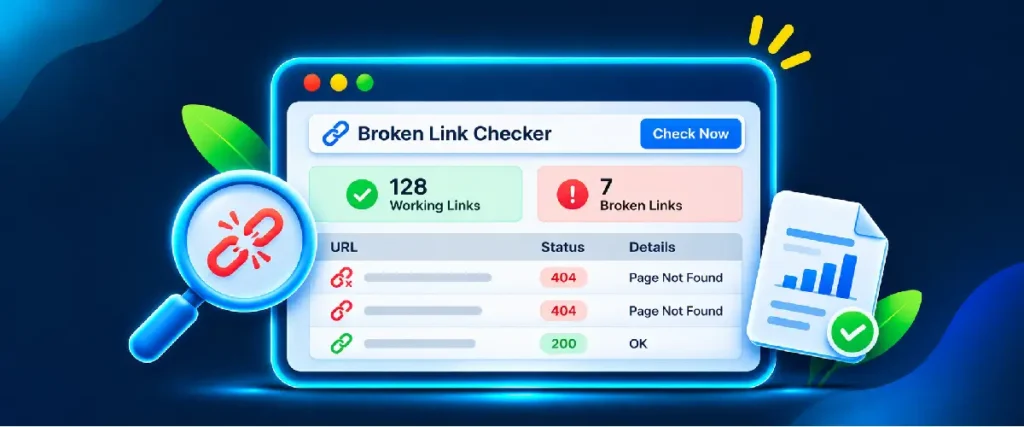
An online checker is the fastest way to find broken links because there is nothing to install. On SiteAuditHub, you paste your URL into the free broken link checker, and it scans your homepage plus up to 8 internal pages it finds linked from there. It checks up to 40 links per page and up to 30 image files per scan, covering both internal and external links.
The report groups problems by status: 404 errors, 410 pages, 403 responses, 500 and 503 server errors, timeouts and placeholder links like empty hrefs or “#”. You can download the results as a CSV that lists the broken URL, the page where it was found, the status code and the link text. There is no signup or login, and nothing is stored after you leave the page.
Since each scan covers a limited group of pages, larger websites need a slightly different approach. I run the tool on each main section separately, like the blog index, the services page and the main category pages. This way, every important part of the website gets checked without waiting for a full crawl.
2. Check the Page Indexing Report in Google Search Console
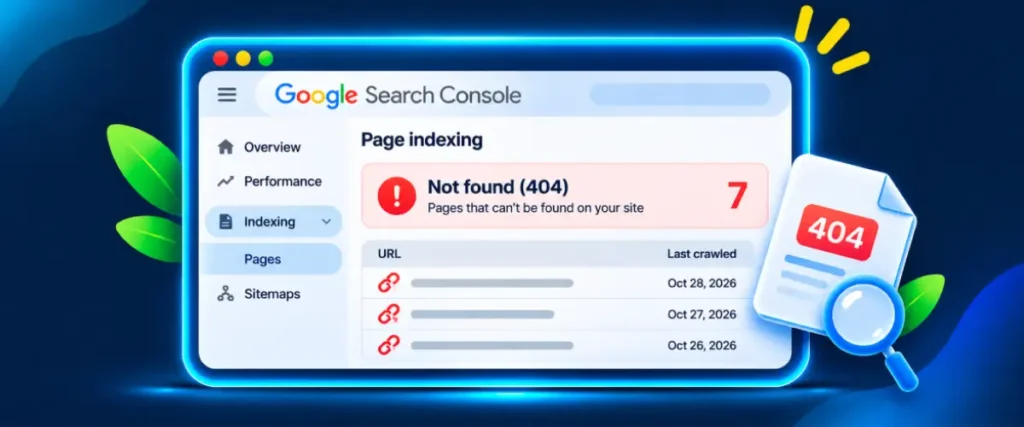
Search Console is free and shows the problem from Google’s side. Open your property, go to Indexing, then Pages, and scroll down to the list of reasons pages are not indexed. If Googlebot has hit missing pages, you will see a row named “Not found (404)”. Google explains each reason in its Page indexing report help guide.
Click that row to see the list of affected URLs. For any URL, you can use the URL Inspection tool to see how Google found it, including referring pages where available. A referring page on your own website means you have an internal link to fix. A referring page on another website means a backlink is pointing to a dead URL, and a 301 redirect can recover that value.
Search Console does not crawl every page on demand, but it is the most reliable way to find broken links that Google has already seen. Keep one thing in mind while reading this report. Not every 404 here needs action. If you deleted a page on purpose and nothing links to it anymore, the 404 is the correct response. Focus on URLs that still get links or traffic, and use the “Validate fix” button after you fix them. Google will then recheck the listed URLs.
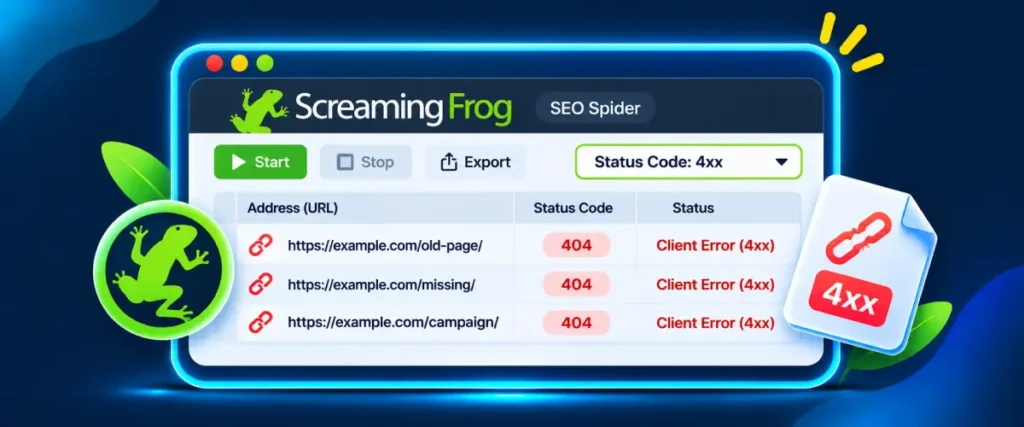
3. Crawl Your Website With Screaming Frog SEO Spider
Screaming Frog SEO Spider is a desktop crawler for Windows, macOS and Linux. The free version crawls up to 500 URLs per crawl, which is enough for most small business websites and blogs. A paid licence removes that limit and unlocks features like saving crawls and scheduling. For a website under that size, it works as a complete desktop dead link checker at no cost.
After installing it, enter your homepage URL and click Start. Once the crawl finishes, open the Response Codes tab and filter by Client Error (4xx). Select any broken URL and open the Inlinks tab at the bottom of the screen. It shows every page that links to that URL along with the anchor text, which tells you exactly where to make the edit.
When I need to find broken links across every page of a small website in one go, this is the tool I open first. For a full list, the Bulk Export menu can export all 4xx inlinks into one spreadsheet. I find this export the easiest way to hand a clean task list to a developer or content editor, since every row already names the source page and the broken target.
4. Run a Free Site Audit With Ahrefs
Ahrefs offers a free plan, previously known as Ahrefs Webmaster Tools and now called Ahrefs Free. It works for websites you own after you verify them, often through Google Search Console. The Site Audit tool gives each verified project 5,000 crawl credits per month.
Once the crawl finishes, the audit lists broken internal links, broken external links and broken images in separate issue groups. Each issue shows the affected pages, which makes it simple to sort the work. The free plan also shows backlinks pointing to your website, and that view is useful for spotting backlinks that land on 404 pages.
If you manage several websites, verifying each one in Ahrefs Free gives you a recurring crawl without paying for a full plan. It is a solid second opinion next to Search Console, and the monthly crawl lets you check broken links again without remembering to start a scan by hand.
5. Track 404 Visits in Google Analytics 4
Crawlers only follow links they can see on your pages. Visitors, on the other hand, also arrive from emails, social posts, old bookmarks and typos on other websites. Google Analytics 4 can help you find broken links that real people actually hit, as long as your 404 page has a clear page title such as “Page Not Found”.
In GA4, open Reports, then Engagement, then Pages and screens, and search for that page title. The page path column shows which missing URLs people tried to open and how often. For more detail, build a free Exploration with page title, page location and page referrer as dimensions. The referrer tells you which page sent the visitor to the dead URL.
This method is especially useful after a migration. If a few old URLs keep getting traffic, those deserve a 301 redirect first, since real people are still trying to reach them.
6. Read Your Server Error Logs
Every request to your website gets recorded in the server’s access logs, including requests that end in a 404. Most hosting panels let you view these logs. In cPanel, for example, the Errors section and the Raw Access logs are both available without any extra tools.
Search the log for lines with a 404 status to see which URLs were requested, which IP or bot made the request and which page referred it. Logs are the most complete record you can use to find broken links, and they catch problems that link checkers often miss, such as missing favicon files, old feed URLs, broken CSS or JavaScript paths, and image URLs requested by other websites.
Logs can be long and full of bot noise. I usually sort the 404 lines by URL and look at the ones that repeat the most. A missing file requested thousands of times is a far bigger issue than a random URL requested once by a scanner.
7. Spot Check Important Pages by Hand
Tools are great at scale, but a quick manual pass still catches things they miss. You do not need any software to check broken links on your five or six most important pages. I click through the main menu, the footer, the top call to action buttons, the contact form and the thank you page after any major update. These are the links that matter most for leads and sales, and a few minutes of clicking covers them.
Some broken pages fool basic tools. A page might show “nothing found” while the server still returns a 200 status, which is a soft 404. To confirm the real response for any URL, run it through an HTTP header checker and look at the status line at the top of the result.
Which Broken Links Should You Fix First?
A report with two hundred errors can feel heavy. I never fix them in the order the tool lists them. Instead, I sort the list by impact, because a broken link on the pricing page matters far more than one inside a five year old blog post.
Start with broken links on pages that bring leads or sales: the homepage, service pages, product pages, pricing, contact and checkout. Next, fix broken links in the main menu, footer and sidebar, since one error there repeats on every page of the website. After that, handle old URLs that still receive backlinks or visits. Search Console and Analytics are the best free tools to find broken links of this kind.
Broken external links in older blog posts come last. They still deserve a fix, but they rarely block a visitor from taking action. If you have limited time each week, set a small goal, like clearing twenty links per session, and run the tool again to check broken links that are still open.
A simple spreadsheet keeps this organised. Add columns for the broken URL, the source page, the status code, the planned fix and a done marker. The CSV exports from most tools drop straight into this format, and it turns a long report into a clear task list.
How to Fix Broken Links Once You Find Them
When you find broken links, spotting them is only half the job. The fix depends on why each link broke. I sort my report into four groups before touching anything: links with a typo, pages that moved, pages that are gone for good, and external pages that disappeared.
Update the link. If the target page still exists at a new address, or the link has a typo, edit the link itself. A direct link is always better than a redirect because visitors and crawlers reach the page in one step.
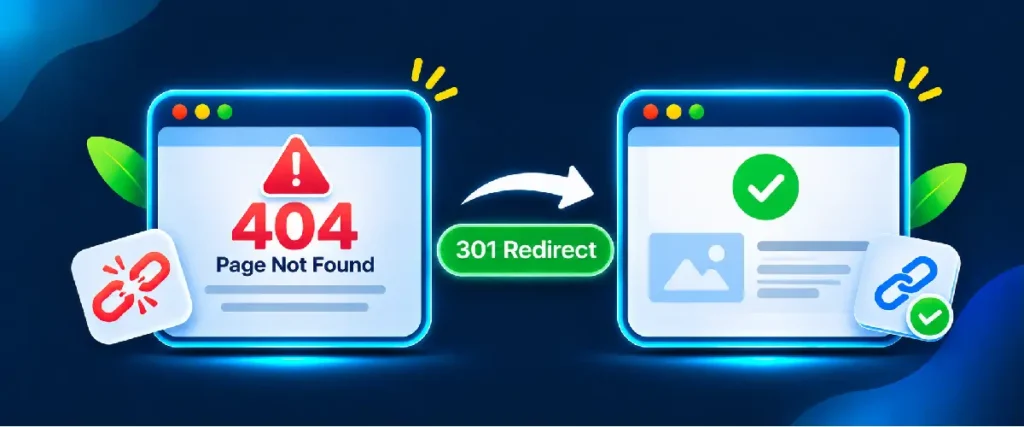
Add a 301 redirect. When a page has moved, or when many other websites link to an old URL, redirect the old URL to the closest matching page. A 301 tells search engines the move is permanent and passes the old page’s link value to the new one. On WordPress, plugins like Rank Math and Redirection let you add these without touching server files.
Restore the page. Sometimes a deleted page still gets steady traffic or backlinks. Bringing it back, or publishing an updated version at the same URL, can be the best fix.
Remove or replace the link. If the content is gone for good and no close replacement exists, remove the link or point it to a different, reliable source. For external links, a newer article on the same topic or the official source of a statistic usually works well.
One warning: do not redirect every broken URL to your homepage. Google may treat these mass redirects as soft 404s, and visitors who wanted a specific article end up confused. Pick the most relevant page for each redirect, and leave a true 404 in place when nothing fits.
Broken External Links Need Extra Care
Outbound links break more often than internal ones because you have no control over other websites. Companies rebrand, blogs shut down, and research pages move to new URLs. A guide you published two years ago may now point to several pages that no longer exist. A quick scan with a free broken link checker usually shows a few of these on any older post.
There is also a security side to this. When a linked domain expires, someone else can buy it and put spam, scam pages or malware on it. Your old link still points there, and your readers now land on a harmful website that appears to carry your recommendation. Before you replace an outbound link, or when an old link suddenly redirects somewhere unexpected, check the domain with Google Safe Browsing site status.
I run a dead link checker on outbound links every few months for this reason. For citations, prefer the original source, like a government page, an official study or the company’s own documentation. These URLs tend to stay live longer than blog posts that summarize the same information.
Broken Images, Scripts and Files
Missing images do not always show up when you find broken links with a basic text link report, but they are easy to notice on the page. You will see an empty box, a small broken icon or alt text where the picture should be. PDF downloads, videos and font files can break in the same way when files get moved.
Your browser can help here. Open the page, press F12 to open developer tools, and go to the Network tab. Reload the page and sort by status. Any resource with a 404 status in red is a broken file, and the list shows its exact path. This takes less than a minute per page and works on any website.
When fixing broken images, upload the file again at the same path if possible. If the path must change, update the image block in the page editor rather than relying on a redirect, since many themes cache image URLs.
How Often Should You Check Broken Links?
The right schedule depends on how often your website changes. A small business website with a few pages that rarely change can check broken links once a month. A blog that publishes several posts a week, or a website with hundreds of product pages, needs a weekly check.
Some moments call for an immediate check no matter the schedule:
- Right after a website migration, redesign or domain change
- After changing permalink settings or bulk editing URL slugs
- After deleting a batch of old posts, products or landing pages
- After installing or switching a theme or a major plugin
I also run a broader full site audit every quarter. Broken links often show up next to other issues like missing meta tags, slow pages or crawl blocks, and fixing them together saves time.

Simple Habits That Prevent Broken Links
Prevention takes less effort than repair. Most of these habits take a few seconds when you are already editing a page.
Set a redirect every time you change a slug. If you use Rank Math on WordPress, its Redirections module and 404 Monitor make this easy. The 404 Monitor logs missing URLs that visitors and bots request, which gives you one more free way to find broken links without leaving your dashboard.
Plan URLs before you publish. Short, descriptive slugs without dates or years rarely need to change later. A slug that names only the topic ages far better than one with a year or the word “update” added to it.
Keep your XML sitemap clean. Sitemaps should only list live pages that return a 200 status. Remove deleted URLs, and regenerate the file after big changes with a sitemap generator if your CMS does not handle it for you.
Before you delete a page, search your own website for links to it. A quick site search or a crawler report shows where the page is linked, and you can update those links in the same session.
Mistakes to Avoid While Fixing Broken Links
The first mistake I see is trusting a single tool. A broken link checker might flag a 403 that works fine in a browser, while Search Console might list a 404 for a page that was deleted on purpose. Always open the URL yourself before you change anything.
Redirect chains are the second problem. When you redirect page A to page B and later redirect page B to page C, update the first redirect to point straight at C. Chains slow down loading and waste crawl requests.
The third mistake is fixing the report but not the source. If a broken link lives inside a reusable block, a menu or a template, editing one page will not fix the other fifty. Find the source and fix it once.
Finally, check the page after the fix. Run it through an SEO analyzer or reload it with developer tools open, and make sure the new link or redirect lands on the right page with a 200 status.
Final Thoughts
Broken links are a normal part of running a website. Pages change, files move and other websites disappear. The goal is not to reach zero forever, but to catch errors early and fix them before they cost you visitors or rankings.
Start with one free method to find broken links today. Run a quick scan of your homepage and main sections, open the Search Console report, and fix the links that matter most first. A short monthly routine is enough to find broken links on most websites and keep them clean.
FAQs
What is the easiest way to find broken links for free?
The easiest way is to paste your URL into a free online broken link checker. It scans your homepage and linked pages in seconds and lists every 404 error, server error and timeout with the page where it was found. No installation or signup is needed.
Can Google Search Console find broken links on my website?
Yes. The Page indexing report in Search Console lists URLs that returned a “Not found (404)” error when Googlebot tried to crawl them. It shows missing pages Google found through links or your sitemap, but it does not scan every link on every page. Pair it with a crawler or a broken link checker for full coverage.
Do broken links affect SEO?
A missing page that returns a 404 does not directly lower your rankings. The harm comes from your own pages linking to it, which wastes crawl requests and link value, and from backlinks pointing to a dead URL. Broken links also hurt user experience, which affects how long people stay on your website.
Is a dead link checker different from a broken link checker?
No. Both names describe the same kind of tool. A dead link checker and a broken link checker both request each URL on your pages and report the ones that return errors like 404, 410 or 500, or that do not respond at all.
How do I find broken links on a WordPress website?
Start with a free online broken link checker or a crawler like Screaming Frog, since both work on any CMS. If you use Rank Math, turn on its 404 Monitor module to log missing URLs that visitors request, and use the Redirections module to send old URLs to the right pages.
How often should I check broken links?
Check once a month for small websites and once a week for large or fast changing websites. Always run a check right after a migration, redesign, URL change or bulk deletion of pages.
What is the difference between a 404 and a soft 404?
A 404 means the server clearly says the page does not exist. A soft 404 means the page loads with a normal 200 status, but the content says the page was not found or is nearly empty. Search engines treat soft 404s as errors. Either return a real 404 or add useful content to the page.
Should I redirect all broken links to my homepage?
No. Redirect each broken URL to the most relevant live page. Sending everything to the homepage confuses visitors and can be treated as a soft 404 by Google. If no relevant page exists, a proper 404 page is the better choice.